Getting Started
EasyTidy Pro is a file organization and automation tool for Windows. Start with “Quick Organize” for common move or copy tasks, then explore advanced rules, auto-run, and multi-step workflows as needed.
Core file organization runs locally by default. AI services, MinerU OCR, WebDAV, S3, and cloud drive integrations are optional capabilities that only access the network when enabled and configured.
Five Minutes to Your First Organization
Section titled “Five Minutes to Your First Organization”On first use, we recommend following these steps:
- Install and launch EasyTidy Pro.
- From the home page, select “Create Your First Task”.
- Choose a source folder and an organization template.
- Review matching rules, operation type, and target folder.
- Create the task and preview.
- Confirm the preview results, then execute.
Each step is explained in detail below.
Installation & System Requirements
Section titled “Installation & System Requirements”EasyTidy Pro supports:
- Windows 11 (64-bit)
- Windows 10 v2004 or later (64-bit)
Download the installer from official channels:
The installer checks for the required .NET runtime and guides you through installation if dependencies are missing. For standard installation, portable mode, upgrades, and uninstallation, see the Installation Guide.
Getting to Know the Interface
Section titled “Getting to Know the Interface”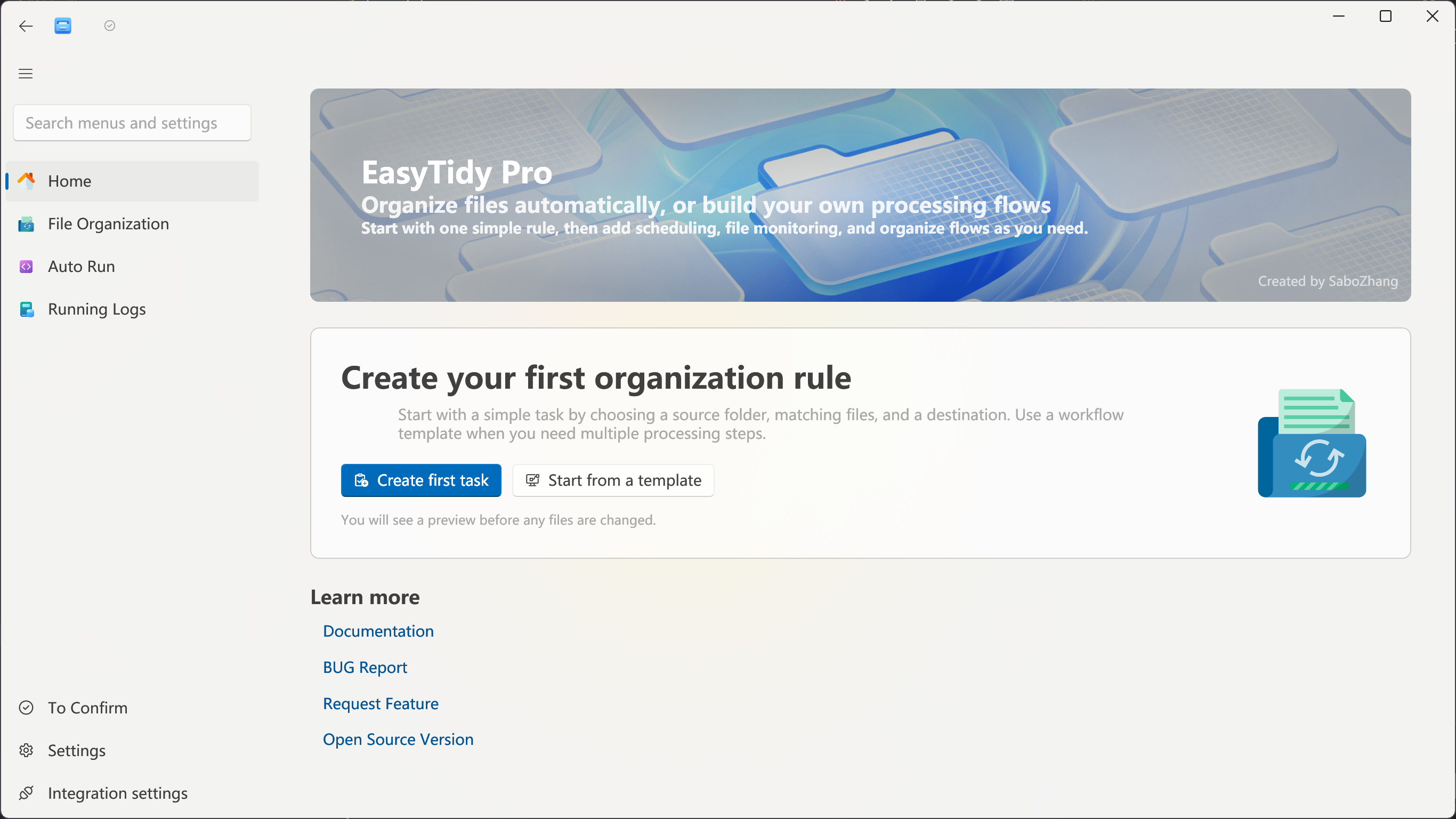
The main navigation includes the following sections:
- Home: Create your first task, or quickly access file organization, advanced flows, auto-run, integrations, and tag features.
- File Organization: Switch between the “Organize Tasks” and “Advanced Flows” tabs.
- Auto-Run: Configure file change, startup, periodic, or scheduled triggers for existing tasks.
- Run Logs: View task execution records, processing results, and error details.
At the bottom of the window you’ll also find:
- Pending Review: View files that require manual confirmation (e.g., from visual classification).
- Settings: Manage general options, themes, keyboard shortcuts, components, updates, and license info.
- Integrations: Configure AI, OCR, WebDAV, S3, cloud drives, and file transfer services.
Create Your First Quick Organize Task
Section titled “Create Your First Quick Organize Task”“Quick Organize” is ideal for common scenarios like images, PDFs, screenshots, and archives — all essential settings in a single window.
1. Open Quick Organize
Section titled “1. Open Quick Organize”Open from any of these entry points:
- On first use, click Create Your First Task on the home page.
- Go to File Organization → Organize Tasks, click the dropdown next to Add Task, then select Quick Create.
If you need regular expressions, AI operations, path aliases, or other advanced parameters, choose “Direct Add” instead.
2. Select a Source Folder
Section titled “2. Select a Source Folder”The source folder is where EasyTidy Pro looks for files to organize. You can:
- Choose the “Downloads”, “Desktop”, or “Pictures” shortcuts.
- Click the folder button to browse directories.
- Drag and drop a folder directly onto the source folder input.
For your first run, create a test folder with a few sample files rather than selecting system directories or important data folders.
3. Choose an Organization Template
Section titled “3. Choose an Organization Template”Quick Organize provides these templates:
- Images: Match common image formats and organize into a picture directory.
- PDFs: Match PDF documents and organize into a documents directory.
- Screenshots: Match files by common screenshot naming patterns.
- Archives: Match ZIP, 7Z, RAR, TAR, GZ, and other archive formats.
- Custom: Define your own file matching rules and target folder.
After selecting a template, the task name, matching rules, and suggested target location are filled in automatically — you can still modify them before saving.
4. Review Task Parameters
Section titled “4. Review Task Parameters”Before creating, verify at least the following:
- Task Name: Used to identify the task in the task list, auto-run, and logs.
- File Matching: e.g.,
*.pdfor*.zip;*.7z;*.rar. Separate multiple rules with semicolons. - Operation: Quick Organize supports Move or Copy. For first-time use, we recommend Copy so you can verify results before committing to Move.
- Target Folder: Where processed files will go. You can browse or drag a folder to set this.
5. Create & Preview
Section titled “5. Create & Preview”Clicking Create & Preview saves the task and shows you which files would be processed.
No files are modified during preview. Carefully check:
- Whether the match count looks reasonable.
- Whether source and target paths are correct.
- Whether unintended files were matched.
- Whether operations (move, delete, rename, etc.) work as expected.
Execute only after confirming; canceling the preview leaves files untouched.
View Results & Undo
Section titled “View Results & Undo”After a task completes, the application displays the number of items processed. When undo records are available, you can immediately undo the last organization operation, or use the in-app undo button or the keyboard shortcut Ctrl+Z to revert the most recent supported action.
Undo capability depends on operation type, backup state, and retention period. Permanent deletions, external program actions, and cloud uploads may not be undoable — do not treat undo as a substitute for backups.
If you prefer not to see the completion window every time, select “Don’t show again” in the prompt, or go to Settings → General to disable completion notifications. When turned off, the app uses lightweight toast notifications for success or failure.
Manage & Re-run Tasks
Section titled “Manage & Re-run Tasks”From File Organization → Organize Tasks, you can:
- Manually execute individual tasks.
- Enable or disable tasks.
- Edit, duplicate, or delete tasks.
- Use group filters and batch task execution.
- Import, export, or share rules.
- Create desktop shortcuts for frequently used tasks.
For more precise file rules, see Organize Tasks and File Rules.
When to Use Advanced Flows
Section titled “When to Use Advanced Flows”Ordinary tasks are great for “match files, then apply one main operation”. When you need multiple steps, conditional branches, or post-processing actions, switch to File Organization → Advanced Flows.
| Scenario | Recommended |
|---|---|
| Move files to different folders by extension | Organize Tasks |
| Periodically copy report files | Organize Tasks + Auto-Run |
| Move, then rename, compress, or upload | Advanced Flows |
| Apply different actions based on multiple conditions | Advanced Flows |
| Multiple steps with ordering, parallelism, or failure strategies | Advanced Flows |
Advanced Flows is a Pro feature. The UI will display a Pro badge when the corresponding license is not active.
Setting Up Auto-Run
Section titled “Setting Up Auto-Run”After manually previewing and validating a task, configure auto-run for it:
- Open Auto-Run.
- Select the task(s) you want to automate.
- Choose a trigger method and set parameters.
- Save the configuration.
Common trigger methods:
- File Change: Monitors the source folder and triggers when files change.
- On Startup: Runs when EasyTidy Pro starts.
- Periodic: Runs at a fixed time interval.
- Scheduled: Runs according to a timetable or CRON expression.
- On Exit / Shutdown: Attempts to run when the app exits or the system ends the session.
For detailed configuration and CRON examples, see Auto-Run.
AI, OCR & Online Integrations
Section titled “AI, OCR & Online Integrations”EasyTidy Pro’s basic rule matching, move, copy, rename, and local file processing do not require internet access. The following features may access local models or third-party online services:
- AI Classification, AI Summary, and structured data extraction.
- MinerU OCR.
- WebDAV, S3, cloud drives, and file transfer integrations.
- Update checks and license verification.
When enabling MinerU, the app displays an upload and privacy confirmation. Full documents requiring OCR may be sent to the MinerU cloud; if not confirmed, remote OCR is not enabled, and available local OCR paths are used instead.
Before configuring online AI or cloud storage, review the service provider’s data handling terms. Do not upload confidential, sensitive, or files that should not leave your machine. See AI Settings for AI feature details.
Recommended Settings to Review
Section titled “Recommended Settings to Review”After completing your first task, consider checking:
- General Settings: Subfolder processing, dangerous operation previews, completion notifications, and other file handling behaviors.
- Shortcuts: Configure global shortcut actions and set disable rules for full-screen or specific applications.
- Components: Install optional components for format conversion, OCR, and other features.
- Integrations: Enable only the AI, OCR, and cloud storage services you actually need.
- Run Logs: When task results don’t match UI behavior, check error details first.