Pending Review
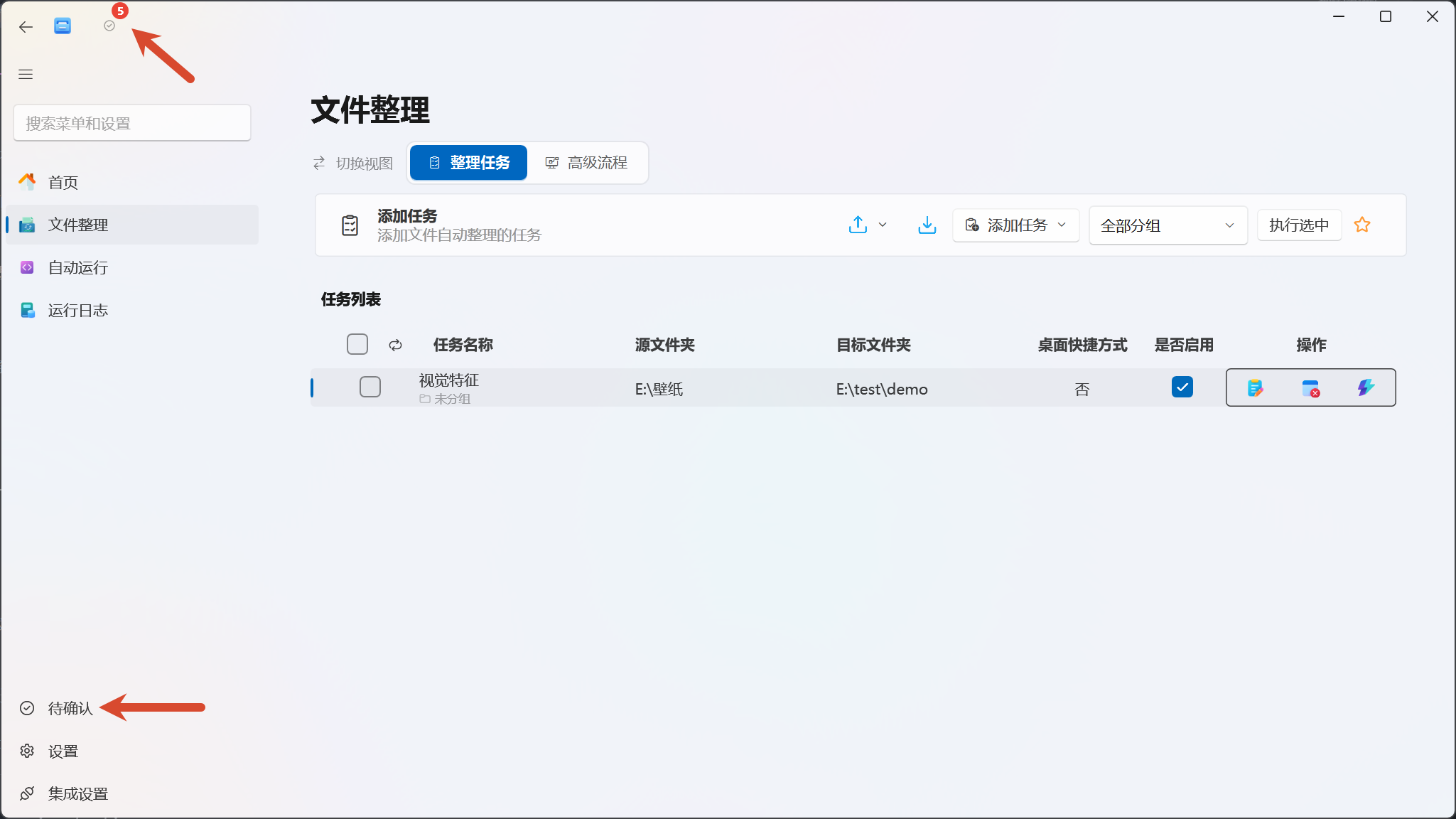
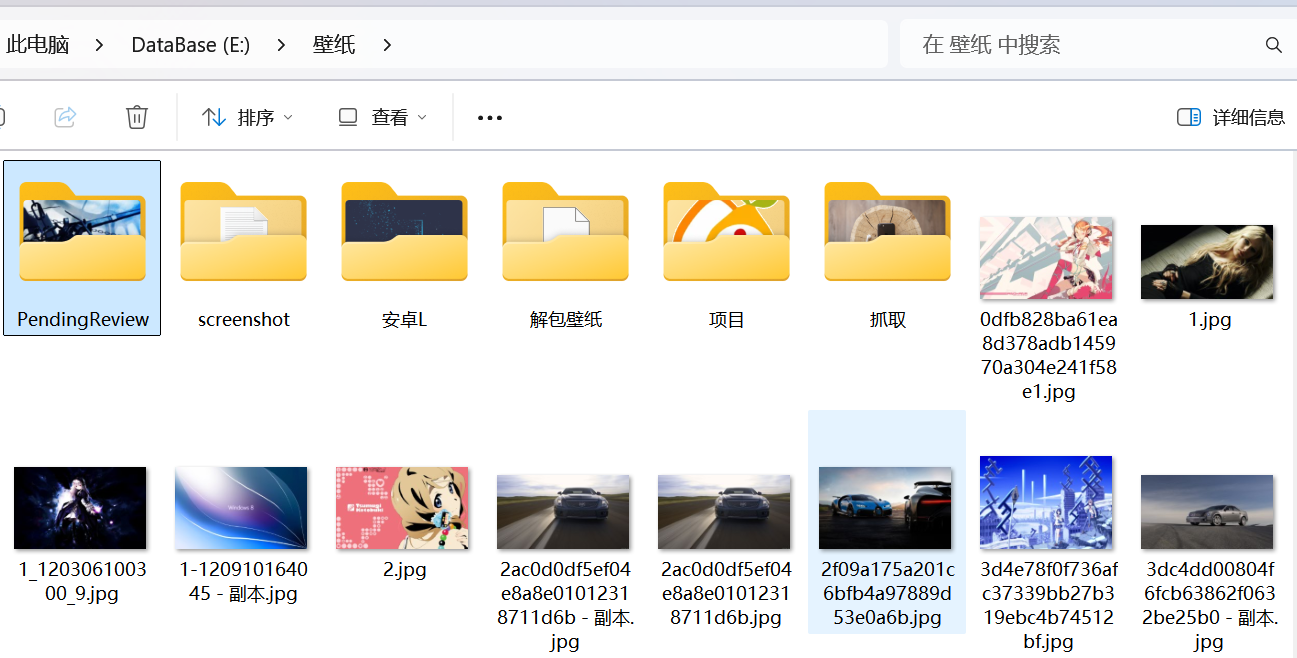
“Pending Review” is the persistent review list for visual classification. When running visual classification automatically, if the AI cannot reliably determine an image’s category, the application records the top prediction, alternative possibility, confidence, and reason, and attempts to move the image into a PendingReview staging directory under the current folder, awaiting manual handling.
After you confirm a category, EasyTidy Pro moves the image to the category directory; when the template classification information is still valid, your manual confirmation also updates the classification features, making subsequent similar images more likely to get correct results.
Which Files Land in Pending Review
Section titled “Which Files Land in Pending Review”Persistent pending review records primarily come from automatically executed visual template classification. Common causes:
- Low AI confidence: The best match falls below the current similarity threshold, and OCR text also cannot help determine the category.
- Two categories too close: The score gap between top and second predictions is too small, and OCR also cannot resolve the ambiguity.
When manual runs encounter classification ambiguity, the application typically shows an immediate confirmation dialog instead of writing to this page. Automatic clustering or text-label classification may also not produce persistent pending review records, so an empty Pending Review page does not mean visual classification never processed files.
File Staging Location
Section titled “File Staging Location”When creating a pending review record, the application attempts to move the image into a PendingReview subdirectory of its current folder:
D:\Test Images\invoice-01.jpg ↓D:\Test Images\PendingReview\invoice-01.jpgIf a file with the same name already exists in PendingReview, a UTC timestamp is appended to the file name to avoid overwriting. When the move fails, the record may still point to the original file location.
Opening the Pending Review Page
Section titled “Opening the Pending Review Page”You can enter through:
- Clicking the checkmark-circle icon in the main window title bar; a red numeric badge appears when there are unprocessed records.
- Clicking Pending Review in the bottom-left navigation.
- Using global search to find “Pending Review.”
The badge refreshes in the background approximately every 20 seconds. Simply opening the page does not mark records as read — only confirming a category or ignoring a record reduces the badge count on the next refresh.
Page Layout
Section titled “Page Layout”The page uses a master-detail layout:
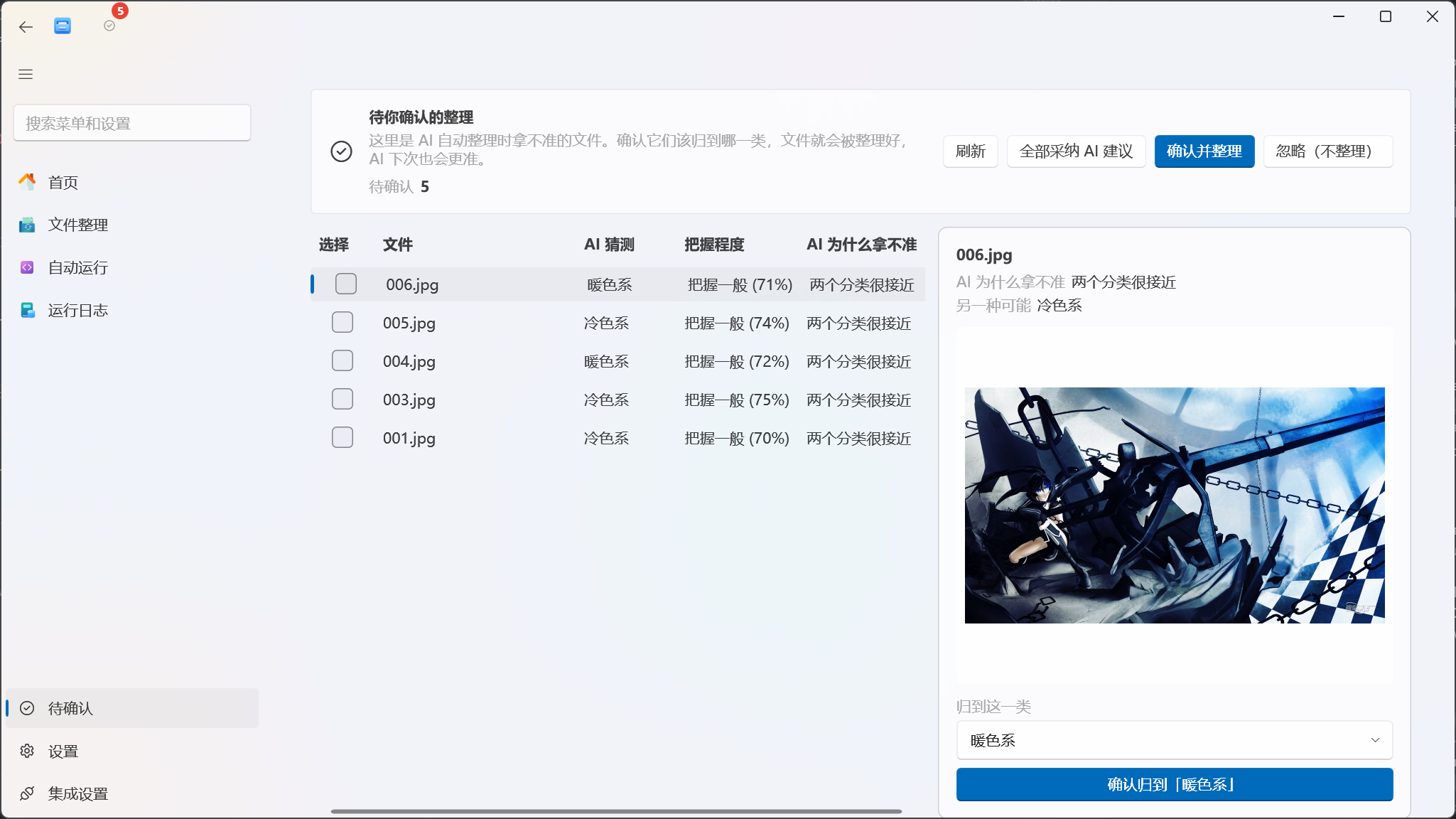
- Top action bar: Shows the total pending count and provides Refresh, Adopt All AI Suggestions, Confirm & Organize, and Ignore actions.
- Left list: Displays batch checkboxes, file name, AI guess, confidence, and reason for uncertainty.
- Right detail panel: Shows the current row’s image preview, reason, alternative possibility, category input, single confirm button, and OCR text.
The list is sorted from newest to oldest by record creation time; the first item is selected by default when entering the page.
Understanding AI Hints
Section titled “Understanding AI Hints”AI Guess
Section titled “AI Guess”“AI Guess” is the top prediction — the template category closest to the image during visual classification. The right-side “Alternative” shows the second candidate; the line is hidden when no second candidate exists.
Confidence
Section titled “Confidence”The page maps the top score to fixed intervals:
| Display | Score |
|---|---|
| High | ≥ 85% |
| Medium | ≥ 68%, < 85% |
| Low | < 68% |
“High, Medium, Low” here are page display intervals, not exactly equivalent to the similarity threshold in AI settings. Whether an item enters pending review also considers the current threshold, the gap between top and second predictions, and OCR judgment.
Why the AI Is Unsure
Section titled “Why the AI Is Unsure”- AI Uncertain: The best match did not meet requirements.
- Two Categories Are Close: The gap between top and second predictions is too small.
If a record has saved OCR results, the right side shows a collapsible Recognized Text section. This stores a summary of at most approximately 300 characters to assist judgment — it is not the full OCR document.
Confirming a Single File
Section titled “Confirming a Single File”- Click a file row on the left to view the large image, AI guess, alternative, and OCR text on the right.
- Check Classify as. The AI top prediction is pre-filled; you can select another candidate from the dropdown or type a new category directly.
- Click Confirm as “[Category Name]” on the right.
- After the page refreshes, that record is removed from the pending list.
Upon confirmation, the application preferentially uses the current file in PendingReview and moves it into a category subdirectory one level above PendingReview:
D:\Test Images\PendingReview\invoice-01.jpg ↓ Confirmed as "Invoices"D:\Test Images\Invoices\invoice-01.jpgThe confirmation destination is inferred from the pending file’s current directory — it does not re-read the original organization task’s destination path. If the record has no valid PendingReview path, the file’s current directory is used as the parent of the category directory.
Invalid Windows file-name characters in the category name are replaced with underscores, and trailing dots and spaces are removed. If a file with the same name already exists in the target category directory, a UTC timestamp is appended — no direct overwrite.

Batch Operations
Section titled “Batch Operations”Confirm & Organize
Section titled “Confirm & Organize”First check one or more files in the left column, then click Confirm & Organize at the top. Each file uses its own “Classify as” value; if that value is empty, it falls back to the AI top prediction, then to the second candidate.
When different files need different categories, open each row in the right detail panel and fill in the category one by one, then check them all and execute together. If no files are checked, the application only shows a “Please select first” notification.
Adopt All AI Suggestions
Section titled “Adopt All AI Suggestions”Adopt All AI Suggestions processes all pending review records with a top prediction on the current page:
- Does not respect the left column checkboxes;
- Always uses each item’s AI top prediction;
- Does not use any temporary category text you entered on the right;
- Starts processing items one by one immediately after clicking — no second confirmation.
Ignore (Don’t Organize)
Section titled “Ignore (Don’t Organize)”After checking files and clicking Ignore (Don’t Organize), the application only marks those records as processed:
- Does not learn the selected category;
- Does not create a category directory;
- Does not move files back to their original location;
- Files stay at their current path, which is typically the
PendingReviewdirectory.
If you don’t want files to remain in PendingReview, manually move them later or run a suitable organization task again.

How Manual Confirmation Affects Future Classification
Section titled “How Manual Confirmation Affects Future Classification”When confirming a category, if the record still contains a valid visual model type and template root directory, EasyTidy Pro reads the current image vector and updates the corresponding category’s template centroid.
This means:
- Confirming the AI top prediction reinforces the current classification;
- Changing to the second candidate or a new category corrects the model;
- Repeatedly confirming similar images gradually influences subsequent template matching;
- “Ignore (Don’t Organize)” does not participate in learning.
If the template directory has been deleted, the model has been changed, or the file no longer exists, the category directory move and model learning may each complete only partially. Check the actual file location and Running Logs.
Image Preview Support
Section titled “Image Preview Support”The right-side large preview supports:
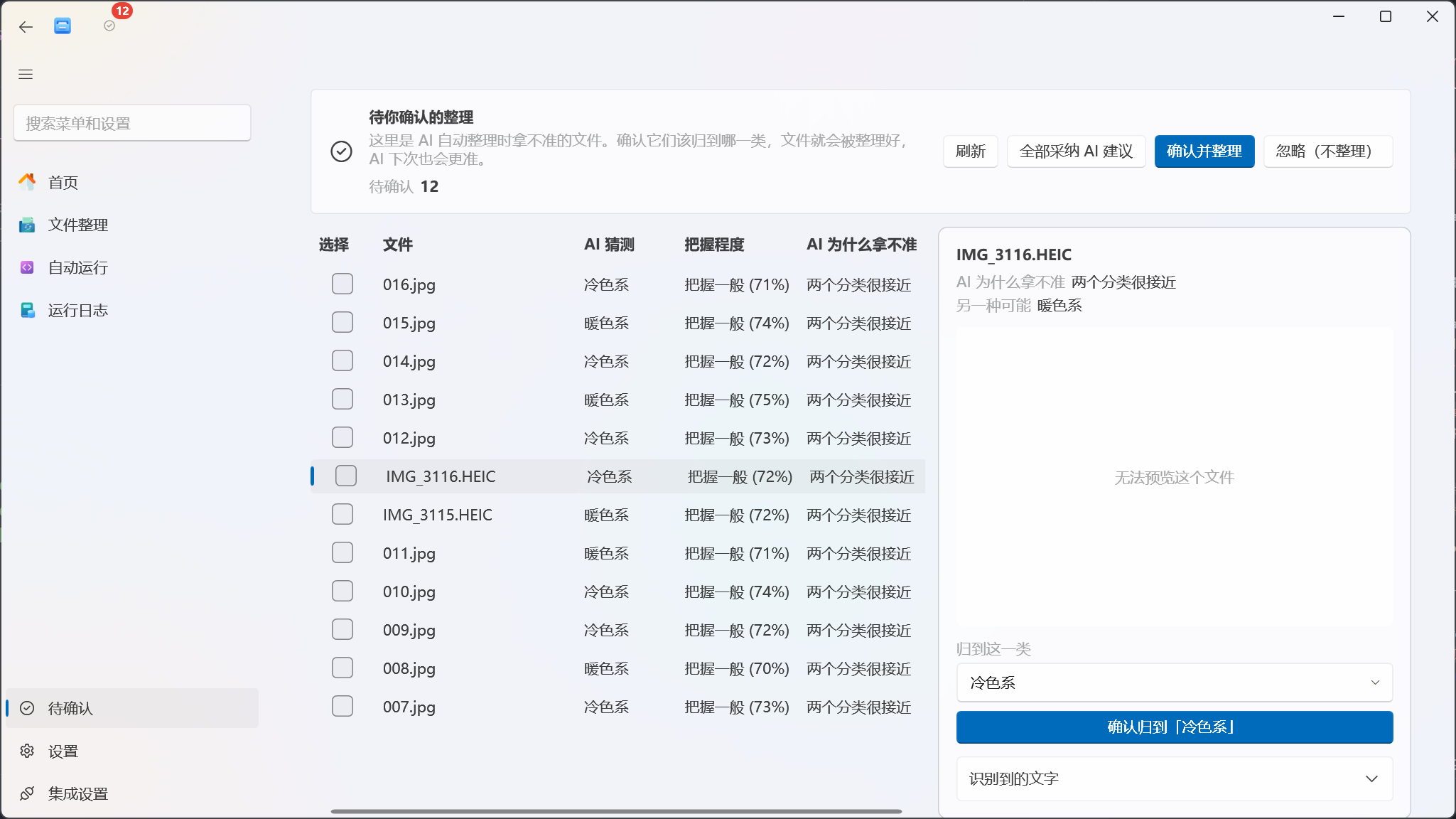
.jpg .jpeg .png .bmp .webp .gif .tif .tiffVisual filtering itself may also accept HEIC, HEIF, and other image formats, but the current Pending Review page does not generate large previews for .heic or .heif files. When a file does not exist, its extension is unsupported, or it cannot be decoded, “Unable to preview” is shown; you can still decide whether to process it based on the file name, candidate categories, and OCR text.
The page preferentially previews the staged file in PendingReview; when the staged file is unavailable, it falls back to the file path in the record.
Refresh & Empty State
Section titled “Refresh & Empty State”Clicking Refresh re-reads all records still in PendingReview status and rebuilds the candidate category dropdown list. The candidate list is derived from the top and second predictions of the current pending review records — not the complete inventory of all template directories.
Refreshing clears unsubmitted checkbox selections and temporary category edits, and re-selects the newest record. Do not click Refresh if you’ve edited multiple categories but haven’t confirmed them yet.
When all records are processed, the page shows “Great — no files need confirmation.” Processed records are not shown on this page but remain stored in the application database.
Difference from Immediate Confirmation Dialogs
Section titled “Difference from Immediate Confirmation Dialogs”Visual classification may also show a system notification “Task has files awaiting confirmation” — clicking View & Confirm opens an immediate confirmation dialog. It differs from this page:
| Persistent Pending Review Page | Immediate Confirmation Dialog |
|---|---|
Reads PendingReview status records from the database |
Uses the pending confirmation plan from the current task run |
| Focused on viewing images, candidate categories, and OCR | Focused on adjusting operation type and destination path |
| Moves to category directory after confirmation, may learn templates | Re-executes the selected file operation after confirmation |
| Record disappears after ignore; file stays at current path | Can ignore this batch or remind later; state mainly persists during the current application session |
The “Remind Later” option in automatic task notifications is set to a temporary delay; after fully exiting the application, do not rely on that reminder state to persist.

Safety Notes
Section titled “Safety Notes”- There is no undo button on the Pending Review page; confirmation actions use direct file moves — do not rely on task list undo for recovery.
- Back up important images and the
PendingReviewdirectory before confirming or batch processing. - Do not directly delete staged files that are still in the list; the record remains, but subsequent confirmation may fail to move or learn.
- Do not rename or move the same file from another program while the application is processing pending review records.
- Custom category names become folder names — avoid using personal privacy data, keys, or long text unsuitable as directory names.
The title bar badge won’t go away
Section titled “The title bar badge won’t go away”Opening the page does not mark items as read. You need to confirm or ignore records; the badge then decreases after a background refresh — typically up to about 20 seconds. You can also switch pages and check again.
After clicking a row, “Confirm & Organize” says nothing is selected
Section titled “After clicking a row, “Confirm & Organize” says nothing is selected”Row highlighting only controls the right-side preview. Check the first-column checkbox for the files you want; or use the individual “Confirm as” button on the right.
After clicking Adopt All, unchecked files were also processed
Section titled “After clicking Adopt All, unchecked files were also processed”This is the button’s current design: it processes all records in the pending list that have an AI top prediction. To process only specific files, use checkboxes and “Confirm & Organize.”
Ignored files didn’t move back to the original folder
Section titled “Ignored files didn’t move back to the original folder”“Ignore (Don’t Organize)” only closes the pending review record — it does not move files. Files typically remain in PendingReview; move them manually or process through an organization task.
Record disappeared after confirming, but files are still in the original place
Section titled “Record disappeared after confirming, but files are still in the original place”The database record is marked as processed once the confirmation call completes; if the directory lacks write permission, the file is locked, or the move fails, the file may not have reached the category directory. Check the original location, the category directory, and the Running Logs. When a file with the same name exists in the destination, the application appends a timestamp — also look for timestamped files.
Why did only some visual classification results enter Pending Review?
Section titled “Why did only some visual classification results enter Pending Review?”High-confidence results are classified directly; when OCR can resolve ambiguity, the OCR result is also adopted directly. Manual runs may use the immediate confirmation dialog, and automatic clustering and text-label modes follow different processing paths — so not all visual results are written to this page.
The category I need isn’t in the candidate dropdown
Section titled “The category I need isn’t in the candidate dropdown”The dropdown only aggregates the top and second predictions from the current pending review records. It is editable — you can type a new category name directly and confirm; when template information is valid, that confirmation participates in subsequent learning.
For visual model, template directory, and similarity settings, see AI Settings; for visual condition configuration, see Filter Conditions.