Rules Reference
Rules tell EasyTidy Pro: where to find files, which files to process, and what to do after matching. An organize task typically consists of a source directory, file matching rules, an operation type, and a target location. When more precise judgment is needed, you can add advanced filter conditions such as size, time, attributes, or content.
When creating rules for the first time, we recommend using a small set of test files and checking the preview results first. Once you’ve confirmed the source files, target location, and operation are correct, you can then apply them to real directories or automation.
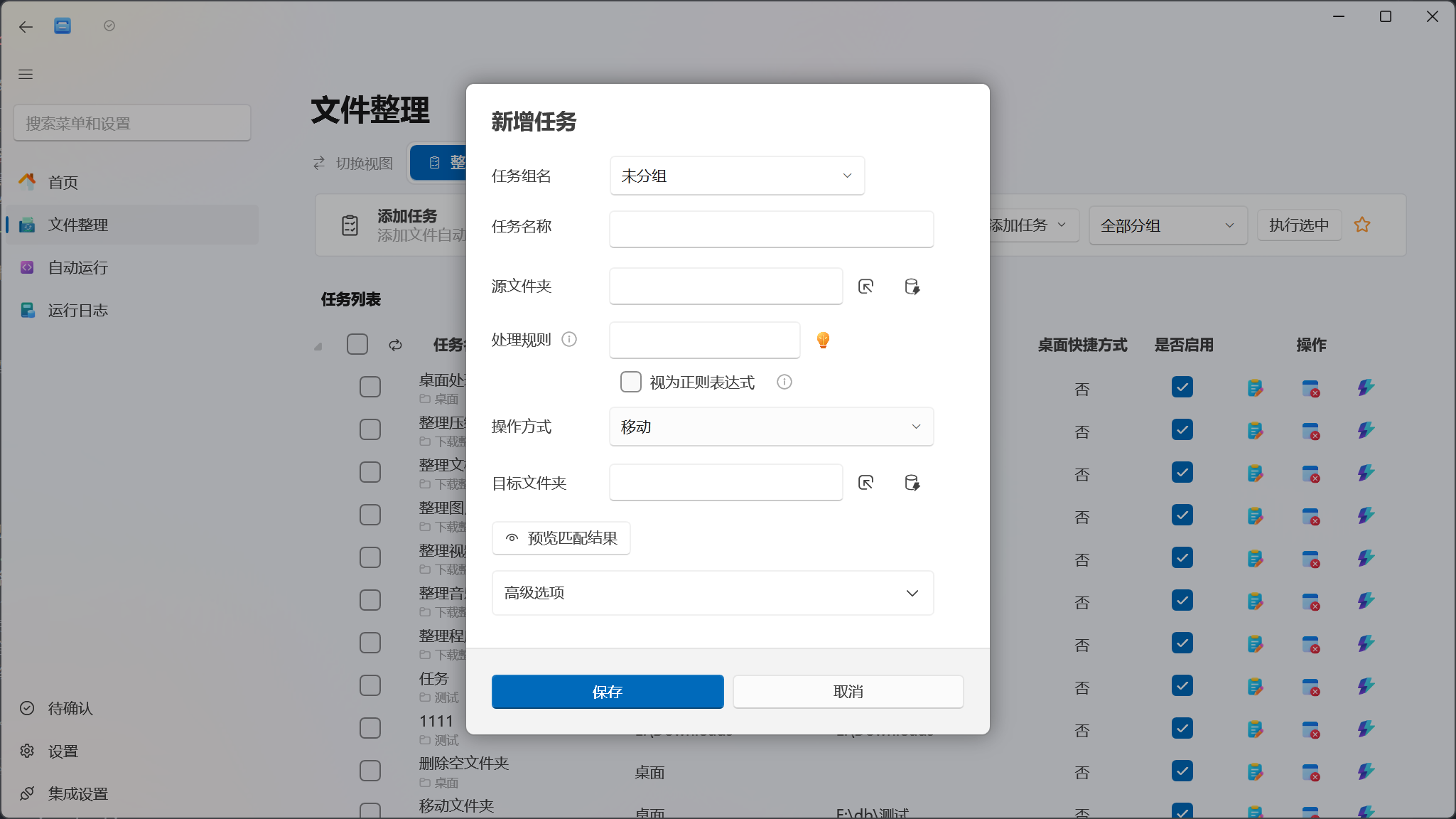
Creating an Organize Rule
Section titled “Creating an Organize Rule”Go to File Organization → Organize Tasks, click New Task, and configure the following in order:
- Task Name: Use a descriptive name, e.g., “Archive PDFs from the Downloads folder”.
- Source Directory: Select the folder to scan. A task can have multiple sources; whether subfolders are scanned is determined by both general settings and task configuration.
- File Matching Rules: Enter rules like
*.pdfor*invoice*, or choose from the preset list. - Operation: Select Move, Copy, Rename, Compress, Tag, Deduplicate, or other operations.
- Target Location or Operation Parameters: Move and Copy operations need a target directory; Rename, Compress, AI, and other operations display their own parameters.
- Advanced Filters (optional): Further restrict by file size, time, attributes, or content.
- After saving, use Execute Once to check the preview, then confirm execution.
Rules only determine how tasks process files. If you want tasks to run automatically on a schedule, file change, or app startup, you also need to add triggers in Automation.
File Matching Rules
Section titled “File Matching Rules”File matching rules primarily target file names. English letter matching is case-insensitive.
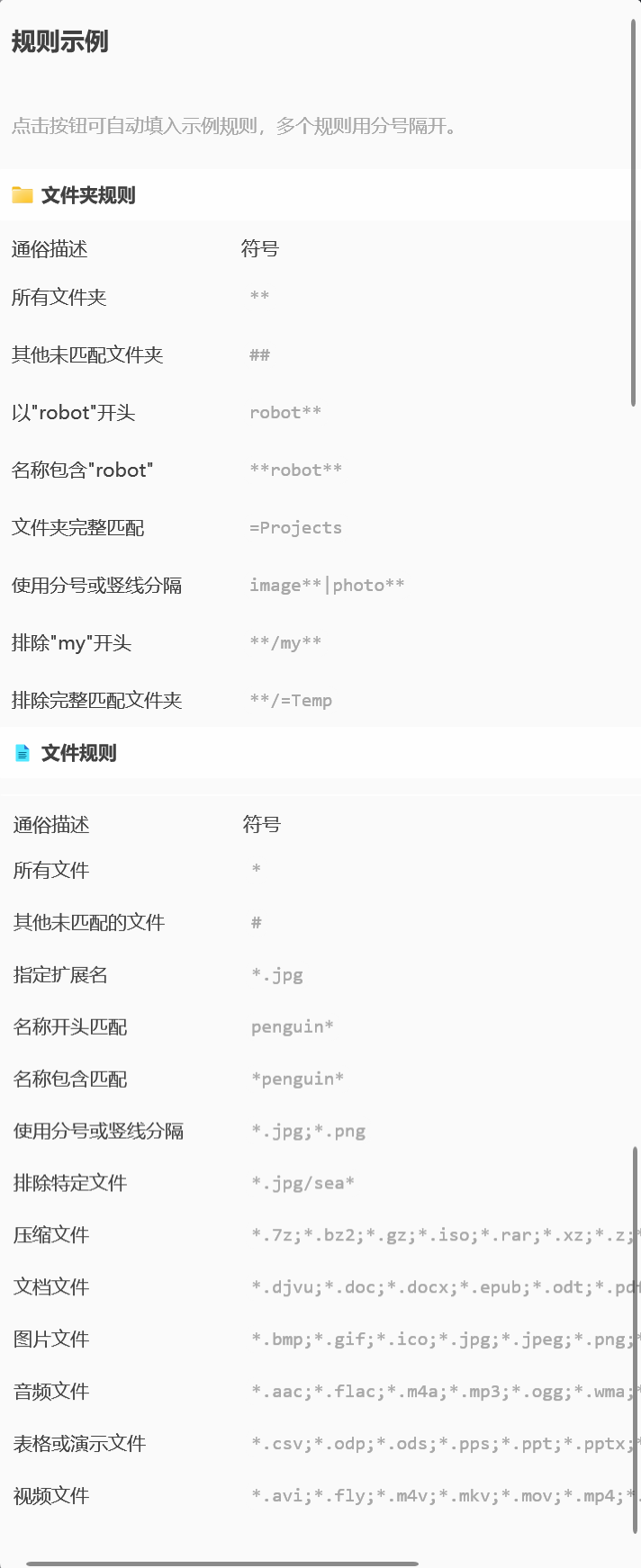
Common Patterns
Section titled “Common Patterns”| Rule | Purpose | Example |
|---|---|---|
* |
Match all files | Any file |
# |
Catch-all rule — matches files not handled by higher-priority rules | Route remaining files to “Other” |
*.pdf |
Match a specific extension | report.pdf |
report*.pdf |
Match a specific prefix and extension | report-2026.pdf |
invoice* |
Match files starting with specific text | invoice-001.xlsx |
*reviewed* |
Match files containing specific text in the name | Contract-reviewed-v2.docx |
*.jpg;*.png;*.webp |
Combine multiple conditions with semicolons | Common image files |
*.docx|*.xlsx|*.pptx |
Combine multiple conditions with pipes | Office documents |
Multiple basic conditions mean “match any one of them”. After entering rules, you can use the preset button next to the rule input to quickly select common combinations for documents, images, archives, etc.
Regular Expressions
Section titled “Regular Expressions”When you need to match complex naming formats, enable regex mode in the rule editor. Regular expressions match the file name (including extension) and are case-insensitive for English letters by default.
^\d{4}-\d{2}-\d{2}.*\.pdf$The example above matches PDFs starting with YYYY-MM-DD, such as 2026-07-14-Meeting-Notes.pdf.
Incorrect regex prevents tasks from matching correctly. Test in a test directory first and do not mix wildcard patterns with regex syntax in the same field.
Folder Rules
Section titled “Folder Rules”Folder matching is handled separately from regular file matching:
=Projects: Match folders whose name is exactlyProjects.**: Folder wildcard rule.##: Folder catch-all rule.
If you only want to process files, do not include folder rules in your file matching rules. When processing entire folders, also confirm the target directory, conflict strategy, and “Preserve Structure” setting.
Advanced Filter Rules
Section titled “Advanced Filter Rules”Advanced filters add restrictions beyond file name matching. Currently combinable conditions include:
- Size: Filter by minimum, maximum, and unit.
- Creation Time, Modification Time, Access Time: Judge by time offset and unit.
- File Attributes: Archive, hidden, read-only, system, and temporary attributes.
- Content Match: Filter based on whether file content contains or matches specified text conditions.
- Other specialized conditions: As provided in the current advanced rule editor.
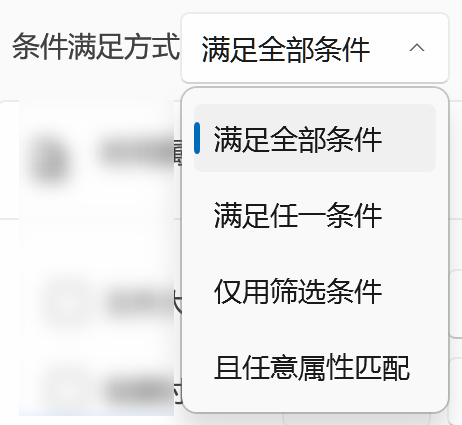
In the “Condition Satisfaction Mode” at the top of the rule editor, you can choose:
- Satisfy All Conditions: The file first matches basic file rules, and all enabled advanced filters are satisfied.
- Satisfy Any Condition: Either the basic file rule or any one advanced filter is satisfied.
- Use Filters Only: Do not use basic file rules; judge solely by advanced filters.
- Match Any Attribute: The file first matches basic file rules, then satisfies any one advanced filter.
The more conditions you add, the more important it is to verify actual matched files through the preview. For the full advanced filter interface and condition descriptions, see Filter Conditions.
Conditions in Advanced Workflows
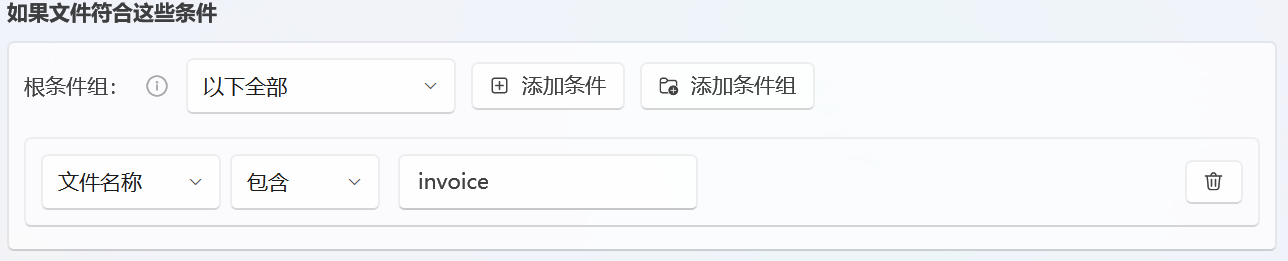
Section titled “Conditions in Advanced Workflows”When adding conditions in an advanced workflow, select the Judgment Field, Judgment Method, and fill in the comparison value in order.
The interface provides the following judgment methods:
| Interface Option | How to Fill In | Example |
|---|---|---|
| Is | Enter the exact value that must match | File name is annual-report.pdf |
| Is Not | Enter the value to exclude | File name is not desktop.ini |
| Contains | Enter text that should appear | File name contains invoice |
| Does Not Contain | Enter text that should not appear | File name does not contain draft |
| Regex Match | Enter a regular expression | File name matches ^IMG_\d+\.jpg$ |
| Empty Name | No comparison text needed | Determine if the corresponding field is empty |
The judgment methods available may differ by field; refer to the current dropdown list. Relationships between multiple conditions are configured through the condition group interface — do not manually concatenate internal program names in the input value.
Rename Templates
Section titled “Rename Templates”When the “Rename” operation is selected, you can compose templates combining the original file name, parent folder, counter, date/time, random strings, and photo metadata.
Common Placeholders
Section titled “Common Placeholders”| Template | Purpose |
|---|---|
${source} |
Original file name |
${parent} |
Parent folder name |
${} |
Counter incrementing from default value |
${start=10} |
Start counting from 10 |
${increment=5} |
Increment by 5 each time |
${padding=4} |
Pad counter to 4 digits, e.g., 0001 |
${rstringalnum=9} |
Generate a 9-character alphanumeric random string |
${ruuidv4} |
Generate a UUID |
${replace=old,new,false} |
Case-sensitive text replacement |
${replace=old,new,true} |
Case-insensitive text replacement |
${regex=^foo,new} |
Replace text using regular expression |
Counter parameters can be combined. For example:
${parent}-${increment=1,padding=4,start=1}If the parent folder is named Travel Photos, results will be similar to Travel Photos-0001.jpg, Travel Photos-0002.jpg.
Date templates support current time, creation time, modification time, and capture time, and can insert year, month, day, hour, minute, and second. Photo metadata templates can also use information such as camera, lens, ISO, dimensions, and capture date; results may be empty when the file lacks the corresponding metadata. Insert via the template list in the rename editor to avoid manual typing errors.
Downloadable Example: Archive PDFs from Downloads
Section titled “Downloadable Example: Archive PDFs from Downloads”The example below copies PDFs from the Windows Downloads directory to “Documents\EasyTidy Pro Examples\PDF Documents”. The copy operation preserves source files, making it ideal for testing rules for the first time.
Download PDF archive example rule (.etrule)
Example configuration:
| Item | Value |
|---|---|
| Name | PDF Archive Example (Copy) |
| Source Directory | %Downloads% |
| File Match | *.pdf |
| Operation | Copy |
| Target Directory | %Documents%\EasyTidy Pro Examples\PDF Documents |
| Advanced Filters | None |
%Downloads% and %Documents% are built-in path aliases that automatically resolve to the current Windows user’s Downloads and Documents directories on import, so there’s no need to modify drive letters or usernames.
Import and Test the Example
Section titled “Import and Test the Example”- Download the
.etrulefile. - Go to File Organization → Organize Tasks.
- Open the More menu at the top of the page, and select Import Rules (.etrule).
- Select the downloaded
pdf-downloads-to-documents.etrule. - After successful import, find “PDF Archive Example (Copy)” in the task list.
- Check the source and target directories; change them to a dedicated test folder if needed.
- Place a test PDF in the Downloads directory and click Execute Once.
- In the preview, confirm that only the test file is included, the operation is “Copy”, and the target path is correct. Then confirm execution.


Exporting and Sharing Your Own Rules
Section titled “Exporting and Sharing Your Own Rules”.etrule files can save organize tasks or advanced workflows. The shared file includes rule parameters but does not carry database IDs. Absolute paths are converted to path aliases like %Downloads% and %Documents% wherever possible, making them easy to import on other devices.
Exporting an organize task:
- Select a task in the organize task list.
- Open the More menu, and select Share Rules (.etrule).
- Choose a save location and send the generated file.
On import, EasyTidy Pro checks the rule type. Organize task share packages should be imported from the “Organize Tasks” page; advanced workflow share packages should be imported from the “Advanced Workflows” page. If a rule uses a custom path alias that doesn’t exist on the recipient’s device, the app will ask the recipient to specify the corresponding directory.
Before sharing rules, check whether they contain sensitive file names, network addresses, command parameters, API information, or custom paths. Only import .etrule files from trusted sources and review all parameters before execution.
Rules aren’t matching any files
Section titled “Rules aren’t matching any files”Check whether the source directory is correct, subfolder scanning is enabled, extensions include the dot, and basic rules combined with advanced filters are not overly restrictive. In regex mode, use regular expressions — do not directly enter *.pdf.
Too many files matched
Section titled “Too many files matched”Replace * with more specific extensions or keywords, and add advanced filters such as size and time. Always check the preview before executing.
Path alias cannot be resolved on import
Section titled “Path alias cannot be resolved on import”The sharer used a custom alias that doesn’t exist on the current device. Follow the import prompt to select a local directory for that alias, or create a mapping with the same name in the path alias editor first.
Task doesn’t auto-execute after import
Section titled “Task doesn’t auto-execute after import”This is normal behavior. .etrule imports a task or workflow definition and does not automatically create schedule or file monitoring triggers. If you need automatic execution, configure Automation separately.
Rename results don’t match expectations
Section titled “Rename results don’t match expectations”Test with a small set of files first, checking the original file name, extension, counter, and replacement parameters in the template. Do not enable conflicting case conversion methods simultaneously. When photo metadata is empty, prepare a fallback naming scheme that doesn’t rely on metadata.