OCR & Document Parsing
EasyTidy Pro’s OCR is used to recognize text from images, scanned PDFs, and other files without directly copyable text. It is part of the document content extraction pipeline and is automatically invoked by file content filtering, AI summarization, and structured data extraction.
The application does not have a standalone “select files and export OCR text” page, nor does the MinerU settings page provide a connection test button. After configuration, you must verify recognition results through actual content filtering or document processing tasks.
OCR Call Order
Section titled “OCR Call Order”EasyTidy Pro obtains document text in the following order:
Determine whether OCR is needed ├─ Not needed: Use local content extraction results └─ Needed, or regular extraction failed: 1. MinerU cloud parsing (only when enabled and upload consented) 2. Local FFI OCR (Content Extraction component) 3. Windows OCR (final fallback)| Tier | Runs On | Primary Use | Key Requirement |
|---|---|---|---|
| Regular Content Extraction | Local | Read body text from digital PDFs, Office documents, spreadsheets, and plain text | Content Extraction component installed |
| MinerU | Cloud | Complex layouts, scanned PDFs, table and formula parsing | Integration enabled with upload consent; internet required |
| Local FFI OCR | Local | Primary local OCR for images and scanned documents | Content Extraction component, Tesseract OCR, and corresponding language data installed |
| Windows OCR | Local | Platform fallback when the above two OCR methods fail | Windows 10/11 with an available OCR language |
Enabling MinerU does not disable local capabilities. If MinerU returns an error, empty result, HTTP 429, or does not complete within 10 minutes, the application continues to try local paths.
Supported Scope
Section titled “Supported Scope”Automatic OCR Candidate Files
Section titled “Automatic OCR Candidate Files”Automatic detection enables OCR candidate logic for the following extensions:
| Category | Extensions |
|---|---|
| Images | .bmp, .gif, .jpg, .jpeg, .jxr, .png, .tif, .tiff, .webp |
| Documents | .pdf |
Word, Excel, HTML, and plain text typically go through direct content extraction rather than rendering pages as images for OCR. Password-protected, corrupted, or unsupported format documents may not be extractable.
The Windows OCR fallback supports BMP, GIF, JPG/JPEG, JXR, PNG, TIF/TIFF, and PDF; WebP requires successful processing by local FFI OCR or MinerU. Windows OCR renders PDFs page by page and automatically downscales images that exceed the system OCR size limit.
Recognition Languages
Section titled “Recognition Languages”OCR language defaults to EasyTidy Pro’s current UI language:
- Simplified Chinese maps to local
chi_sim, Windowszh-Hans-CN, and MinerUch; - English maps to local
eng, Windowsen-US, and MinerUen; - The Windows fallback prioritizes the requested language; if unavailable, it attempts the currently installed OCR language.
The current MinerU page has no separate language selector. For mixed Chinese/English content, Traditional Chinese, or other languages, validate with representative samples first and ensure Windows has the corresponding OCR language support installed.
Preparing Local OCR
Section titled “Preparing Local OCR”Install the Content Extraction Component
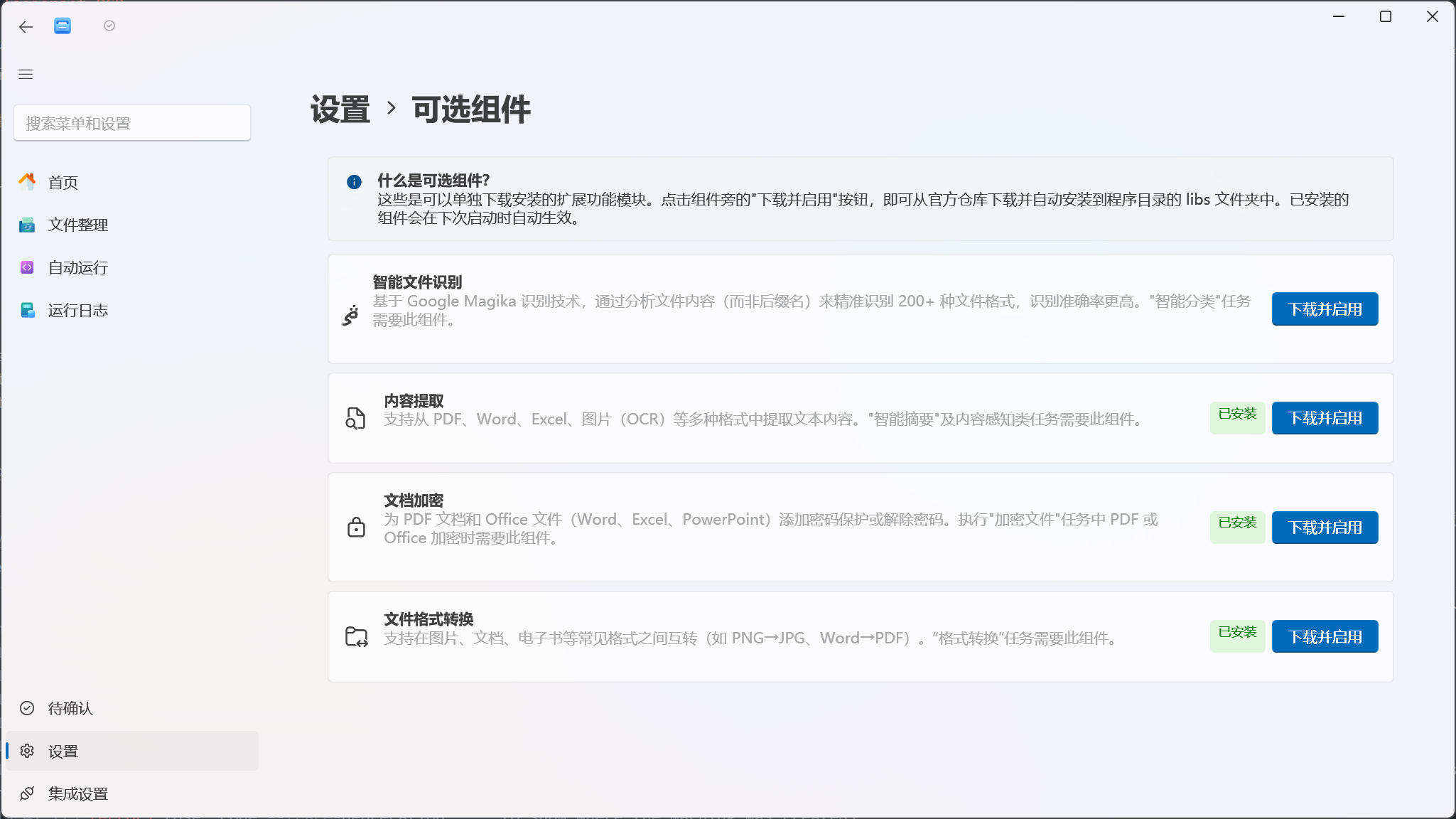
Section titled “Install the Content Extraction Component”- Open Settings → Optional Components.
- Find Content Extraction.
- Click Download & Enable.
- Wait for the page to show “Download successful” or “Installed.”
- Fully exit and restart EasyTidy Pro so that
easytidy_extract.dllis loaded during startup.
The Content Extraction component is installed into the libs folder of the current application directory. Standard installations, portable copies, and different development directories are independent of each other; re-check component status after switching instances.
Install Tesseract OCR
Section titled “Install Tesseract OCR”The “Content Extraction” component provides easytidy_extract.dll and libtika_native.dll for EasyTidy Pro’s document parsing capabilities, but the current component does not include tesseract.exe, tessdata, or language data files. Local FFI OCR recognizes images and scanned documents through Apache Tika calling the system’s Tesseract, so you need to separately install 64-bit Tesseract OCR.
Installation notes:
- Obtain a 64-bit Tesseract installer for Windows from a trusted source.
- Install Tesseract and add its installation directory (typically
C:\Program Files\Tesseract-OCR) to the systemPATH. - Install the language data corresponding to the UI language: Simplified Chinese needs
chi_sim.traineddata, English needseng.traineddata. - Confirm the language files are in the
tessdatadirectory that Tesseract actually uses. Other languages require the corresponding.traineddatafiles, but EasyTidy Pro’s current local OCR only requestschi_simorengbased on the UI language. - Fully exit and restart EasyTidy Pro so the application process picks up the updated
PATH.
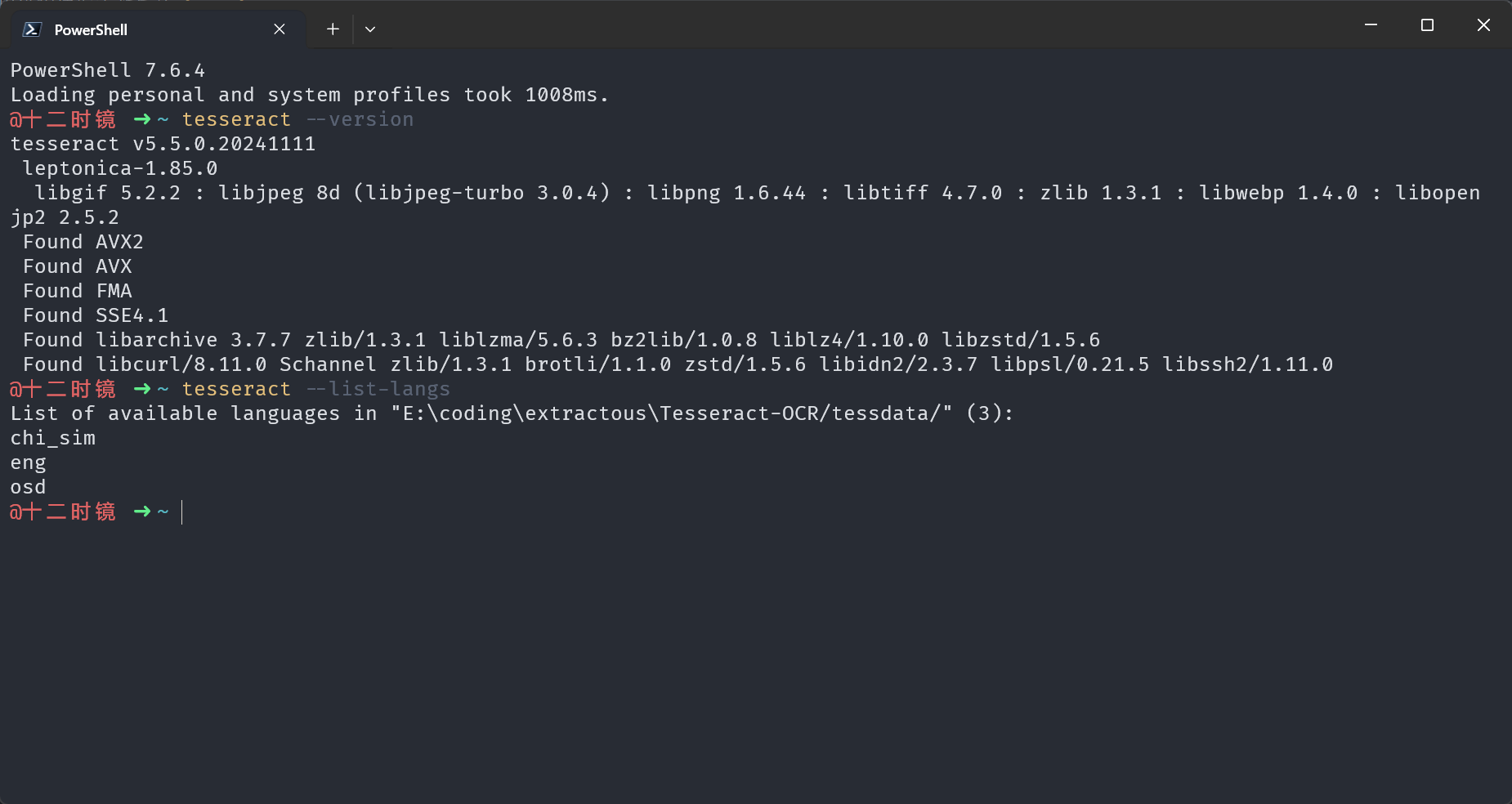
EasyTidy Pro currently has no UI to separately configure the Tesseract executable path, so merely installing the program without adding it to PATH may still prevent local FFI from finding it. Run the following in a freshly opened Command Prompt or PowerShell:
tesseract --versiontesseract --list-langsThe first command should output version information; the second should list at least the needed chi_sim or eng. If the terminal also reports “command not found,” fix the installation directory and PATH first, then test EasyTidy Pro.
Check Windows OCR Language
Section titled “Check Windows OCR Language”Windows OCR uses the system’s installed language capabilities. If the logs indicate no available OCR language, install the corresponding language and its optional features in Windows Language Settings, then restart EasyTidy Pro. Corporate devices may restrict language pack installation via administrator policy — follow your organization’s policy.
Configuring MinerU Cloud OCR
Section titled “Configuring MinerU Cloud OCR”MinerU is an optional preferred cloud parsing service, suitable for scanned PDFs, complex layouts, tables, and formulas. It is not a prerequisite for using the local content extraction component; if you do not want to upload files, keep MinerU off and use only local FFI and Windows OCR.
1. Open Settings
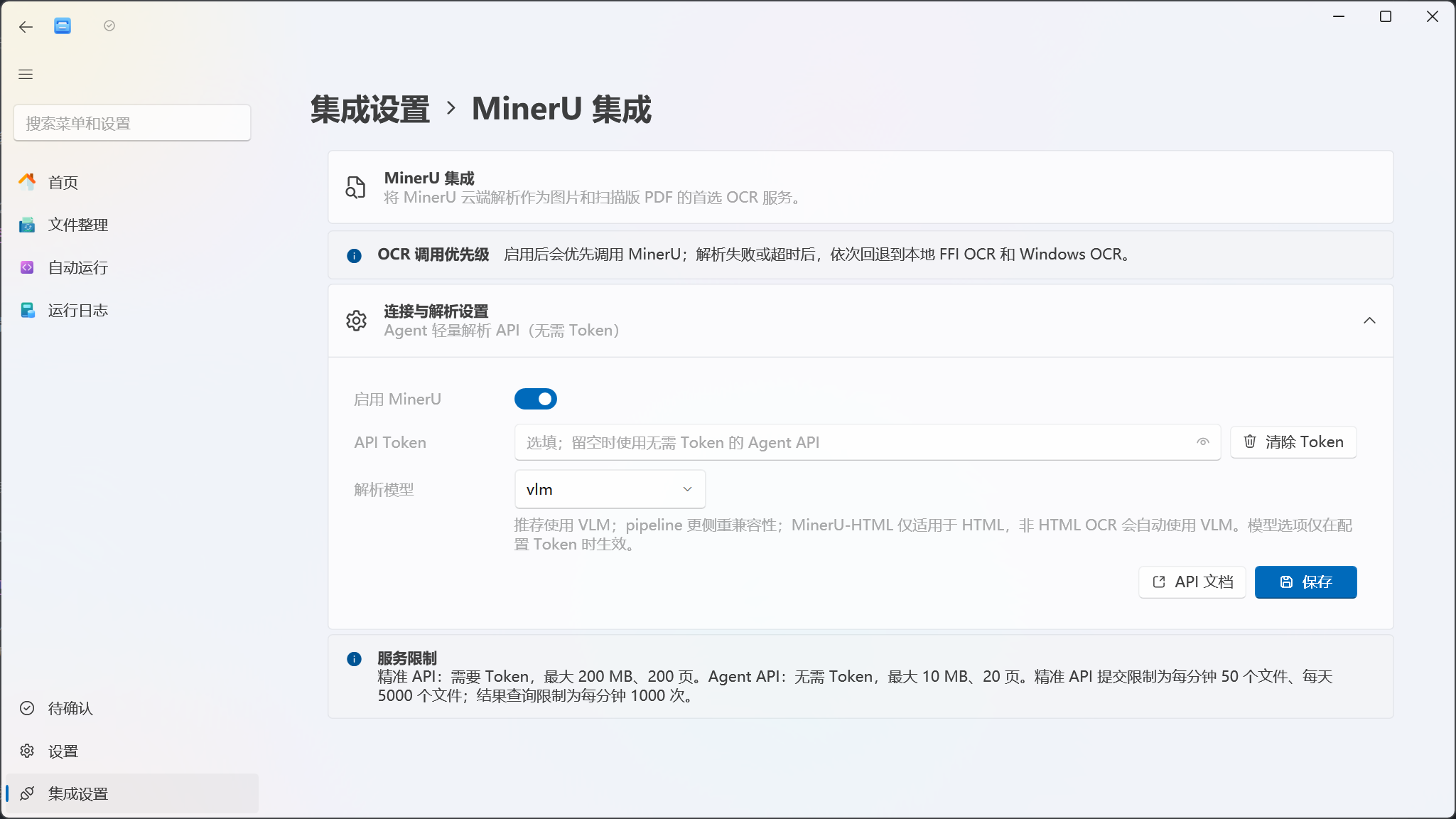
Section titled “1. Open Settings”Go to Integration Settings → MinerU Integration. The page shows the current mode, enable toggle, API Token, parsing model, service limits, and API documentation link.
2. Confirm Upload Privacy
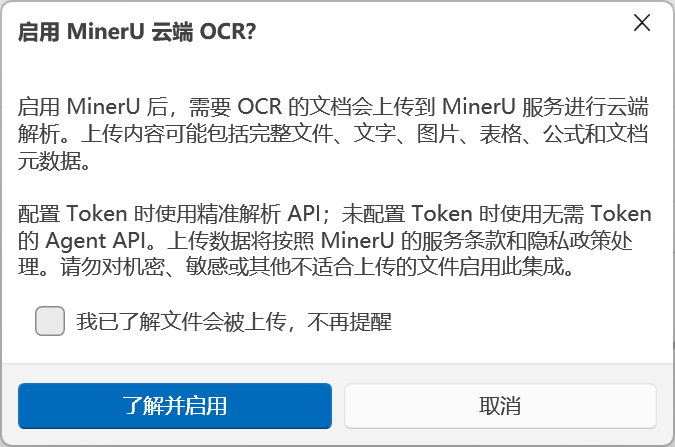
Section titled “2. Confirm Upload Privacy”When toggling on Enable MinerU, the application shows a cloud upload confirmation. Files requiring OCR may be uploaded in full; content may include:
- Original document files;
- Text and images;
- Tables and formulas;
- File names and document metadata.
Click Understand & Enable to allow cloud parsing; Cancel returns MinerU to off. Checking “I understand files will be uploaded — don’t show again” suppresses the confirmation on subsequent enables.
3. Choose Agent or Precision API
Section titled “3. Choose Agent or Precision API”The Token field is optional; whether a Token is configured determines the actual API used:
| Mode | Token Required | Per-File Limit | Page Limit | Model Selection |
|---|---|---|---|---|
| Agent Lightweight Parse API | No | 10 MB | 20 pages | Model option has no effect |
| Precision Parse API | Yes | 200 MB | 200 pages | Can select vlm, pipeline, or MinerU-HTML |
The Precision API also has submission limits: up to 50 files per minute, up to 5000 files per day; result query limit is 1000 per minute. EasyTidy Pro submits at most 4 concurrent MinerU recognition requests and polls for results every 3 seconds.
After entering a Token, click Save — the Token is stored encrypted. When re-entering the page, an empty input field means the previously saved value is retained; clicking Clear Token removes the saved value and switches subsequent requests to the no-Token Agent mode.
4. Select a Parsing Model
Section titled “4. Select a Parsing Model”Model selection only takes effect when using the Precision API with a Token:
vlm: Default and recommended option, suitable for general images, scanned documents, and complex layouts.pipeline: Leans toward traditional parsing pipelines and compatibility — good for comparison when VLM results are suboptimal.MinerU-HTML: Only for HTML. When the actual input is HTML, this model is used automatically; selecting it for non-HTML input automatically falls back tovlm.
Regular HTML can usually be text-extracted directly — selecting MinerU-HTML does not force cloud OCR. The model switching rules only take effect when MinerU is actually invoked for parsing.
Click Save when done. The page has no separate “Test Connection” button — run an actual task with a small, non-sensitive scanned PDF or image to verify.
Using OCR in Tasks
Section titled “Using OCR in Tasks”OCR does not need to be individually enabled per task. As long as a task needs to read document content, EasyTidy Pro automatically decides whether to engage OCR based on the file situation.
Filtering by File Content
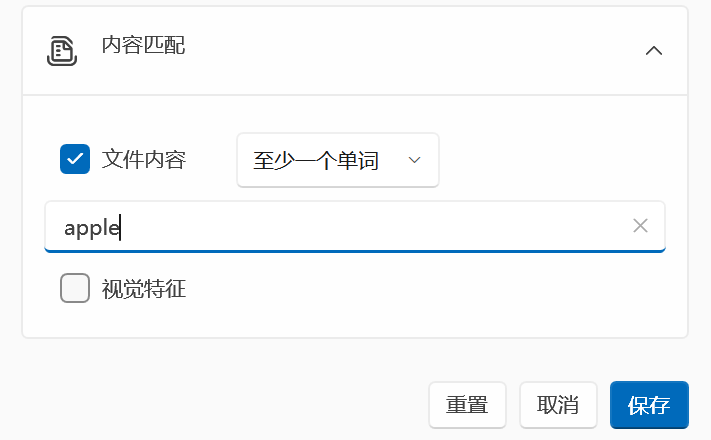
Section titled “Filtering by File Content”Add a File Content condition in a regular task or advanced workflow to filter files by contained text, any keyword, all keywords, exact match, or regular expressions.
- Create or edit a task.
- Open Filter Conditions.
- Select File Content.
- Fill in keywords and choose a matching mode, optionally set case sensitivity or keyword order.
- Preview the matched results with a small sample set.
Scanned images and scanned PDFs automatically enter OCR during content extraction. Some advanced condition evaluations skip files larger than 10 MB; for many large files, narrow the test scope first or pre-filter with more explicit file name, size, and type conditions.
AI Summarization
Section titled “AI Summarization”AI Summarization first extracts or OCRs file content, then sends the processed text to the default LLM, and finally generates a summary PDF in the destination directory.
Prerequisites:
- Content Extraction component installed;
- A default LLM configured;
- Decide whether to enable MinerU based on data sensitivity;
- A valid destination directory set.
OCR and LLM are two different data processing stages. When MinerU is enabled, original files may be sent to MinerU; when using an online LLM, the extracted text is also sent to the chosen model service. For full AI configuration, see AI Services.
Extracting Structured Data
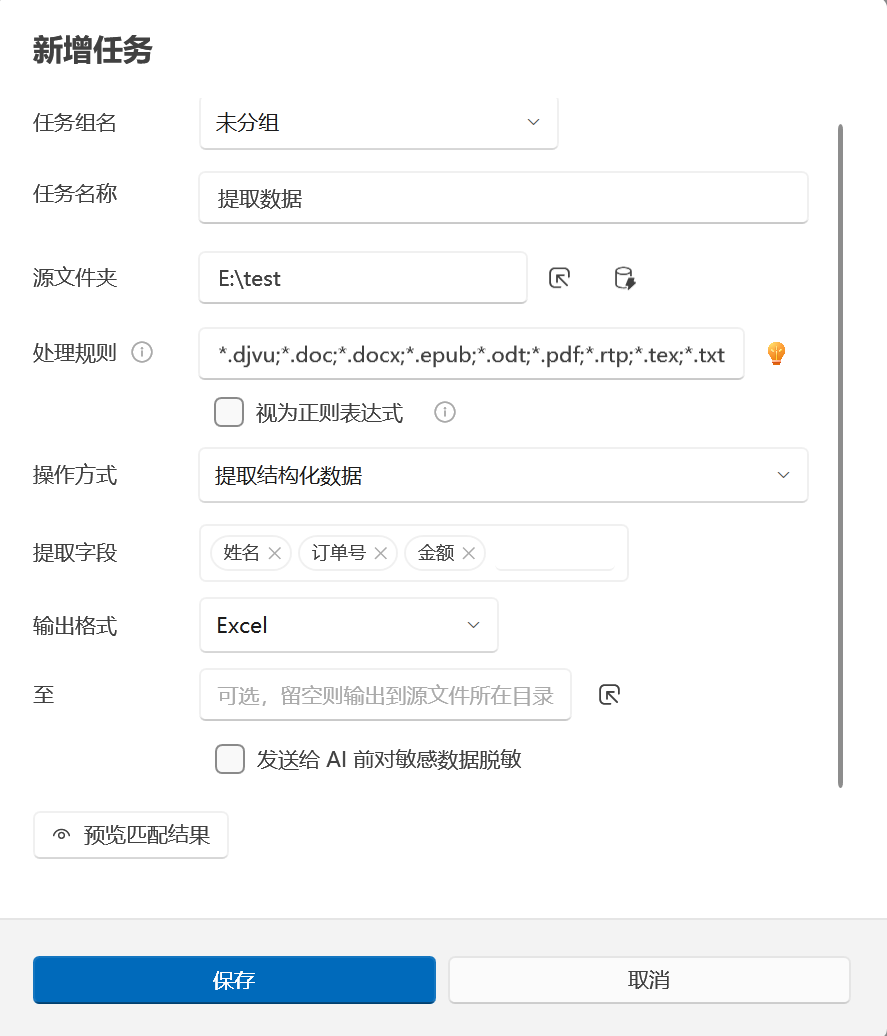
Section titled “Extracting Structured Data”Extract Structured Data extracts specified fields from OCR/parse results and outputs JSON, CSV, or Excel. It is suitable for documents with fixed fields such as invoices, orders, forms, and contracts.
- Create a new task and set the operation to Extract Structured Data.
- Fill in fields, e.g. “Customer Name, Order Number, Amount, Signing Date.”
- Choose output format: JSON, CSV, or Excel.
- Select an output directory; leaving it empty outputs to the source file’s directory.
- Optionally enable text sanitization before sending to the LLM.
- First check field completeness and recognition errors with a small set of representative files.
Structured data extraction does not rely solely on OCR: OCR produces the text, and the default LLM then generates the structured result according to the field requirements. Without a default LLM, empty OCR/extraction content, or incorrect model return format, valid output may not be generated.
Verifying Recognition Results
Section titled “Verifying Recognition Results”The MinerU settings page has no test button; the recommended way to verify the complete pipeline:
- Prepare a test image with clear text and a 1–2 page scanned PDF.
- Confirm the Content Extraction component is installed and
tesseract --list-langslists the required language, then restart the application. - First keep MinerU off and test local FFI OCR using a “File Content” condition.
- If you need to distinguish FFI from Windows fallback, check the Running Logs for the actual recognition path used.
- Then enable MinerU and repeat the test with the same files, comparing results.
- Check the target output, condition match results, and Running Logs.
- After testing, turn off MinerU if cloud parsing is no longer needed.
Recommended sample coverage:
- Simplified Chinese, English, and mixed Chinese/English;
- Normal orientation and rotated images;
- Low resolution, skewed, shadowed, or glare-affected scans;
- Tables, stamps, formulas, and multi-column layouts;
- Searchable PDFs vs. pure scanned PDFs.

File Size, Timeouts & Fallback
Section titled “File Size, Timeouts & Fallback”| Path | Current Limit or Behavior |
|---|---|
| OCR total entry | Max 200 MB |
| MinerU Agent | Max 10 MB, 20 pages |
| MinerU Precision API | Max 200 MB, 200 pages |
| Local FFI / Windows OCR | After MinerU fails, only processes input up to 50 MB |
| MinerU single wait | Max 10 minutes; on timeout, tries local OCR |
| MinerU concurrency | Max 4 requests |
Server-side page limits, rate limits, and account quotas are managed by MinerU and may change with service policy; the limits displayed in the application UI should be treated as the definitive reference at configuration time. Files below the size cap may still fail due to page count, corruption, encryption, network interruption, or service rate limiting.
Privacy & Security
Section titled “Privacy & Security”- With MinerU off, local FFI and Windows OCR process files on the current computer.
- With MinerU enabled, original files requiring OCR may be uploaded to
mineru.netand its returned upload/result addresses. - Both with and without a Token constitute cloud processing; the difference is only Precision API vs. Agent API.
- AI Summarization and Structured Extraction may also send the OCR text to a separate LLM service provider.
- Tokens, file paths, recognized text, and error responses may all contain sensitive information — sanitize before submitting logs or screenshots.
- OCR results may misrecognize amounts, dates, ID numbers, and names — do not rely on them as the sole basis for payments, compliance, or file deletion.
When handling sensitive files, prefer keeping MinerU off and using local paths; if local recognition quality is insufficient, first confirm with your organization’s policy whether upload is permitted before switching to a cloud service.
No cloud requests after enabling MinerU
Section titled “No cloud requests after enabling MinerU”Only image/PDF candidates that need OCR call MinerU. Searchable PDFs and regular Office documents that have already been successfully body-text-extracted are not uploaded just for the sake of using MinerU. Also confirm that you clicked Save and consented to the upload privacy notice.
Can I use MinerU without entering a Token?
Section titled “Can I use MinerU without entering a Token?”Yes. Leaving the Token field empty uses the Agent Lightweight Parse API with a 10 MB, 20-page per-file limit. Entering a Token uses the Precision API with model selection.
The Token is saved but the input field is empty
Section titled “The Token is saved but the input field is empty”This is by design, to avoid displaying secrets in the UI. When the placeholder shows “Token saved,” leaving the field empty and saving retains the original value; click Clear Token if you need to remove it.
Does MinerU failure stop the entire task?
Section titled “Does MinerU failure stop the entire task?”Usually not immediately. The application first logs the MinerU error, then tries local FFI OCR; if that still fails, it tries Windows OCR. However, the task ultimately fails when the file exceeds the local 50 MB cap, the format is unsupported by Windows OCR, no system OCR language is available, or all results are empty.
No text recognized from images or scanned PDFs
Section titled “No text recognized from images or scanned PDFs”First check the Content Extraction component, then run tesseract --version and tesseract --list-langs in a new terminal. Confirm Tesseract is in PATH and that chi_sim or eng corresponding to the UI language is installed; fully restart EasyTidy Pro after modifying environment variables or language data. Also check Windows OCR language, file size, and Running Logs. Improving scan resolution, correcting orientation, cropping irrelevant backgrounds, and enhancing text-background contrast typically helps recognition. Handwriting, artistic fonts, severe glare, and complex tables may still be inaccurate.
Why didn’t my digital PDF use OCR?
Section titled “Why didn’t my digital PDF use OCR?”This is expected behavior. When the application detects that a PDF already contains extractable text, it reads the text directly, avoiding unnecessary image recognition and cloud uploads.
Logs show HTTP 429 or rate-limited
Section titled “Logs show HTTP 429 or rate-limited”This means the MinerU service rejected the current request rate. Reduce the number of files processed concurrently, wait for the quota window to refresh, or turn off MinerU and use local OCR. EasyTidy Pro attempts local fallback after receiving a 429.
AI Summarization or Structured Extraction produced no output
Section titled “AI Summarization or Structured Extraction produced no output”First identify the failure stage:
- Check the logs to confirm whether OCR/content extraction produced body text;
- Check whether a default LLM is configured;
- Check whether the destination directory is writable;
- Check the online LLM’s key, quota, model identifier, and return format;
- Retry with clearer samples and more explicit extraction fields.
Related features: Optional Components, Filter Conditions, Organization Tasks, AI Services, and Running Logs.