Optional Components
Optional components are extension modules that EasyTidy Pro downloads and installs on demand. Basic file organization does not depend on these components; you only need to install them when using the corresponding identification, extraction, encryption, or conversion capabilities.
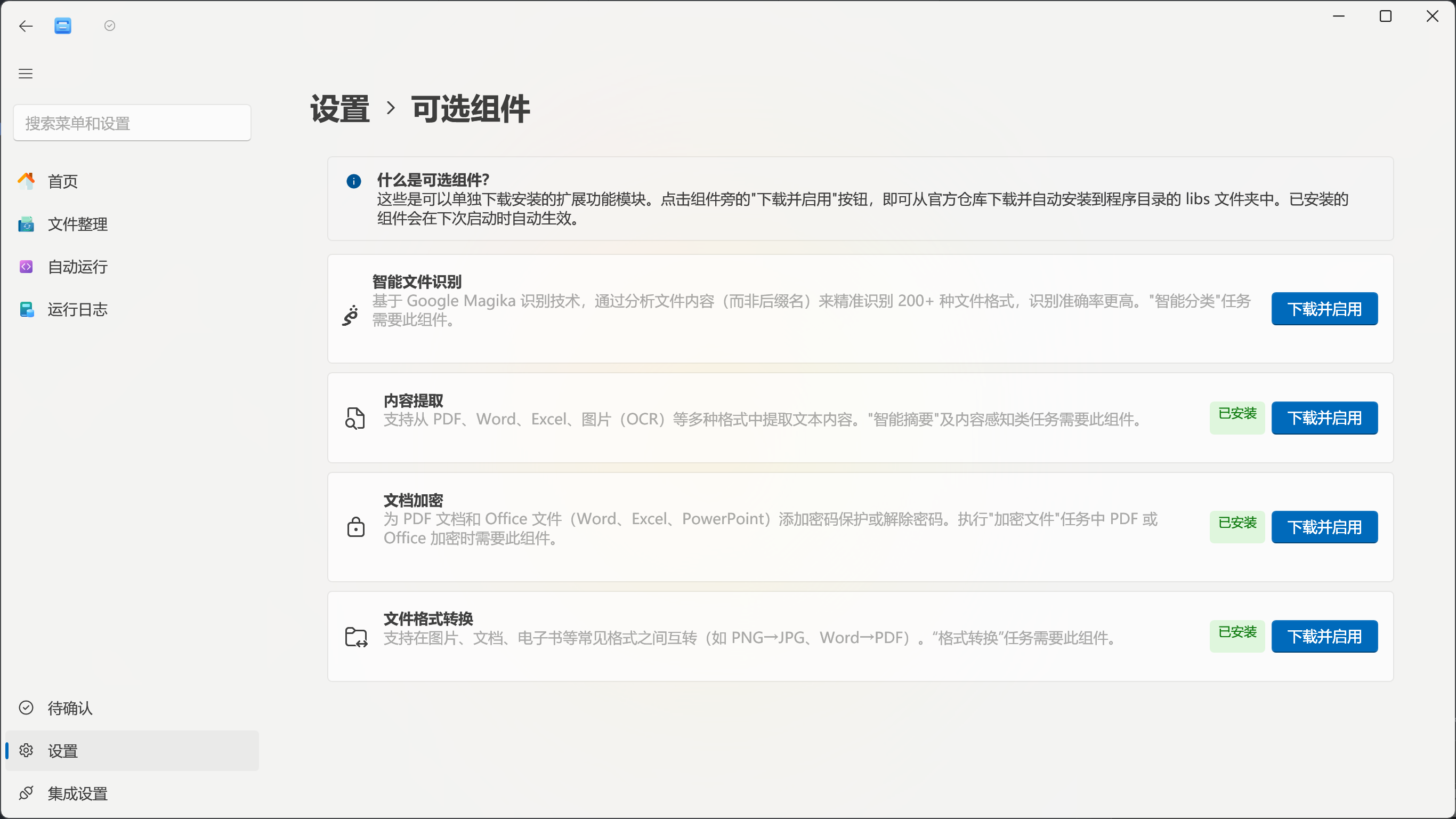
Go to Settings → Optional Components to view installation status. After clicking Download & Enable next to a component, the app downloads the package from the official release source, verifies the ZIP format, and extracts it into the libs folder within the application directory.
Component Overview
Section titled “Component Overview”| Component | Primary Use | Typical Location |
|---|---|---|
| Smart File Identification | Identify the real file type based on content, regardless of extension | Rule condition “True File Type (Smart ID)”, Smart Classification |
| Content Extraction | Read text from documents, PDFs, spreadsheets, and images | Content conditions, Smart Summary, Structured Data Extraction, Excel export |
| Document Encryption | Add or remove password protection for Office and PDF documents | Organization tasks “Encrypt Files” / “Decrypt Files” with Office/PDF scheme |
| File Format Conversion | Convert between currently supported image and document formats | Organization task “Format Conversion” |
Components are independent of each other; you can install only the ones needed for your current workflow.
Smart File Identification
Section titled “Smart File Identification”The Smart File Identification component is based on Google Magika. It determines the true format by analyzing file content, avoiding misidentification based solely on file extensions. For example, an archive incorrectly renamed to .jpg can still be identified as a compressed file.
Once installed, select True File Type (Smart ID) as a rule condition and specify categories such as images, videos, audio, or documents. It also participates in Smart Classification flows that require deep file type identification.
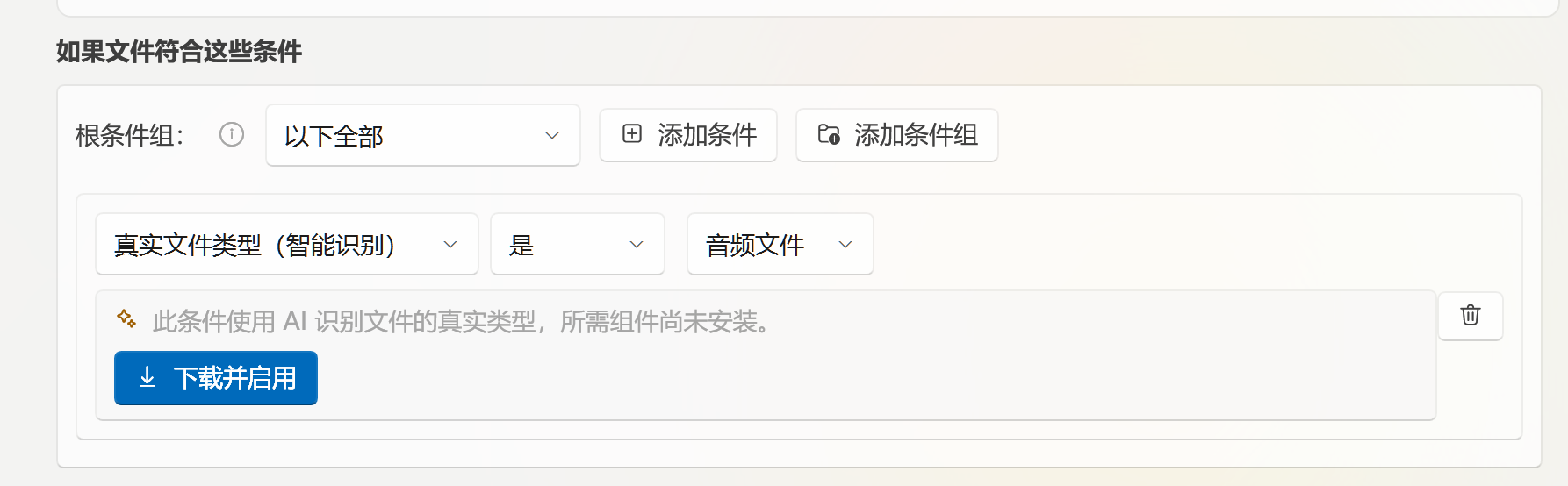
Magika identifies file content, but corrupted, encrypted, or very short files may still not be recognized. Verify critical rules through previews or small sample sets first.
Content Extraction
Section titled “Content Extraction”The Content Extraction component is for reading file body text rather than only file names and metadata. The application currently uses it for:
- Condition matching based on file content;
- Providing body text for Smart Summary and Structured Data Extraction;
- Supplying content features in Smart Classification;
- Extracting text from PDF, Word, Excel, and image (OCR) files;
- Excel export features that require document content.

When selecting conditions in the rule editor that require content extraction, the page offers a download prompt if the component is missing. Some batch operations also ask whether to download and enable it before running.
Extraction quality depends on source file quality. OCR results for scanned documents may be affected by resolution, skew, language, and layout; password-protected or corrupted documents may not be extractable.
Office & PDF Password Protection
Section titled “Office & PDF Password Protection”The Document Encryption component provides a document-level password protection scheme for Office and PDF files. Use it to add password protection to the following file types, or remove protection with an existing password:
- PDF documents;
- Word, Excel, PowerPoint, and other Office documents.
When creating an organization task, select Encrypt Files or Decrypt Files, then choose the Office/PDF password protection scheme and fill in the password and output settings. If the component is not installed when using this scheme, the task editor prompts you to go to the Optional Components page.
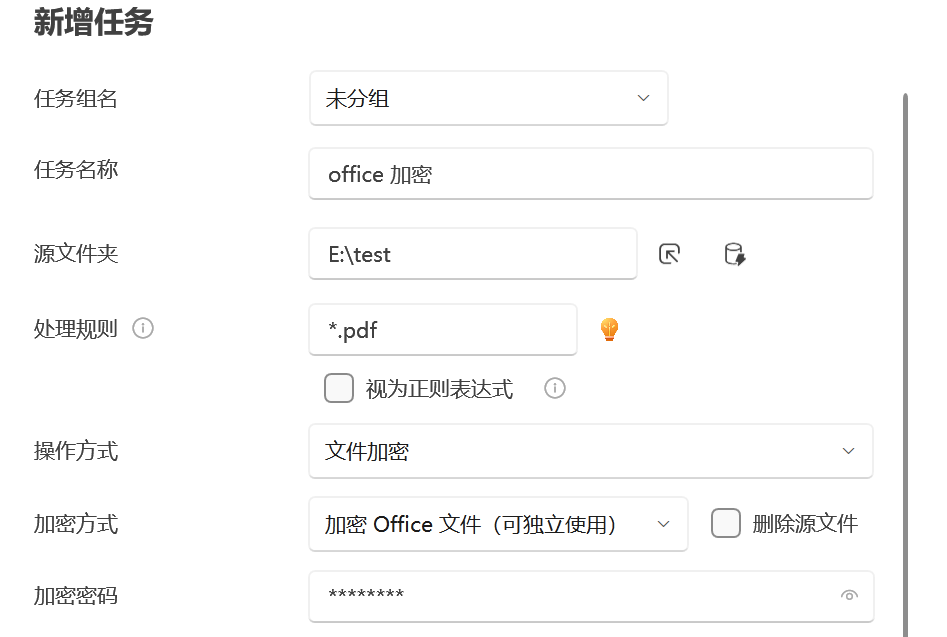
This component is not a general-purpose encryption solution for arbitrary files, nor does it handle archive passwords; archive encryption and decryption belong to the compress/decompress feature. You must provide the correct password to remove Office or PDF password protection. For important files, it is recommended to test with sample copies first and confirm the output files open correctly before batch processing.
File Format Conversion
Section titled “File Format Conversion”The File Format Conversion component generates conversion results in the source file’s directory, keeping the same file name but changing the extension to the target format. The rule editor shows only the target formats that are available for the current source format.
The conversion component is an open-source native Rust component; source code is at EasyTidy/easytidy_converter. EasyTidy Pro calls it through easytidy_converter.dll to perform the actual conversion.
Currently supported conversion paths:
| Source Format | Can Convert To |
|---|---|
| JPG, PNG, BMP, GIF | JPG, PNG, BMP, GIF (available formats) |
| HEIC, HEIF | JPG, PNG |
| Markdown | DOCX, PDF, JPG, PNG, BMP, GIF |
| XLSX | Markdown, CSV |
| DOCX | Markdown, TXT |
| JPG, PNG, BMP, GIF, Markdown | |
| HTML | PDF, Markdown |
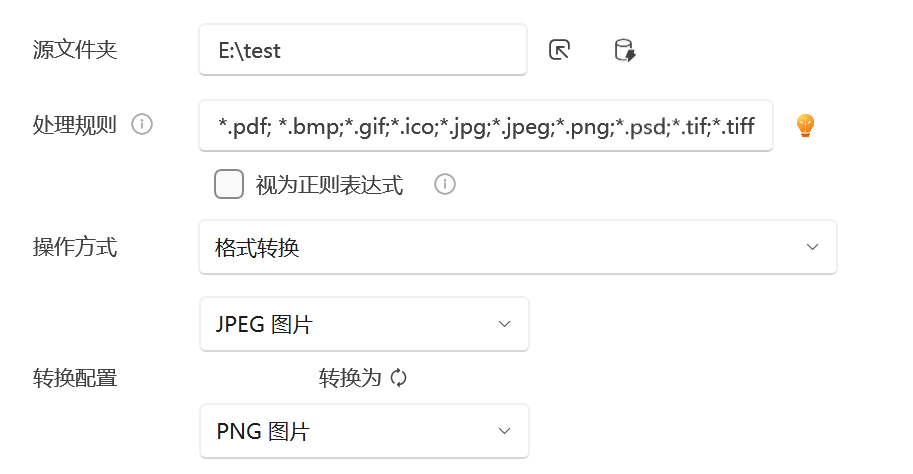
Conversion may cause format capability loss — for example, animated GIFs become static images, complex PDFs lose fidelity when converted to Markdown, and documents converted to plain text cannot fully preserve original layout. Check sample output before batch processing.
Installation and Reinstallation
Section titled “Installation and Reinstallation”- Open Settings → Optional Components.
- Find the desired component and click Download & Enable.
- Wait for the page to show “Download successful” or “Installed.”
- If currently editing a task, reopen the task editor; if the feature is still unavailable, restart the application.
Clicking Download & Enable again re-downloads the component package and overwrites the corresponding files in libs — useful for repairing missing or corrupted components. Stop any tasks currently using the component first.
Components are stored relative to the current application directory. If you switch to another portable copy, reinstall to a new directory, or run a different development build, check the component status in the corresponding instance.
Download Failures
Section titled “Download Failures”Component installation tries the official release address and alternative download sources; if a download proxy is enabled in application settings, the proxy address is tried first. When it fails, check the following in order:
- Whether the current network can reach the project’s release source;
- Whether the proxy address is correct, and whether downloading works with the proxy turned off;
- Whether security software is blocking ZIP downloads, extraction, or DLL writes;
- Whether the application directory has write permission for the
libsfolder; - Whether disk space is sufficient.
After resolving the issue, click Download & Enable again. Do not download identically named DLLs from untrusted sources, and do not copy component files of unknown origin into the libs directory.
Installed but Feature Not Working
Section titled “Installed but Feature Not Working”- Fully exit and restart the app to ensure the component is loaded during startup;
- Return to the Optional Components page and confirm that the item shows “Installed”;
- Check whether you launched a different installation directory or portable version;
- Re-download the component to repair incomplete or version-mismatched files;
- For HEIC/HEIF conversion failures, the bundled decoder and Windows decoder fallback may both have failed; verify that Windows HEIF Image Extensions are installed.
If the problem persists, include the app version, component name, triggering feature, and error message when submitting feedback, but do not upload samples or logs that contain private document content.