Windows Context Menu
The Windows context-menu integration sends selected files or folders directly to EasyTidy Pro. It uses a silent organization workflow — no task selection window opens. Instead, the configured default task group is used to automatically match and route items.
Registering the Context Menu
Section titled “Registering the Context Menu”- Open EasyTidy Pro and go to Settings → General Settings → Application Settings.
- Under Context Menu, choose Classic Menu or Modern Menu.
- Click Register Context Menu.
- When Windows shows a User Account Control prompt, approve the operation.

Classic Menu
Section titled “Classic Menu”The classic menu uses Windows 10-style Explorer menu entries and supports both files and folders. On Windows 11, it typically appears inside the classic menu opened via Show more options.
The classic menu writes to the current user’s file association settings; the menu entry shows the EasyTidy Pro name and application icon.
Modern Menu
Section titled “Modern Menu”The modern menu targets Windows 11 and can integrate directly into the new context menu. During installation, the application registers the menu component shipped with the program. Windows may require administrator privileges and restarts File Explorer for the menu to take effect.
When File Explorer restarts, the desktop and taskbar may briefly disappear and reappear — this is normal. Finish any ongoing file copy, rename, or other Explorer operations before installing.
Organizing via the Context Menu
Section titled “Organizing via the Context Menu”- First, create and enable tasks on the Organization Tasks page, and set the group you want to use as the default group.
- Select one or more files or folders in File Explorer.
- Right-click and choose the EasyTidy Pro menu entry.
- The application passes each path to the default task group, where rules automatically route them.
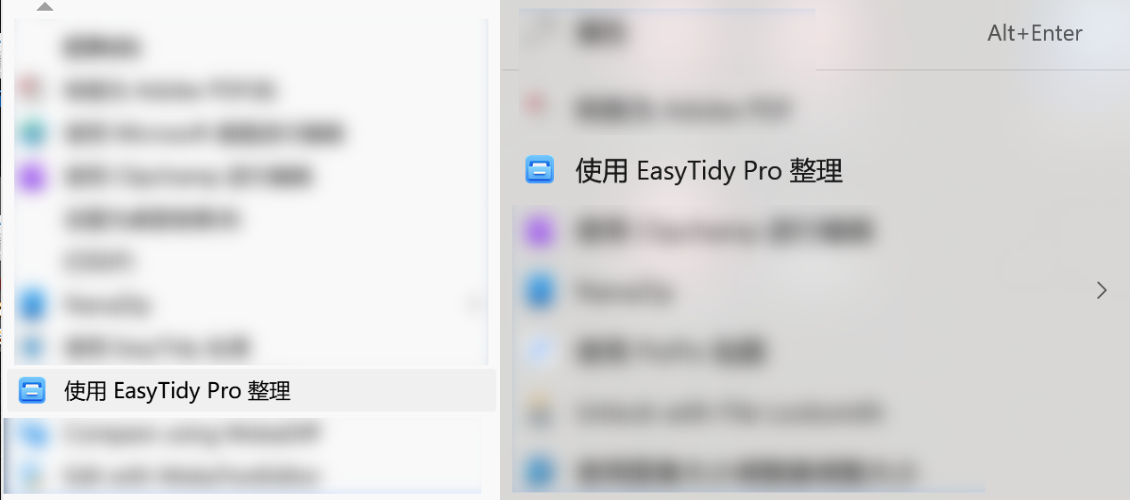
The default group’s execution order matches drag-and-drop organization:
- Regular tasks are tried from highest to lowest priority;
#and##fallback rules are tried last;- Once a task successfully processes a path, processing stops — other tasks in the group are skipped for that path;
- When no rule matches, the original file is left unchanged and a failure is reported.
If EasyTidy Pro is already running in the background, the path passed from Explorer is forwarded to the existing instance without opening another full main window. Successful runs are normally silent; failures show a lightweight failure window and system notification — use these to check the default group, file locks, permissions, or rule matches.
Uninstalling or Switching Menu Styles
Section titled “Uninstalling or Switching Menu Styles”To disable the context menu entry, click Uninstall Menu. The uninstall operation cleans up both classic and modern menu components; simply setting the style dropdown to “Disabled” is not a substitute for uninstalling.
When switching styles, follow this order:
- Click Uninstall Menu;
- Select the new menu style;
- Click Register Context Menu;
- Reopen File Explorer and verify the menu.
Uninstalling the modern menu may also restart File Explorer.
The context menu doesn’t appear
Section titled “The context menu doesn’t appear”First confirm that the registration operation reported success. On Windows 11 with classic style, check under Show more options; with modern style, reopen the Explorer window. If the application directory was moved or the path changed after an upgrade, uninstall and re-register.
Clicking the menu entry doesn’t organize files
Section titled “Clicking the menu entry doesn’t organize files”Confirm that a default task group is set, the group contains at least one enabled task, and the selected files match rules in that group. Context menu organization does not use the single task saved via “Remember my task choice” in the organization window as a fallback.
Permission or installation failure
Section titled “Permission or installation failure”Allow the Windows User Account Control prompt and confirm that security software is not blocking the application’s context menu components. If files required by the modern menu are missing, reinstall the full version rather than copying only the main executable.
Menu points to an older version
Section titled “Menu points to an older version”First run Uninstall Menu from the current application, confirm the old installation directory has been removed, then re-register from the current version. Portable copies also need re-registration after moving directories.
For default groups and task priority, see Organization Tasks; for application permissions and background settings, see General Settings.