Settings Overview
EasyTidy Pro’s settings are organized into eight sections by purpose: Language, General, Shortcuts, Theme, Updates, Components, AI Models, and About. Click Settings in the bottom-left corner of the main window to open the Settings home page.
This page is designed to help you quickly determine “where should I go to change this.” Simple options are explained directly here; features that require more parameters or involve data migration link to their detailed guides.
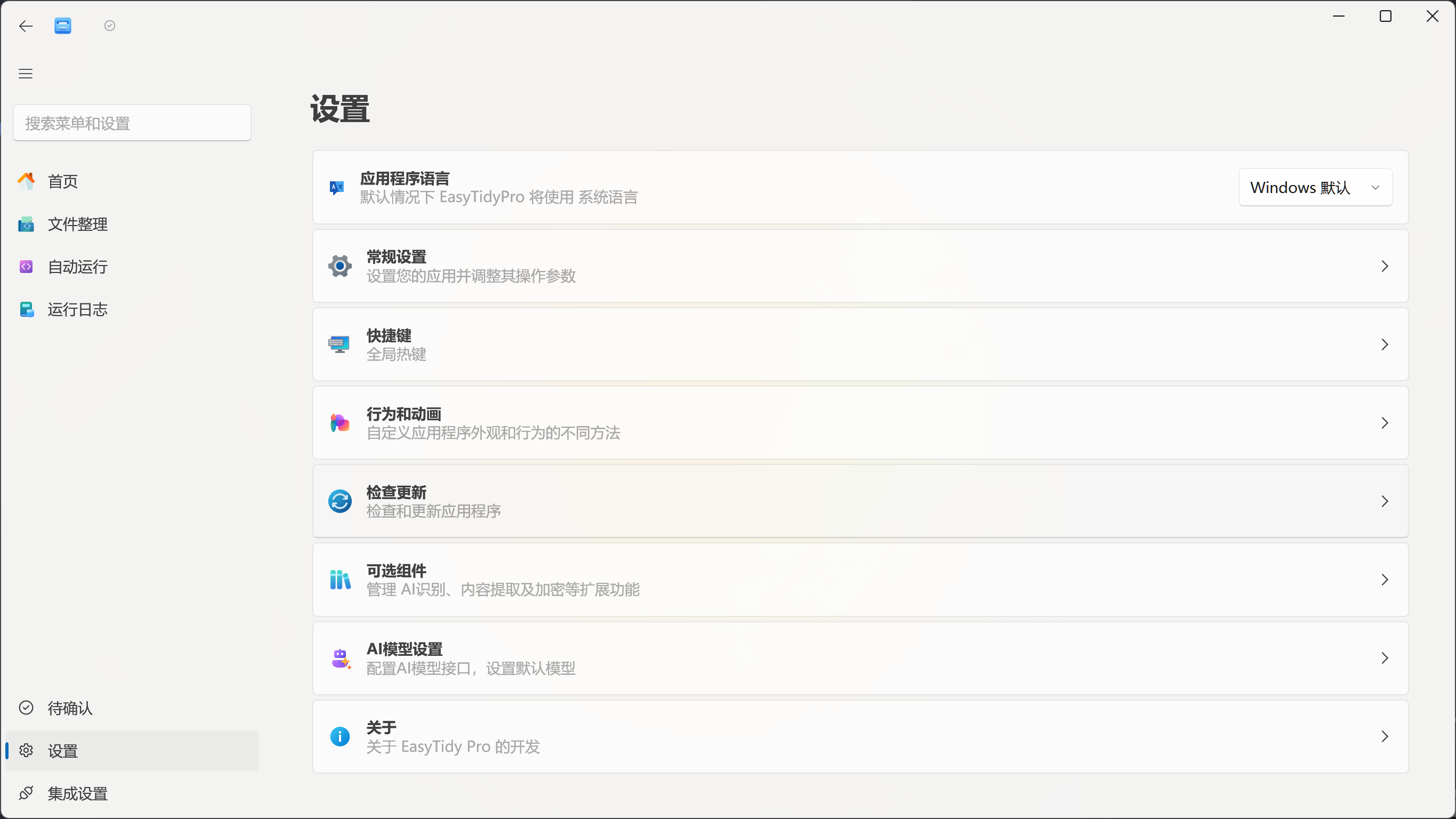
Application Language
Section titled “Application Language”Switch the UI language at the top of the Settings home page. The languages available in the current version are shown in the list.
After selecting a new language, the application prompts you to restart. Once restarted, menus, buttons, and prompts switch to the chosen language. Language settings only affect the UI display — they do not modify existing task names, file names, or user-entered content.
General Settings
Section titled “General Settings”General Settings govern the application’s most fundamental runtime behavior, including:
- Default handling for file conflicts, subfolders, hidden files, and folder structure;
- Deduplication strategy and default deduplication action;
- Launch at startup, start to tray, cloud drive auto-mount, and cache quotas;
- Administrator privileges, update mirrors, drop windows, and context menus;
- Backup & restore, tag sync, undo history, logging, and portable configuration.
These options affect file processing, configuration persistence, and application startup behavior. Before adjusting them for the first time, it is recommended to read the General Settings guide.
For more complex features within General Settings, see also:
Shortcuts Settings
Section titled “Shortcuts Settings”Shortcuts Settings let you assign global hotkeys to common actions: open the organization window, open the main window or settings, execute all tasks, open file delivery, and exit the application.
Global hotkeys can take effect even when EasyTidy Pro is in the background, so avoid conflicts with Windows, input methods, games, or other always-running software. For key recording, clearing, and conflict resolution, see Shortcuts Settings.
Theme Settings
Section titled “Theme Settings”Theme Settings control the application’s appearance. Currently available:
- Light: Best for bright environments.
- Dark: Reduces interface brightness in low-light environments.
- High Contrast: Enhances the legibility of text and control boundaries.
Theme changes only affect EasyTidy Pro’s visual appearance — they do not impact tasks, rules, or file processing results. Changes apply immediately after selection; no need to recreate tasks.
Update Settings
Section titled “Update Settings”Update Settings control how EasyTidy Pro checks for and receives new versions.
- Check for updates on startup: Check for new versions each time the application starts.
- Automatically download and install updates: After finding an applicable update, complete the subsequent update process automatically.
- Show update notifications: Display a reminder when a new version is available.
- Show release notes: Show the main changes in the new version during updates.
- Receive beta updates: Use the beta update channel. Beta versions may include features that are not yet fully validated — not recommended on devices that depend on stable operation.
You can also manually check for updates and view release notes on this page. If network access to the update source is slow, configure a mirror address under Update Mirror in General Settings.
Component Settings
Section titled “Component Settings”Component Settings manage extension capabilities that are downloaded or enabled on demand, such as content extraction, smart file identification, and related runtime components. Basic file organization does not require installing all components; only prepare them when tasks use the corresponding capabilities.
Components typically involve downloading, disk usage, runtime environments, and troubleshooting — see Optional Components. It is also recommended to check here before using AI Summarization, content recognition, or OCR.
AI Model Settings
Section titled “AI Model Settings”AI Model Settings are for configuring online or local models, including the service provider, API key, model name, default model, as well as the Embedding semantic model and visual classification model.
You can skip this page if you don’t use AI classification, AI summarization, structured extraction, or related smart features. When involving online services, confirm the cost, privacy policy, and data transmission scope. For full configuration steps, see AI Services.
The “About” page provides application and licensing information, including:
- The current EasyTidy Pro version and product description;
- Activation verification, deactivation, and device management;
- Documentation, open-source version, and other relevant links;
- User agreement, privacy policy, and license agreement.
When submitting feedback, it is recommended to first confirm the version number on this page, then combine it with the issue occurrence time and relevant logs from Running Logs.
Not Sure Where to Go?
Section titled “Not Sure Where to Go?”Use the settings search in the main window — type a feature name or UI keyword. Search results directly open the corresponding settings page; some results also navigate to specific options.
If your question is about how a task should execute, go to Organization Tasks; if it’s about scheduling, file change monitoring, or execution at startup, go to Automation.