Drag and Quick Organize
EasyTidy Pro has two separate drag-in entry points. The auto drag popup appears while a Pro user is dragging files, while the quick-organize popup is opened manually from a hotkey or the system tray. They are different windows, but both send dropped items to the same organization window.
| Entry point | How it opens | Availability | Primary use |
|---|---|---|---|
| Auto drag popup | Appears automatically when dragging files or folders in File Explorer | Pro | Drop during the drag without opening an entry point first |
| Quick-organize popup | “Quick Organize” hotkey, tray icon click, or tray menu | All users | Keep a manual drag-in entry open on the desktop |
Auto Drag Popup (Pro)
Section titled “Auto Drag Popup (Pro)”- Go to Settings → General Settings → Application Settings, enable Auto Drag & Drop Popup.
- Use Window Position to set where the auto drag popup appears.
- Select one or more files or folders in File Explorer and start dragging.
- When the auto popup appears, drop the selection into the popup.
- In the organization window that follows, choose the target and execute.
If you release the mouse without dropping on the popup, the temporary popup hides automatically without moving or modifying any files.

Quick-Organize Popup
Section titled “Quick-Organize Popup”The quick-organize popup must be opened manually. It can remain on the desktop for long periods, making it ideal for frequently receiving temporary files.
Open via any of these methods:
- Assign a hotkey for Quick Organize in Settings → Shortcut Settings, then press it;
- Click the EasyTidy Pro tray icon in the Windows system tray;
- Right-click the tray icon and select Open Quick Organize Popup.
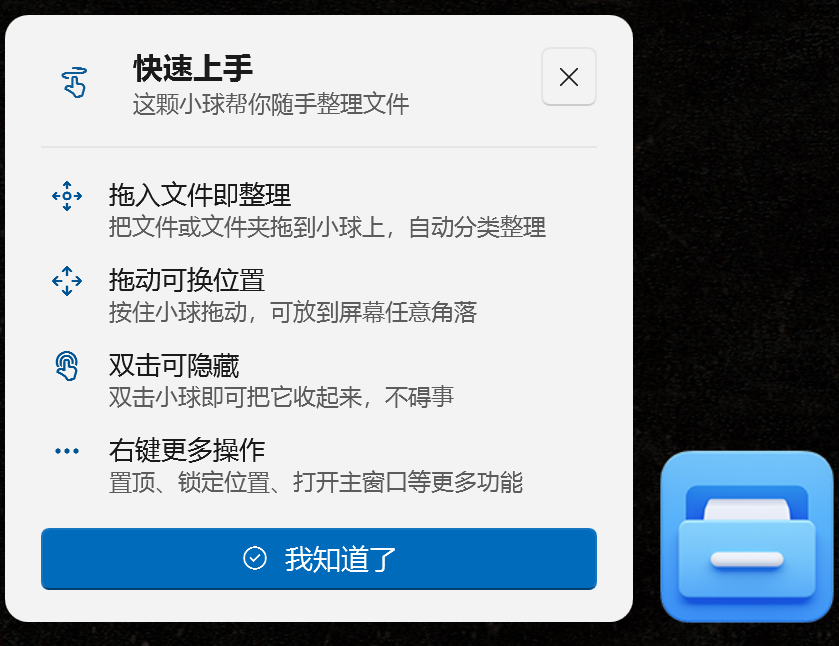
Once open, drag files or folders onto the round popup to enter the organization window. The popup itself does not modify files directly.
Managing the Quick-Organize Popup
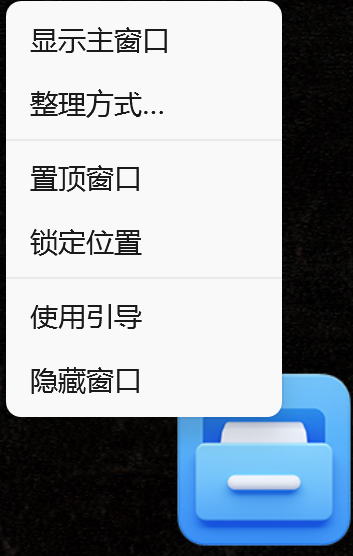
Section titled “Managing the Quick-Organize Popup”Right-click the quick-organize popup for these commands (listed by frequency of use, from top to bottom):
- Show Main Window: Open the EasyTidy Pro main interface;
- Organize Method…: Quickly choose a different organization target directly from the popup, without opening the organization window first;
- Pin to Top / Unpin: Control whether the popup stays above other windows;
- Lock Position / Unlock Position: When locked, the popup cannot be dragged, avoiding accidental moves;
- Show Usage Guide: Re-display the drag-in instructions for the popup;
- Close Window: Close the current quick-organize popup.
When the position is unlocked, hold the left mouse button to drag the popup. Double-clicking with the left mouse button also closes it.
Organization Window
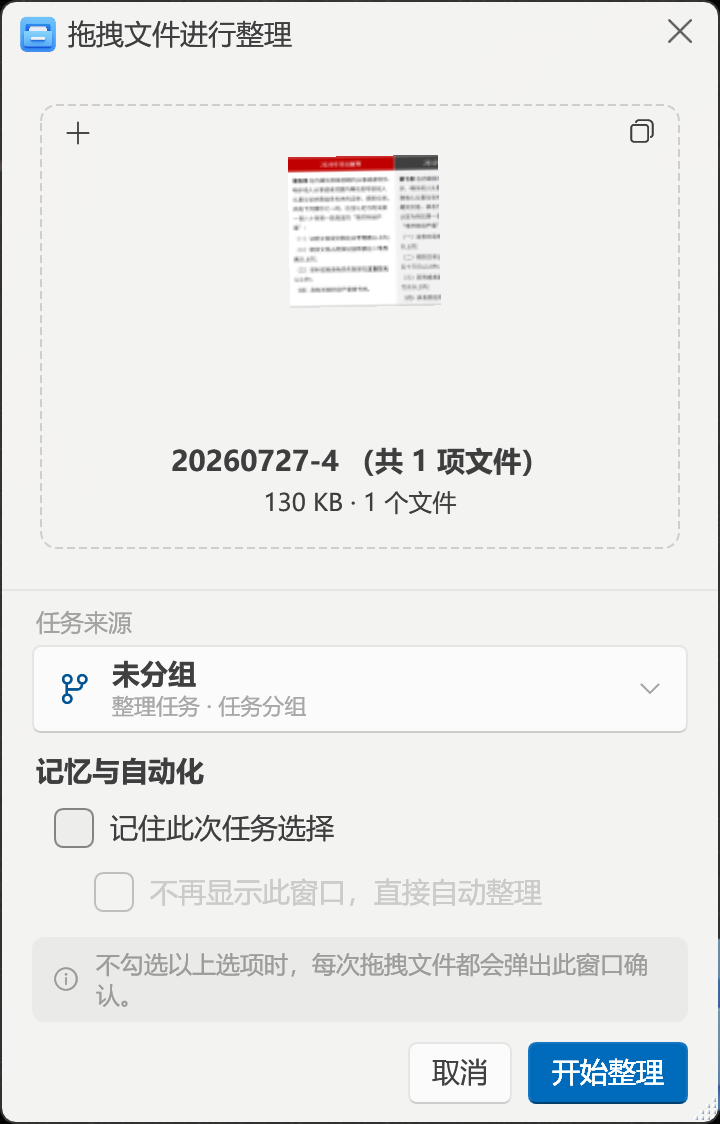
Section titled “Organization Window”After dropping files from either popup, the organization window lists the files pending processing in this batch and lets you choose the organization target. You can also continue dragging more files into the already-open organization window.
Inspecting Files to Organize
Section titled “Inspecting Files to Organize”The organization window provides three display modes:
- Stacked: Overview of dropped content with stacked thumbnails;
- Large Icons: Inspect files in a thumbnail grid;
- Small Icons: View filenames and sizes in a compact list.
Clicking the display mode button in the top-right corner of the file area cycles through Stacked → Large Icons → Small Icons → Stacked in order — no menu expansion is needed. The button icon and hover tooltip indicate the current mode. The app remembers the last selection and continues using it the next time the organization window opens. When there are many files or you need to check failure reasons, switch to Large Icons or Small Icons mode.
In Large Icons mode, file names display up to three lines; longer names are truncated. Hovering over a file shows the full file name and complete path.
Adjusting Window Size
Section titled “Adjusting Window Size”The organization window can be freely resized from the edges or the resize handle at the bottom-right corner, with a minimum size that preserves the layout. When the window is widened, Large Icons mode wraps files by item width, fitting more files per row without enlarging the icons themselves.
The app remembers manually adjusted window dimensions and restores them on next open. Only normal window sizes are recorded — maximized state is not saved. When switching monitors or changing resolution, the window automatically snaps back into the visible area. The main window also supports remembering its size.
Right-click in the file area to:
- Skip This File: Remove from the current batch list without deleting the original file on disk. When multiple items are selected, all selected files are skipped together;
- Refresh: Remove paths that no longer exist;
- Open File Location: Locate the corresponding file or folder in File Explorer.
Choosing an Organization Target
Section titled “Choosing an Organization Target”After clicking the target selection area, you can browse by Recent, search, or browse by source and group:
- Individual Task: Available to all users;
- Task Group: Available to all users; files are routed according to the rules and priorities of the tasks in the group;
- Workflow or Workflow Group: Pro users only.
The “Unassigned” entry under task sources corresponds to the built-in unassigned item in the task list. When selected, the target area directly displays “Unassigned”.
When a task group is selected, regular rules are evaluated by priority, fallback rules using # or ## run last, and processing stops after one task successfully handles the item.
Remember & Organize Automatically

Section titled “Remember & Organize Automatically”- Remember this task choice: Save the current task or task group as the default target for subsequent drags;
- Skip this window, organize automatically on drop: Only available when a target has been remembered. When enabled, future drops from either the auto drag popup or the quick-organize popup are sent directly to the default target without showing the organization window.
Silent organization is suitable for stable, well-established entry points. On first configuration, keep the organization window open and verify results. When move, overwrite, delete, or rename operations are involved, do not enable this without verifying rules first.
View Results & Undo
Section titled “View Results & Undo”After clicking Start Organizing at the bottom, the window switches to list mode and shows status:
- Successfully organized items are removed from the list;
- Failed items remain in the window with a warning badge. Click the badge to view the failure reason;
- After resolving file locks, path issues, or target task problems, you can re-execute organization on the remaining items.
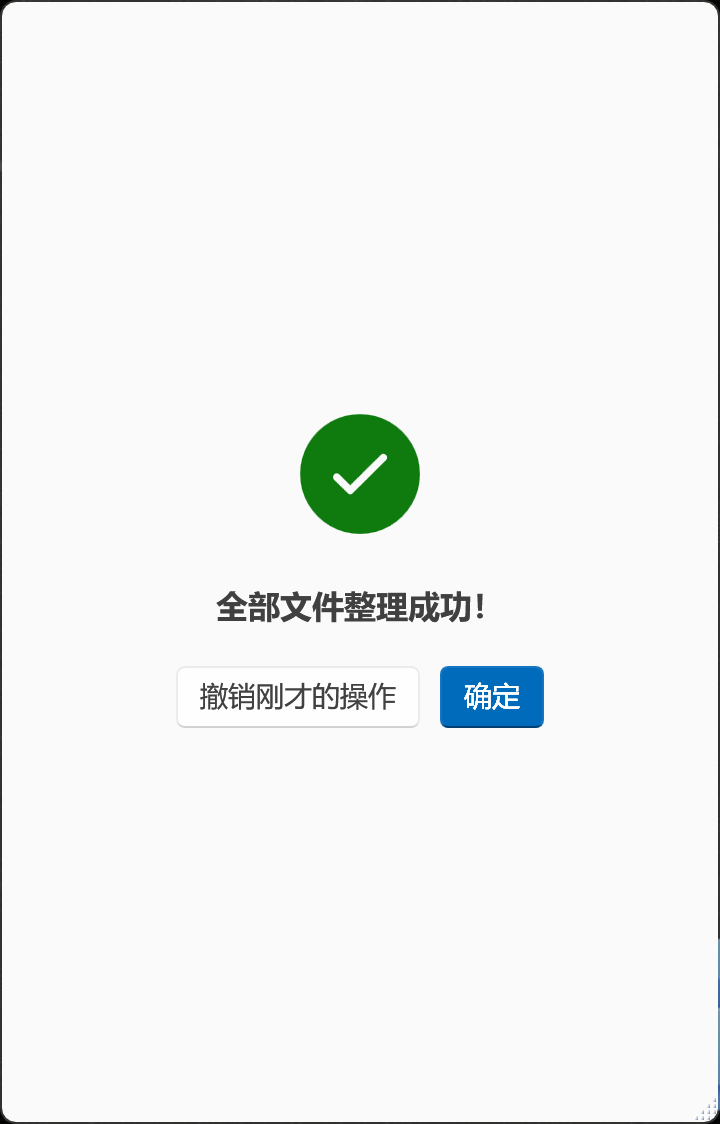
When all items succeed, a completion screen appears with Undo Last Operation. Non-Pro users have temporary undo during the current session with short-term recovery for up to 1 hour; Pro users also have persistent undo history. Undo capability is not a substitute for backup — complete recovery may not be possible after external programs further modify files.
The completion screen begins an auto-close countdown. Hovering the mouse over the window pauses the countdown. After clicking confirm, the window clears the current batch results and returns to the initial state, ready for the next batch of files.
Temporarily Choose Organization Method
Section titled “Temporarily Choose Organization Method”If you want to override the default behavior during a drag, there are two ways to choose a different organization target without going into the full organization window:
- Via the quick-organize popup: Right-click the quick-organize popup and select Organize Method… to pick a different Task, Group, Workflow, or Workflow Group (Pro). The next drag-and-drop will use this target and skip the organization window.
- During file dragging: While dragging files from File Explorer, hold
Ctrl + Shift— the auto drag popup will force the organization window to open even if automatic organization is enabled, letting you choose a different target on the fly.
After setting a temporary target via the popup’s Organize Method…, it will apply to the next two drop operations, then automatically revert to the default behavior. The current temporary method is displayed in the popup’s context menu.
Permanently disable the drag popup is available in Settings → General Settings → Application Settings. Before enabling, verify that the default task won’t cause unintended moves, overwrites, or deletions. After enabling, if you occasionally need to use a different task or group, hold Ctrl + Shift while dragging files to force the organization window to appear.
No auto popup appears when dragging files
Section titled “No auto popup appears when dragging files”Confirm that Pro is activated, Auto Drag & Drop Popup is enabled, and EasyTidy Pro is running. The auto popup only appears when the system detects a file or folder drag — text or image dragging from web pages is not a File Explorer drag-and-drop operation.
Hotkey or tray opens the popup, but the auto popup does not appear
Section titled “Hotkey or tray opens the popup, but the auto popup does not appear”These are two independent entry points. The quick-organize popup working does not mean the Pro auto entry is enabled. Check your license status and the “Auto Drag & Drop Popup” toggle.
Cannot drag files from File Explorer
Section titled “Cannot drag files from File Explorer”First ensure EasyTidy Pro and File Explorer are running at the same privilege level. Running the app as administrator long-term can prevent drag input from a normally elevated Explorer process — it is generally recommended to use “Administrator privileges only when needed.”
Files remain in the window showing failure
Section titled “Files remain in the window showing failure”Click the warning badge on the file to see the reason. Common causes include the file being in use, the path no longer existing, the target directory not being writable, or the file not matching any rules in the selected task group.
See General Settings for related settings, Shortcuts for hotkey configuration, and Organize Tasks for task and group rules.