Filter Conditions
Filter conditions further determine which files to process beyond file name rules. For example, you can organize only PDFs that are “larger than 10 MB, modified more than 30 days ago, and not read-only” — or skip file name rules entirely and find files solely by attributes or content.
Filter conditions are saved directly within the current organize task; you don’t need to create a standalone condition template first. Each task can use a different combination of conditions.
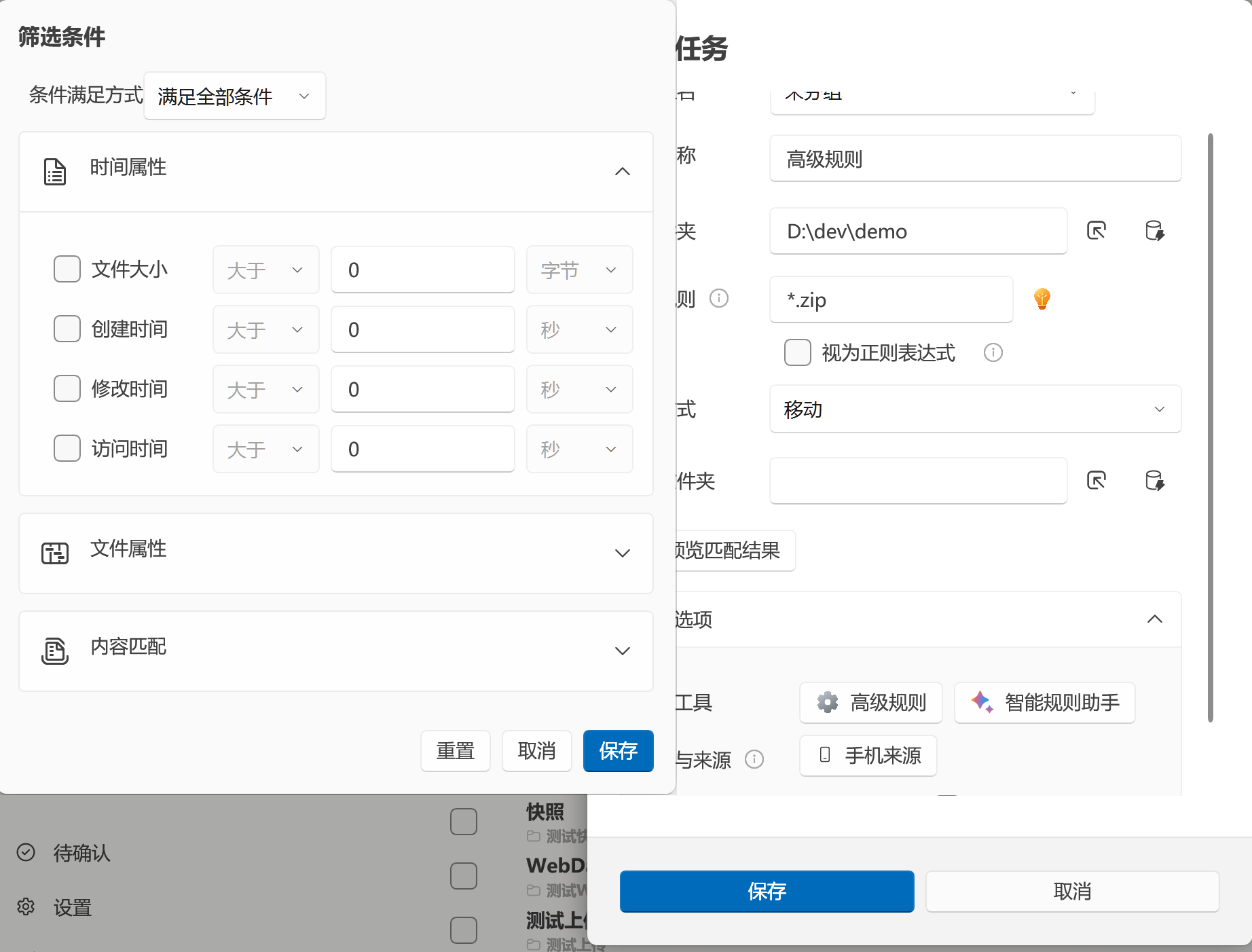
Adding Filter Conditions
Section titled “Adding Filter Conditions”- Go to File Organization → Organize Tasks.
- Create a new task, or click Edit on an existing task.
- First fill in the task name, operation type, and file name rules.
- In the rules area, open Filter Conditions.
- Select a Condition Satisfaction Mode.
- Check the conditions you want to use and fill in comparison methods, values, and units.
- Click Save to return to the task editor.
- Use Preview Current Task to check the match count, then save and run the task.
The buttons at the bottom of the panel behave as follows:
- Save: Validates and applies the current settings.
- Cancel: Closes the panel without applying changes.
- Reset: Clears all filter conditions in the current task and closes the panel.
At least one condition must be enabled to save. The start value of a range cannot exceed the end value; content match text requires at least 2 characters.
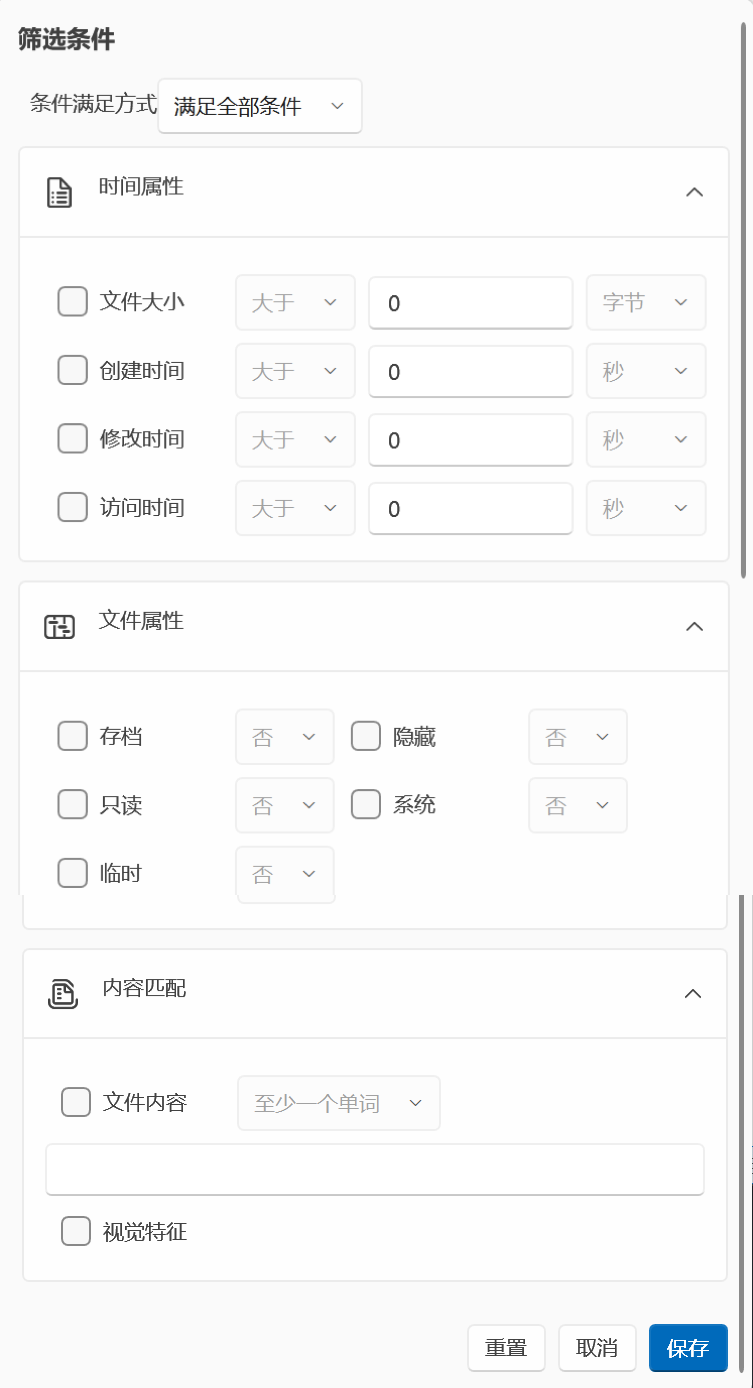
Condition Satisfaction Mode
Section titled “Condition Satisfaction Mode”“Condition Satisfaction Mode” determines how file name rules combine with enabled filter conditions.
| Interface Option | Actual Logic | Use Case |
|---|---|---|
| Satisfy All Conditions | File name rule matches, AND every filter condition is satisfied | Most common — progressively narrow the scope |
| Satisfy Any Condition | File name rule matches, OR any one filter condition is satisfied | Combine multiple independent match criteria |
| Use Filters Only | Ignore file name rules; every filter condition must be satisfied | Filter entirely by size, time, attributes, or content |
| Match Any Attribute | File name rule must match, AND any one enabled filter condition is satisfied | File type is fixed, but other restrictions need only one match |
Assume the file name rule is *.pdf, with “Size greater than 10 MB” and “Modified more than 30 days ago” both enabled:
- Satisfy All Conditions: Only processes PDFs that meet all three requirements.
- Satisfy Any Condition: Processes PDFs, files over 10 MB, or files older than 30 days — any match qualifies. Scope can be very broad.
- Use Filters Only: Ignores
*.pdf. Only processes files that are both over 10 MB AND older than 30 days. - Match Any Attribute: Must be a PDF, AND at least one of “over 10 MB” or “older than 30 days” must be true.
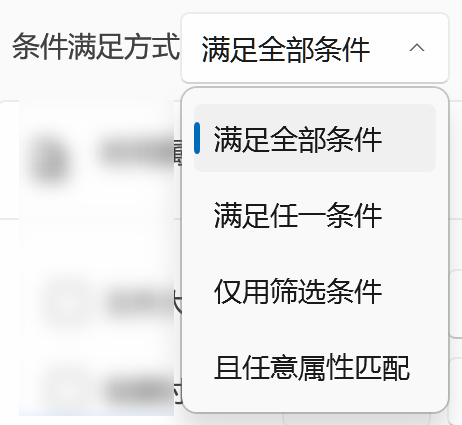
File Size
Section titled “File Size”When File Size is checked, you can choose:
- Greater Than
- Equal To
- Less Than
- Between
- Not Between
Units supported: Bytes, KB, MB, and GB. Conversion uses 1024: 1 MB = 1024 KB.
When selecting a range comparison, a second value field appears. Boundaries are inclusive for “Between”:
5 MB <= file size <= 100 MB“Not Between” matches files smaller than the first value or larger than the second value, excluding the boundaries.
When the task processes folders, size is calculated as the recursive sum of all accessible files within the folder. Files without permission or that fail to read are not counted, so folder results may appear smaller than what File Explorer shows.
Creation, Modification & Access Time
Section titled “Creation, Modification & Access Time”Time attributes include:
- Creation Time: When the file or folder was created on the current file system.
- Modification Time: When the content was last written.
- Access Time: Last access time, determined by Windows and disk settings. Some systems may not update this consistently.
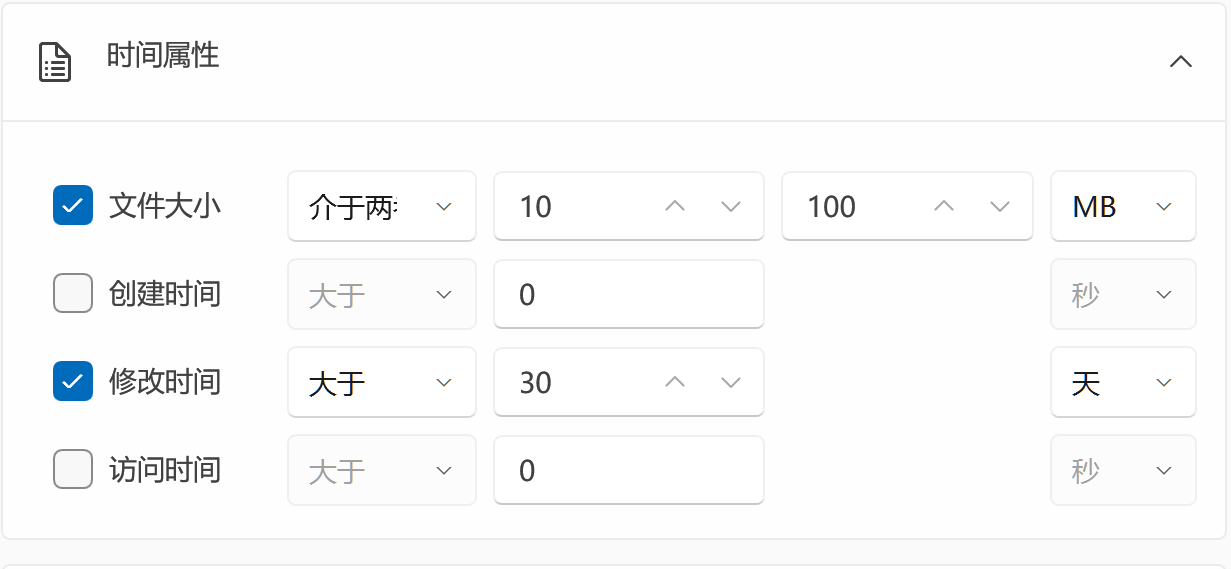
The input value represents how long ago from now, not a fixed date. For example, “Modification Time, Greater Than 30 days” means the modification time is earlier than “now minus 30 days” — i.e., the file age exceeds 30 days.
| Comparison | Example: “Modified 30 days” |
|---|---|
| Greater Than | Modified more than 30 days ago — older files |
| Less Than | Modified less than 30 days ago — newer files |
| Equal To | Modified exactly 30 days ago — rarely a precise match |
| Between | File age falls between two offset values, inclusive of boundaries |
| Not Between | File age is less than the start value or greater than the end value |
Supports seconds, minutes, hours, days, months, and years. Months and years are calculated forward from the current time using the system calendar, not fixed 30-day or 365-day periods.
When configuring a range, enter the smaller age first, then the larger one. For example, 10 to 100 days means between 10 and 100 days ago.
File Attributes
Section titled “File Attributes”You can evaluate the following Windows file attributes:
| Attribute | Description |
|---|---|
| Archive | Whether the file has the archive flag, commonly used by backup software |
| Hidden | Whether the file has the hidden attribute |
| Read-only | Whether the file has the read-only attribute |
| System | Whether the file has the system attribute |
| Temporary | Whether the file has the temporary attribute |
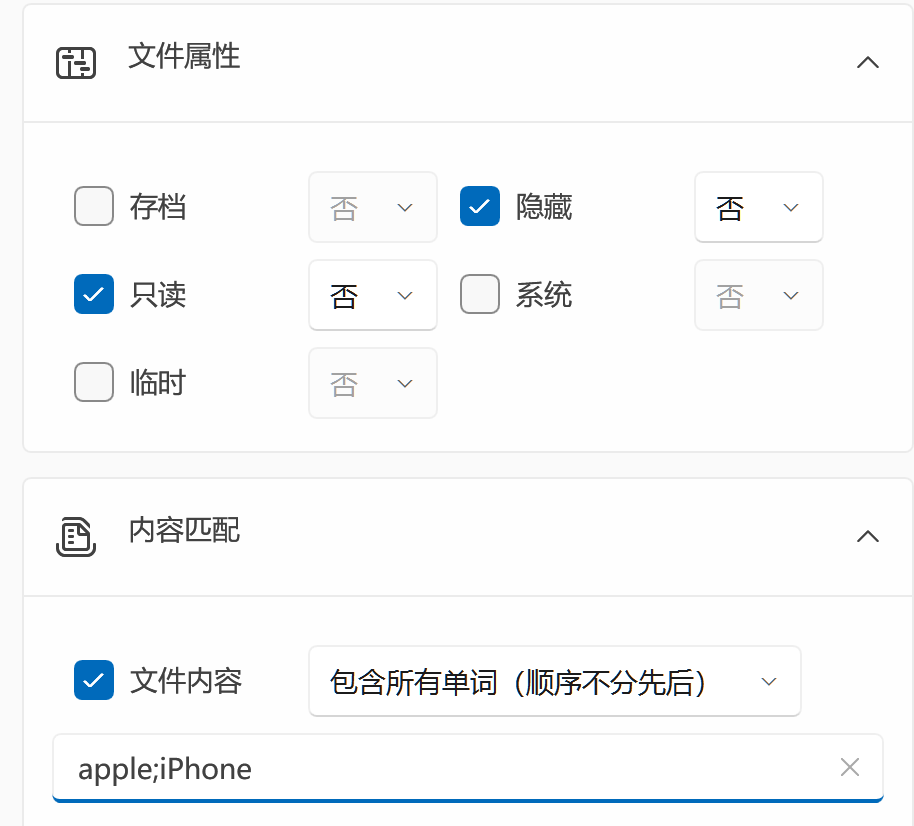
For each attribute, first use the checkbox to decide whether it participates in filtering, then select Yes or No:
- Select Yes: Only match items with that attribute.
- Select No: Only match items without that attribute.
- Leave unchecked: Completely ignore that attribute.
For example, checking “Hidden” and selecting “No” means exclude hidden items. This is different from leaving “Hidden” unchecked, which allows both hidden and non-hidden items.
When processing folders, “Archive” and “Temporary” are file-specific attributes and won’t prevent folders from matching. For folder organize tasks, prefer name, size, and time conditions, and verify with a test directory.
Content Matching
Section titled “Content Matching”When File Content is checked, select a matching method and enter text:
| Interface Option | Behavior |
|---|---|
| At Least One Word | Case-insensitive whole-word matching |
| At Least One Word (Case-Sensitive) | Case-sensitive whole-word matching |
| Contains All Words (Any Order) | Enter multiple space-separated keywords; all must appear, order not required |
| Contains All Words (Any Order) (Case-Sensitive) | Same as above, but case-sensitive |
| String | Content contains the exact input string, case-insensitive |
| String (Case-Sensitive) | Content contains the exact input string, case-sensitive |
| Regular Expression | Uses .NET regular expression matching, case-sensitive by default |
For case-insensitive regex, use (?i) at the start of the expression:
(?i)invoice\s*#?\d+Content matching reads files through the “Document Content Extraction” component. Whether PDF, Word, Excel, and other formats can be matched depends on whether the component is installed, whether the file is supported and not encrypted, and whether content can be successfully parsed. If parsing fails or no extractable text is found, the content condition is considered not satisfied.
Visual Features
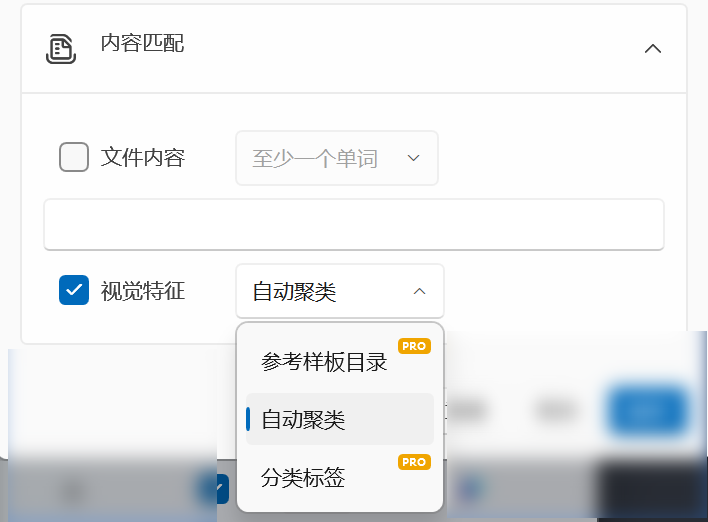
Section titled “Visual Features”“Visual Features” determines target classification subdirectories based on image content. It is not a regular text condition: files first pass through name, size, time, attribute, and content checks, then visual analysis places qualifying images into classified subdirectories under the target path.
Supported image extensions:
.jpg .jpeg .png .bmp .gif .webp .tiff .tif .heic .heif| Mode | Behavior | License |
|---|---|---|
| Automatic Clustering | Automatically groups images from the source directory by visual features; target subdirectory names look like cluster-0 |
Free users |
| Reference Template Directory | Matches categories based on subfolders and sample images in the template directory; category names become target subdirectories | Pro |
| Classification Labels | Compares images against custom labels such as “invoice, screenshot, ID photo”; the closest label becomes the target subdirectory | Pro, and requires a vision model with text encoding support |
When non-Pro users select a restricted mode, the app shows an upgrade prompt and falls back to automatic clustering. Template directories must first be configured in visual classification settings; without available templates, the panel prompts you to go to settings.
Unrecognizable files, non-images, or low-confidence images are not deleted due to visual analysis — they continue using the task’s original target location. To prevent visual classification from overriding normal directory structures, use a separate target directory for testing.
Recommended Examples
Section titled “Recommended Examples”Archive Older Large PDFs
Section titled “Archive Older Large PDFs”File name rule: *.pdfCondition satisfaction mode: Satisfy All ConditionsFile size: Greater than 10 MBModification time: Greater than 30 daysResult: Only matches PDFs larger than 10 MB and unmodified for over 30 days.
Find Non-Hidden, Non-Read-Only Files
Section titled “Find Non-Hidden, Non-Read-Only Files”File name rule: *Condition satisfaction mode: Satisfy All ConditionsHidden: NoRead-only: NoResult: Matches files that have neither the hidden attribute nor the read-only attribute.
PDFs Satisfying Any Specified Requirement
Section titled “PDFs Satisfying Any Specified Requirement”File name rule: *.pdfCondition satisfaction mode: Match Any AttributeFile size: Greater than 20 MBModification time: Greater than 180 daysResult: The file must be a PDF, AND at least one of “over 20 MB” or “unmodified for over 180 days” must be true.
Find Documents by Content Only
Section titled “Find Documents by Content Only”File name rule: *Condition satisfaction mode: Use Filters OnlyFile content: String (case-insensitive)Match text: confidentialResult: Ignores file names. Only processes files whose content can be extracted and contains the word confidential.
Nothing happens when saving filter conditions
Section titled “Nothing happens when saving filter conditions”Confirm at least one condition is checked. Content match text must be at least 2 characters. The first value of a range must not exceed the second. Template mode requires a configured and selected template directory.
I set the rule to PDF, so why are other files being processed?
Section titled “I set the rule to PDF, so why are other files being processed?”Check whether “Satisfy Any Condition” is selected. In that mode, the file name rule and each filter condition are connected with OR logic — other files enter the task as long as they satisfy any filter condition. You likely want “Satisfy All Conditions” or “Match Any Attribute” instead.
Time condition results are the opposite of what I expected
Section titled “Time condition results are the opposite of what I expected”Time values represent file age. “Greater than 30 days” means older files from more than 30 days ago. “Less than 30 days” means files from within the last 30 days. Access time may also be affected by Windows file system settings; for archiving scenarios, prefer modification time.
Content conditions never produce results
Section titled “Content conditions never produce results”Check whether the “Document Content Extraction” component is installed, and confirm files are not encrypted, are in a supported format, and actually contain extractable text. Test with a plain string first. Regular expressions are case-sensitive by default — add (?i) if needed.
Visual features aren’t generating classification subdirectories
Section titled “Visual features aren’t generating classification subdirectories”Confirm the file is a supported image format, the target directory is valid, and the visual model has been downloaded. Template mode also requires a valid template directory; classification label mode requires a model with text encoding support. When confidence is low, files return to the original target location.
Why are shortcuts never matched?
Section titled “Why are shortcuts never matched?”.lnk shortcuts are skipped during the filtering phase and do not participate in file name or filter condition evaluation.
Filter conditions only determine the processing scope. For file name rules, target locations, and operation types, see Rules Reference and Task Orchestration. Execution results and failure reasons can be viewed in Run Logs.