Advanced Workflows
An Advanced Workflow saves multiple sources, conditions, and file operations within a single flow, and can continue running existing ordinary organize tasks after the main operations complete. It is ideal for scenarios where you need to apply multiple operations after unified filtering, or combine several existing tasks together.
The current editor uses a sectioned form, not a free-form node canvas. A workflow is primarily composed of:
Source Paths → Condition Groups → File Operations → Post-Organize Tasks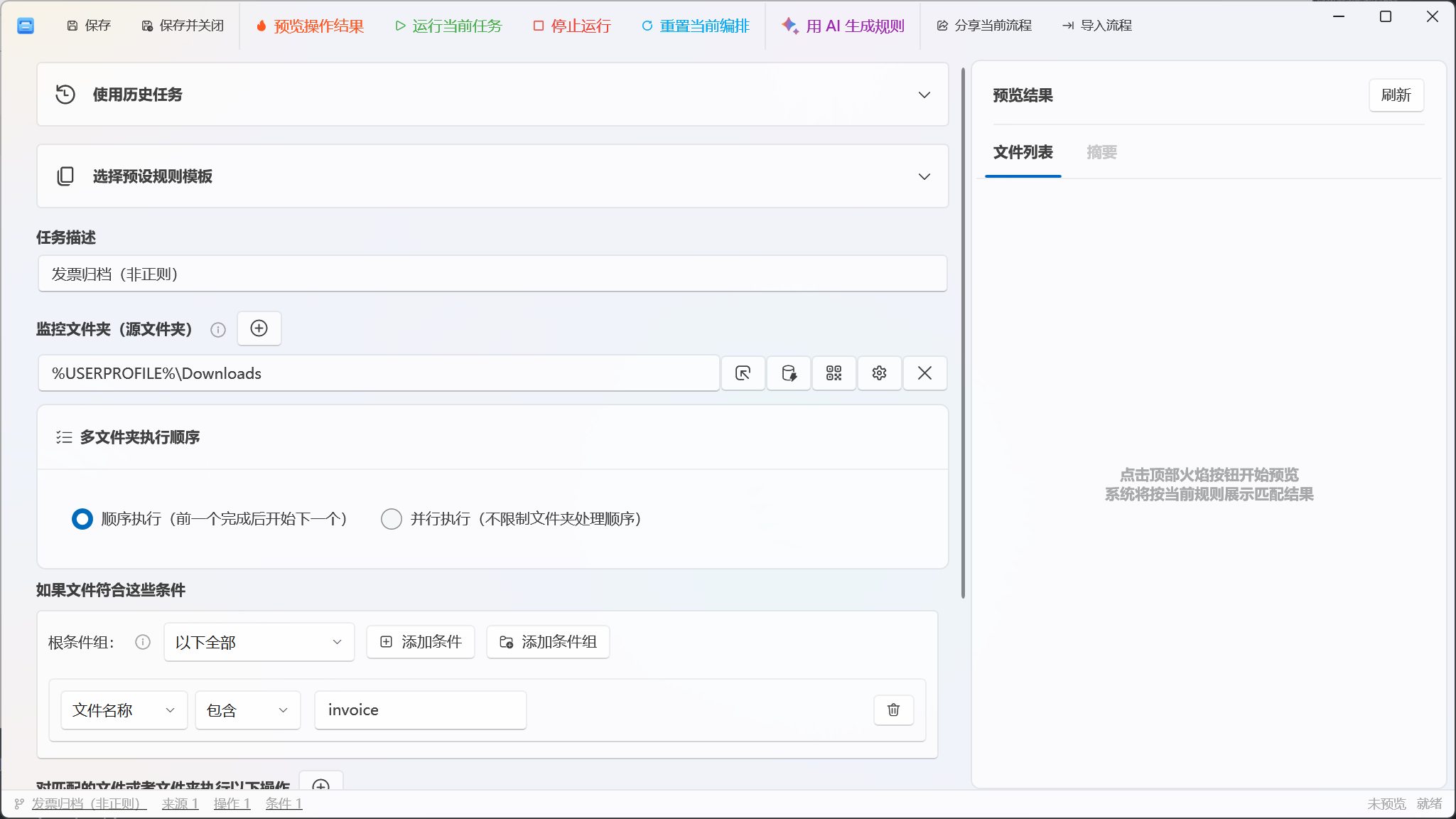
Quick Workflow Creation
Section titled “Quick Workflow Creation”On first use, start from a preset template:
- Go to File Organization → Advanced Workflows.
- Click the New Workflow icon button at the top of the page to open the separate workflow editor window.
- Expand Default Rules and choose a template such as “Image Archive”, “PDF Collection”, or “Invoice Archive”.
- Replace
%USERPROFILE%paths in the template with a test directory, and verify the target directory. - Click Preview Results to see the file list and summary on the right.
- Once confirmed, click Save, or Save & Close.
Selecting a template first resets the current editor, then fills in the template’s source, conditions, and operations. If you have already manually configured content, save or export it first to avoid being overwritten by the template.
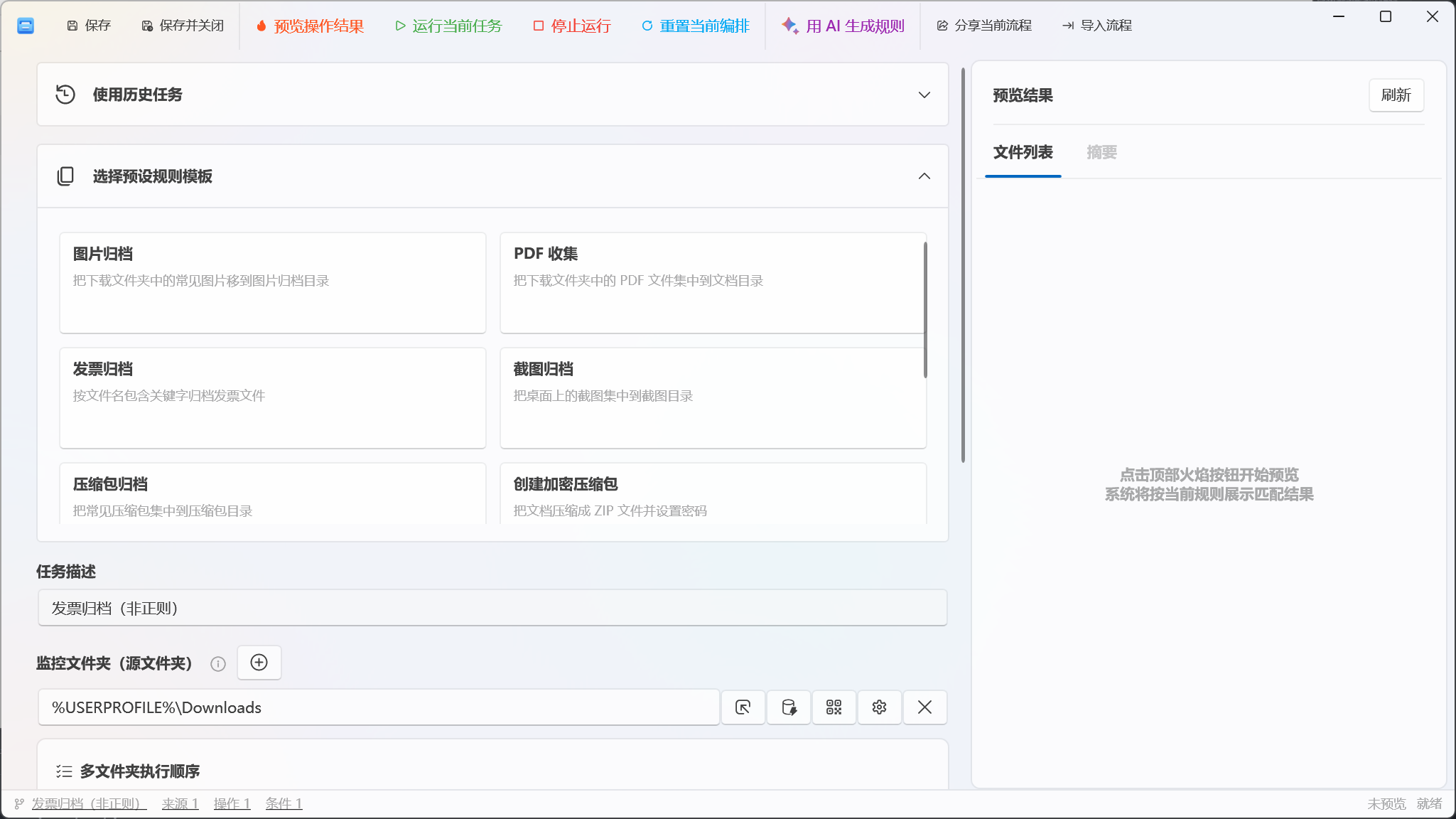
Reusing Existing Organize Tasks
Section titled “Reusing Existing Organize Tasks”The History Tasks list at the top of the editor displays existing ordinary Organize Tasks. Selecting a task loads its name, source, file rules, filter conditions, operation type, and destination path into the workflow body.
After reuse, you can continue adding sources, conditions, and operations. It is therefore better suited to using a mature ordinary task as a starting point rather than referencing the task itself. If the original ordinary task is later modified, those changes do not automatically sync to the saved workflow body.
Entering the Workflow Name
Section titled “Entering the Workflow Name”The Description input field in the editor doubles as the workflow name:
- After saving, the “Task Name” column in the workflow list displays this content.
- The status bar also uses this content to identify the current workflow.
- This field cannot be empty, or the workflow cannot be saved.
Use a name that describes both the target and result, e.g. “Downloads Invoice Archive & Backup”.
Configuring Source Paths
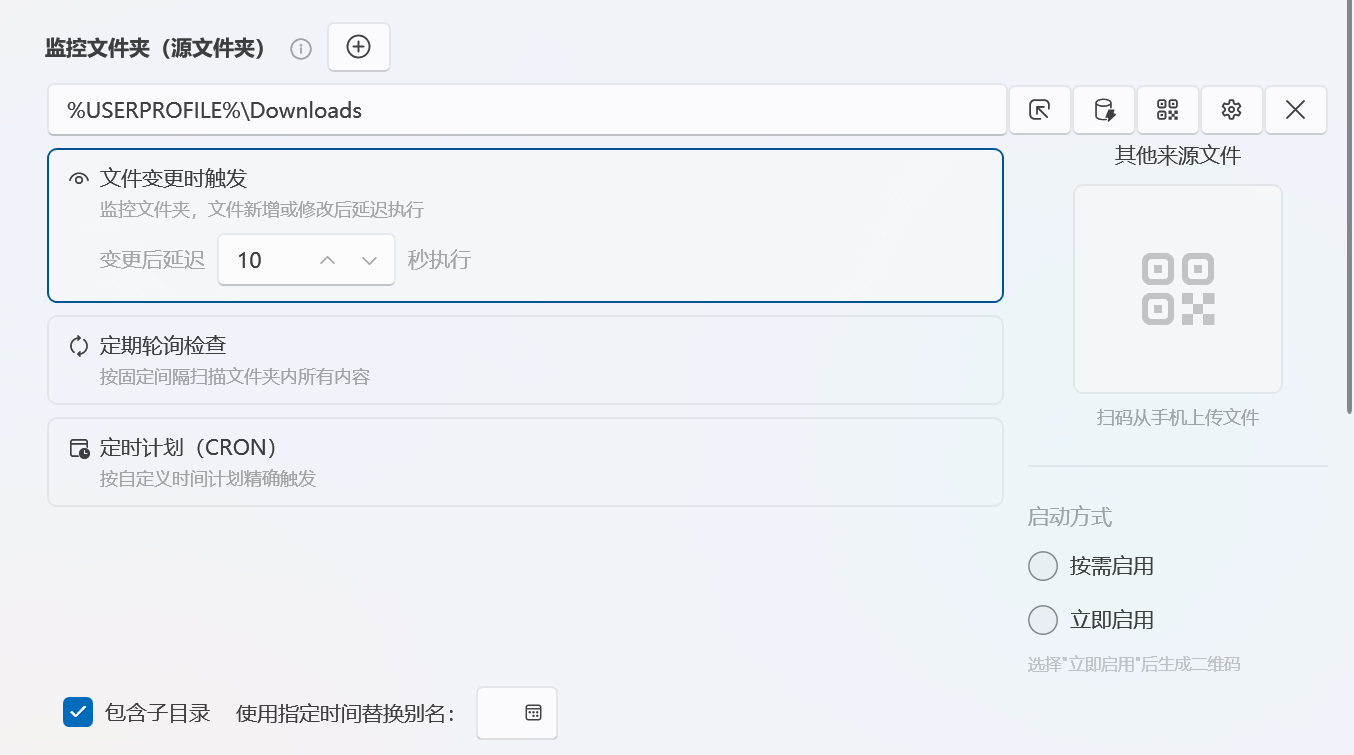
Section titled “Configuring Source Paths”The “Monitor Folders” area requires at least one valid source. Each source item provides:
- A path input field where you can type or drag in file/folder paths;
- Select Folder;
- Path Alias, supporting built-in aliases like
%Downloads%and%USERPROFILE%; - A QR code entry for displaying the LAN upload address;
- A settings button to expand trigger method and subdirectory options;
- Remove Source.
Click Add next to the section title to add multiple sources.
Source Trigger Methods
Section titled “Source Trigger Methods”Expanding the source settings reveals three modes:
| UI Mode | Saved Configuration | Current Recommendation |
|---|---|---|
| Trigger on file change | Saves create, delete, modify, rename events and a 1–3600s delay | Verify actual triggering in a test directory; do not rely solely on the “Monitoring” status in the list |
| Periodic polling | Converts minutes or hours to interval seconds | Current save does not create a separate periodic schedule for this mode; not recommended as the primary automatic execution method |
| Scheduled (CRON) | Saves a Quartz-compatible six-field CRON expression | Creates a workflow schedule task on save; currently the clearest automatic execution method |
For stable automatic execution, prefer Scheduled (CRON), and observe one actual run after saving. Pausing all monitoring in the tray pauses both file monitoring and scheduled tasks; fully exiting EasyTidy Pro also stops them.
“Include subdirectories” determines whether scanning descends into subdirectories. “Resolve time-based aliases” sets the resolution time for date-based path aliases; ordinary fixed paths usually do not need to be changed.
QR Code Upload Entry
Section titled “QR Code Upload Entry”Clicking the QR code button expands the LAN upload area, showing the access address, QR code, and startup mode. Other devices can scan it to upload files to the current source directory.
- On-demand: Start the receiving service only when needed.
- Start immediately: Prepare to receive as soon as expanded or configured.
Only use in a trusted LAN, and confirm that the source directory will not be automatically deleted, transferred out, or overwritten by dangerous workflows.
Setting Execution Order
Section titled “Setting Execution Order”“Execution Order” offers Sequential and Parallel:
- Sequential: Saved as serial mode; steps are configured with “Continue on success” for the previous step.
- Parallel: Saved as parallel mode; steps are configured to always execute.
Adding Conditions
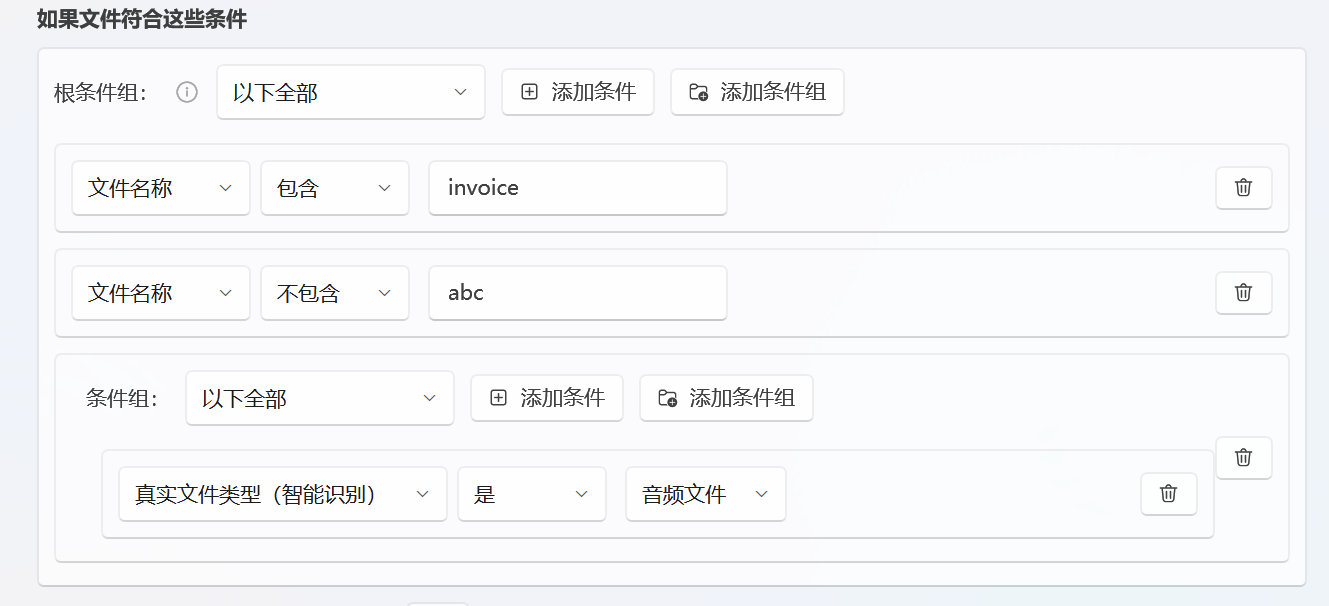
Section titled “Adding Conditions”The root condition group offers:
| Option | Behavior |
|---|---|
| All files | Ignore condition items; match all items in the source with * |
| Match any condition | Any condition in the current group must be true |
| Match all conditions | All conditions in the current group must be true |
Click Add Condition to create condition items. Click Add Condition Group to nest a group of “All” or “Any” judgments. The Delete button on the right of each condition or group removes only that item.
Available Condition Fields
Section titled “Available Condition Fields”| Category | Fields |
|---|---|
| Name & Type | File name, Extension, File type, True file type, Folder name |
| Size & Time | Size, Modification time, Creation time, Access time |
| Content & Tags | File content, Tag properties |
| System Properties | File attributes |
| Image Analysis | Visual features |
Plain text fields support “is, is not, contains, does not contain, matches regex, is empty” and more. Size and time use greater than, less than, equal to, and range comparisons. File content can match by containing text, any keyword, all keywords, exact match, or regex, with case sensitivity and keyword order options.
- True file type depends on the Magika component; a download entry is shown in the condition item if not installed.
- File content depends on the Document Content Extraction component; it can be downloaded in the condition item if not installed.
- Visual features support automatic clustering, reference samples, and text labels. Reference sample and text label modes require Pro.
- Tag properties match file tags already saved in EasyTidy Pro.
Condition groups apply to all body operations, not as independent conditions for a single step. If different operations need different filter scopes, split into multiple workflows or use post-organize ordinary tasks.
Adding Body Operations
Section titled “Adding Body Operations”The “Matched Files or Folders” area configures body operations. Click Add next to the title to add operation items. Each item includes operation type, target path, specific parameters, and failure strategy.
Available operations are largely the same as ordinary organize tasks:
| Category | Operations |
|---|---|
| Basic Organization | Move, Copy, Rename, Add Tag, Remove Tag |
| Compress & Convert | Compress, Extract, Format Conversion, Extract Structured Data |
| Security | Encrypt, Decrypt, File Camouflage (Pro) |
| Smart Processing | AI Classification, AI Summary, Duplicate File Organization |
| Links & Transfer | File Snapshot, Hard Link, Symbolic Link, Cloud Transfer, Run External Program |
| Cleanup | Move to Recycle Bin, Permanently Delete |
Add Tag, Remove Tag, Format Conversion, and Extract Structured Data do not show an ordinary destination path. Cloud upload also does not show a local destination path. Other operations require a destination path; the target field supports folder selection, drag-and-drop, and path aliases. The current workflow validation may still require some operations that do not produce ordinary output to fill in a destination path — follow the editor prompts.
Operation items are saved in top-to-bottom creation order. The current UI does not support drag reordering of body operations; to adjust the order, delete and re-add in the desired sequence.
After selecting File Camouflage, you can switch between “Create Camouflage File” and “Extract Hidden Content”. When creating, you can use a single image, audio, video, or custom file as the carrier, or choose a carrier directory with random, filename, or file-size rules for selecting carriers. When extracting, original content is restored from the camouflage file. Both creation and extraction offer an option to delete the source after completion — keep this disabled for the first configuration, and verify output with preview and test files. File camouflage changes only the encapsulation format and is not equivalent to encryption.
Failure Strategy
Section titled “Failure Strategy”At the bottom of each operation item you can choose:
- Continue to next task: Log the failure and continue with subsequent mappings.
- Stop all tasks: Terminate the body workflow after the current step fails.
- Ignore error: Lower the log level for this error and continue.
- Retry current task: Retry the current file operation per the retry policy; continue with subsequent mappings after retries are exhausted.
Failure strategies apply to body operations. Whether post-organize tasks continue after failure is determined by the independent toggle in the post-task area.

Understanding Source-to-Operation Auto-Mapping
Section titled “Understanding Source-to-Operation Auto-Mapping”Advanced workflows do not automatically pass “Step 1’s output” as “Step 2’s input”. At execution time, path mappings are established based on the number of sources and configured operations:
| Sources | Operations | Actual Mapping |
|---|---|---|
| 1 | 1 | One source executes one operation |
| Multiple | 1 | Each source executes the first operation |
| 1 | Multiple | The single source executes each operation |
| Multiple (equal count) | Multiple (equal count) | One-to-one pairing by UI order |
| Multiple (different counts) | Multiple (different counts) | Each source executes each operation |
For example, with two sources and two operations, the default is “Source 1 → Operation 1, Source 2 → Operation 2” — not both sources executing both operations. Many-to-many mapping only occurs when the counts differ.
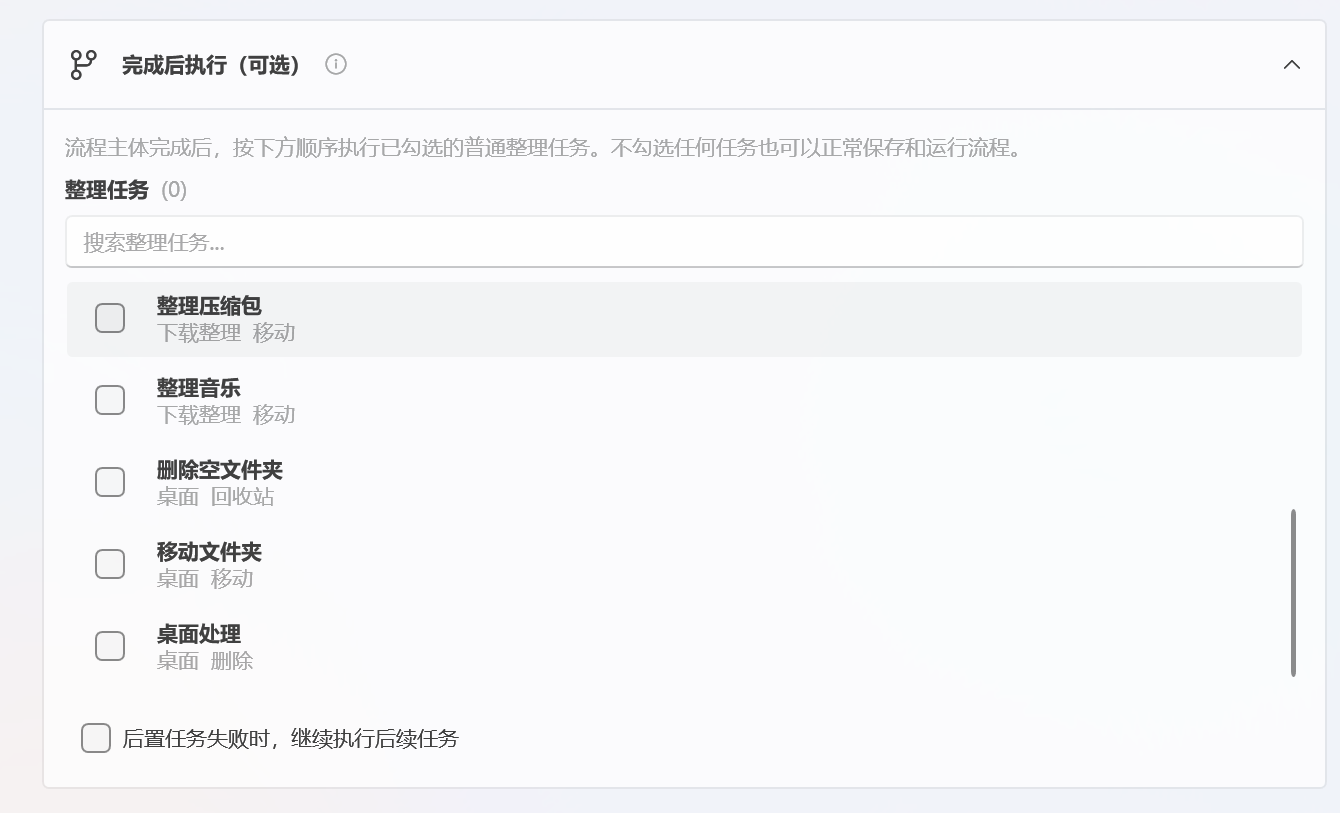
Configuring Post-Organize Tasks
Section titled “Configuring Post-Organize Tasks”“Post-Organize Tasks” run existing ordinary organize tasks in sequence after all body operations complete.
- Use the search box to filter by task name, group, or operation type.
- Check the tasks you want to run; selected tasks move to the front of the list.
- Drag the sort handles on the right between selected tasks to adjust execution order.
- Optionally check Continue subsequent tasks when a post task fails.
When the “continue” option is unchecked, a failed post task stops subsequent tasks and causes the workflow to report failure. When checked, remaining post tasks continue to run, with failures summarized at the end.
Post tasks are saved by ordinary task ID. If the corresponding ordinary task is later deleted, the editor displays an unavailable record like Task #ID, and execution may fail at runtime — remove or reselect it promptly.
Preview, Run & Stop
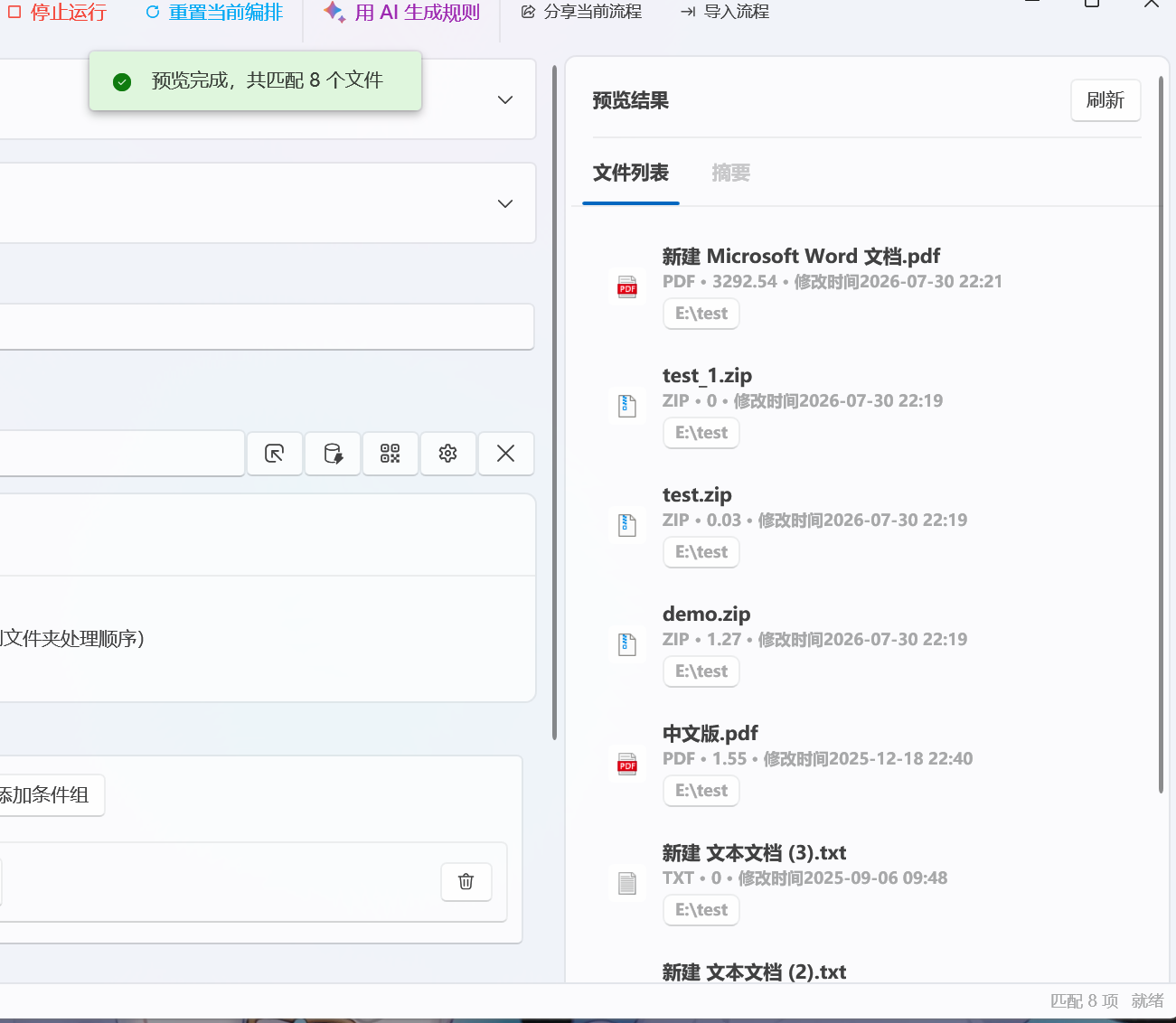
Section titled “Preview, Run & Stop”After clicking Preview Results at the top, the right side provides two views:
- File List: Shows file name, type, size, modification time, and target path.
- Summary: Shows match count, operation type count, total size, and match distribution by operation.
Preview does not modify files. The list displays up to the first 500 matching records, but the summary total continues to count more results.
After modifying source paths, destination paths, operation types, or conditions, old previews become invalid. You must re-preview before clicking Run Current Task; the current editor content does not need to be saved first to run.
During execution, you can click Stop. The stop request takes effect when the current operation checks its cancellation state; ongoing large file compression, external programs, or network operations may not end immediately.
Save, Reset & Share
Section titled “Save, Reset & Share”The top menu provides:
- Save: Save and stay in the editor.
- Save & Close: Save and return to the main window.
- Reset Current Workflow: Clear the current editing state and restore one empty source and one empty operation item.
- Share Workflow: Export a
.etrulefile. - Import Workflow: Only accepts
.etruleshare packages containing an advanced workflow, and creates a new workflow. - AI Generate Rules: Fill in source, conditions, and operations from natural language. This is a Pro feature; after generation, manually verify paths and dangerous operations.
Saving requires at minimum a name, one valid source, and one configured operation. Tags must be filled in when adding tags; most operations require a destination path. A security confirmation is shown when system directories are involved.
Import and sharing use path aliases wherever possible, but do not verify directories, cloud nodes, components, AI models, or external programs on the target machine. Only import rules from trusted sources.
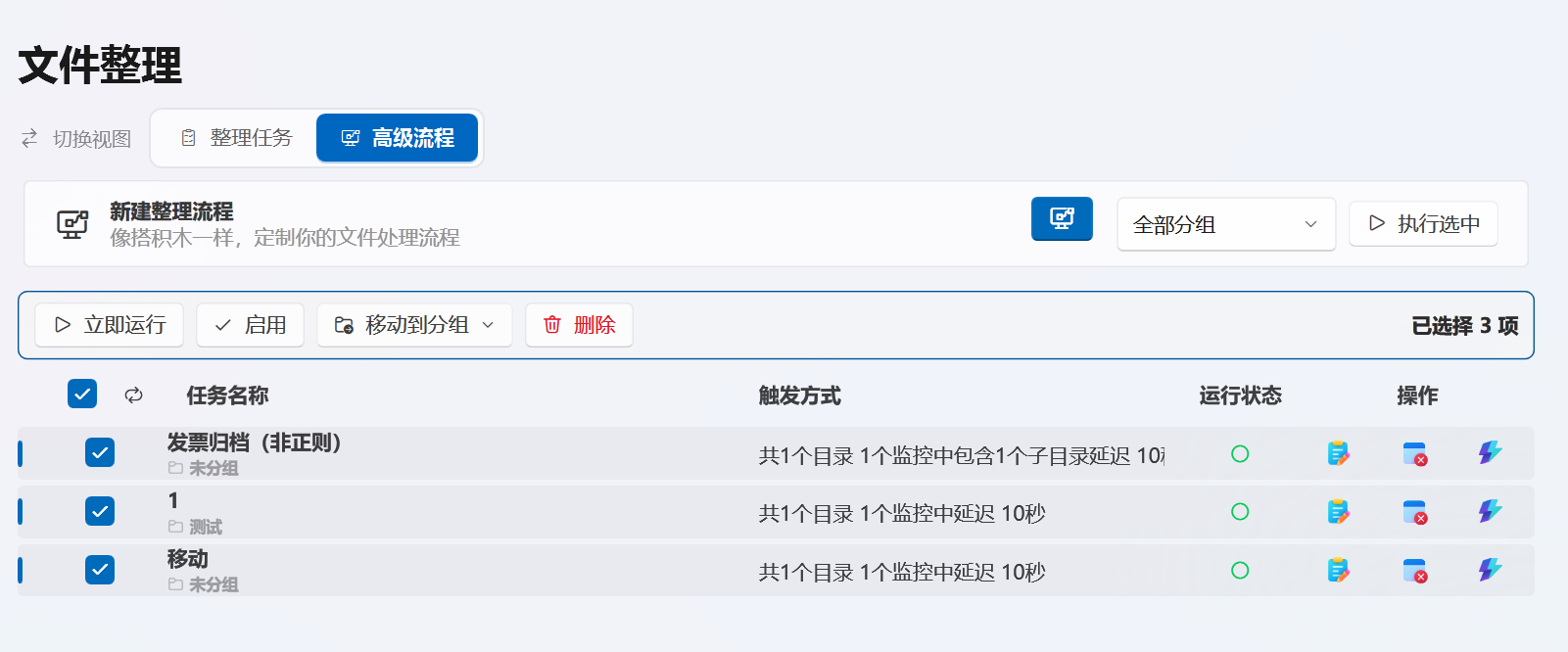
Managing the Workflow List
Section titled “Managing the Workflow List”Each row in the workflow list provides Edit, Delete, and Run.
The status column uses icons and colors to indicate Idle, Running, Error, or Disabled. The monitoring status column summarizes the source count, number of sources marked as monitored, subdirectory settings, and delay information — this text is a summary of the saved configuration and does not guarantee that the corresponding background trigger is successfully running.
Group Management
Section titled “Group Management”- Open the group selector at the top and click Group Management to add, rename, or delete custom groups in a dialog.
- Group names must be unique; creating or renaming to an existing name prompts you to change it.
- “All Groups” and “Unassigned” are fixed built-in items that cannot be renamed or deleted. New workflows default to “Unassigned”.
- When a custom group is deleted, workflows within it are moved to “Unassigned” — the workflows themselves are not deleted.
- Execute Group requires selecting a specific group first; it cannot be performed directly on “All Groups”.
Batch Operations
Section titled “Batch Operations”After checking multiple workflows, the batch toolbar provides:
- Run Now;
- Enable;
- Move to Group;
- Delete.
Batch runs and group runs execute selected workflows sequentially in list order.
New workflows are added to the end of the list. The workflow list does not display database IDs; identify workflows by name and group instead.
Free Tier Quotas & Pro Features
Section titled “Free Tier Quotas & Pro Features”The current workflow policy:
- The free tier provides 10 successful save quotas; both creating new and editing existing workflows count.
- The free tier provides 10 execution quotas; running the current workflow, running from the list, batch running, or executing a group all consume execution quotas.
- Batch runs or executing a group count as one command toward the quota, not per workflow within it.
- Pro users’ workflow saves and executions are not subject to these free tier limits.
- AI Generate Rules, visual sample/text label classification, deep semantic understanding, and other features have their own separate Pro limitations.
Preview, opening the editor, viewing the list, group management, and editing configurations do not consume save or execution quotas; only successful saves or permission-checked executions are counted.
“Preview first” when clicking Run Current Task
Section titled ““Preview first” when clicking Run Current Task”This is a normal safety restriction. Click Preview Results, wait for the preview to complete, then run. Modifying source, destination, operations, or conditions invalidates the preview and requires re-previewing.
Configured two sources and two operations, but not all ran
Section titled “Configured two sources and two operations, but not all ran”When the source count equals the operation count, sources and operations are paired one-to-one by order. To have each source execute each operation, split the workflow or reorganize the sources and operations, and verify the mapping with preview.
The second operation did not process the first operation’s output
Section titled “The second operation did not process the first operation’s output”Body operations share the workflow source and do not automatically relay the previous step’s destination directory. Turn the next step into an ordinary organize task with the first step’s output directory as its source, then add it as a post-organize task.
Preview count is higher than the file count
Section titled “Preview count is higher than the file count”When the same file matches multiple operations, each “file × operation” combination counts toward the total. Check the operation distribution and file list to determine if it is duplicate counting.
Configuration disappeared after selecting a history task
Section titled “Configuration disappeared after selecting a history task”History tasks and preset templates both replace the current body configuration. Unsaved content cannot be automatically recovered; reconfigure or import from a previously exported .etrule.
File change or periodic polling did not auto-execute
Section titled “File change or periodic polling did not auto-execute”The current save logic creates explicit schedule tasks for CRON sources. File change and periodic polling configurations should not be treated directly as stable established schedules. Switch to CRON, keep the app running in the tray after saving, and check actual trigger records in Logs.
Post task shows Task #Number
Section titled “Post task shows Task #Number”The original ordinary organize task may have been deleted. Deselect that record and reselect from the currently available task list. Otherwise, execution may fail when reaching that post task.
“Missing target path” prompt when saving
Section titled ““Missing target path” prompt when saving”Check each body operation. Add Tag, Remove Tag, Format Conversion, Structured Extraction, and Cloud Upload typically do not show an ordinary destination path; other operations should have a destination path filled in. The current version may still apply unified path validation to some operations without ordinary output — follow the UI prompts to add a test path and preview.
For ordinary single-step organization, see Organize Tasks. Condition field meanings for size, time, attributes, and content can be understood alongside Filter Conditions. Execution errors can be viewed in Logs.