Organize Tasks
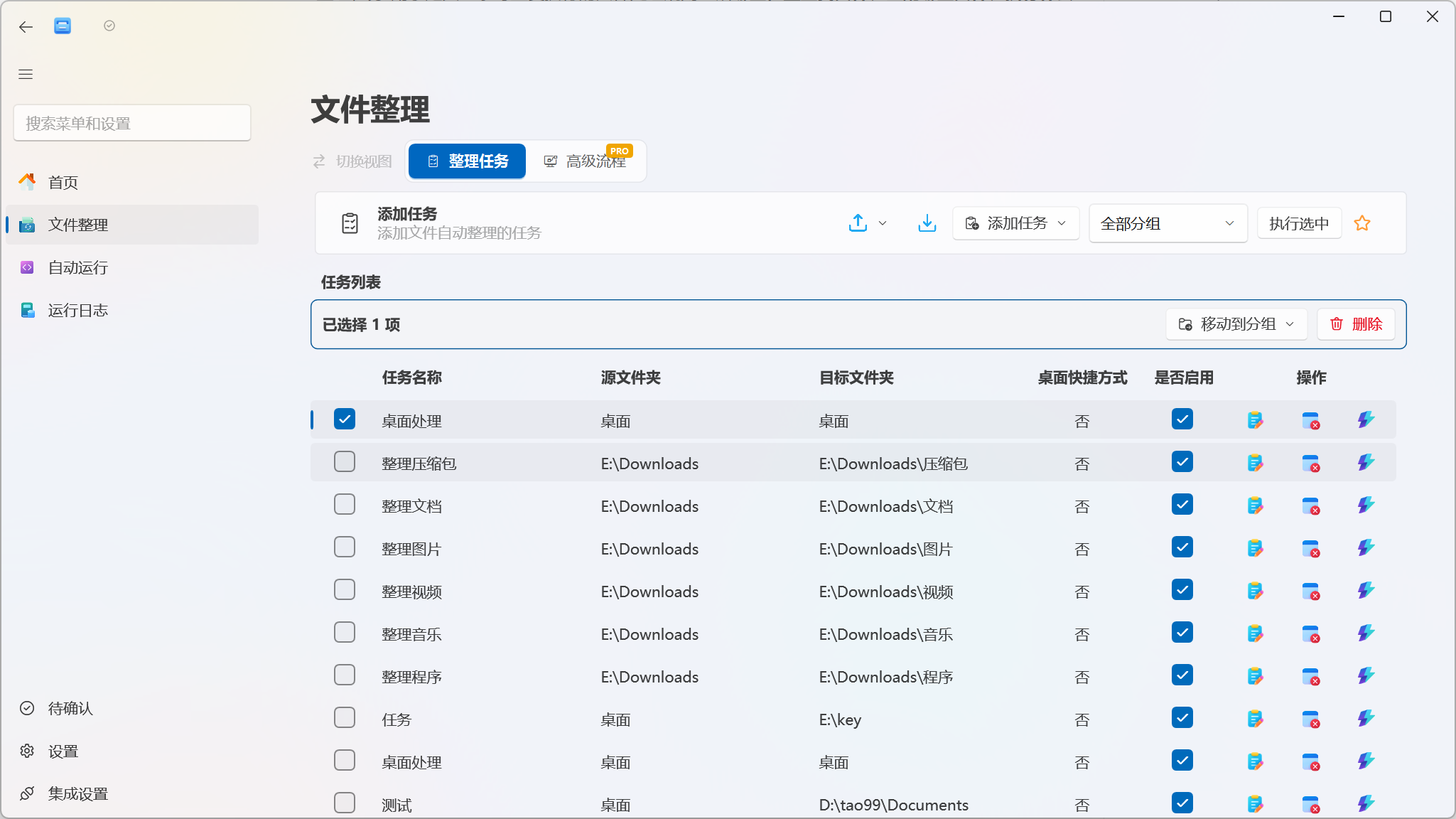
An Organize Task defines a repeatable file processing rule: where to find files, which files to match, what action to perform, and where to put the result. Once created, a task can be run manually or triggered by file changes, startup, periodic intervals, or CRON schedules in Automation.
Quick Start
Section titled “Quick Start”When you only need a simple move or copy, start with Quick Create:
- Go to File Organization → Organize Tasks.
- Open the dropdown menu to the right of New Task, and select Quick Create.
- Choose a source directory. You can pick Downloads, Desktop, or Pictures directly, or browse/drag in another folder.
- Select the file types to organize; fill in a file matching pattern if you need a custom one.
- Enter a task name, choose Move or Copy, then select a destination directory.
- Click Create & Preview. The system saves the task and counts matching files — no files are modified during the preview phase.
- After confirming the match count and operation, execute. Once completed, you can configure automatic execution as prompted.
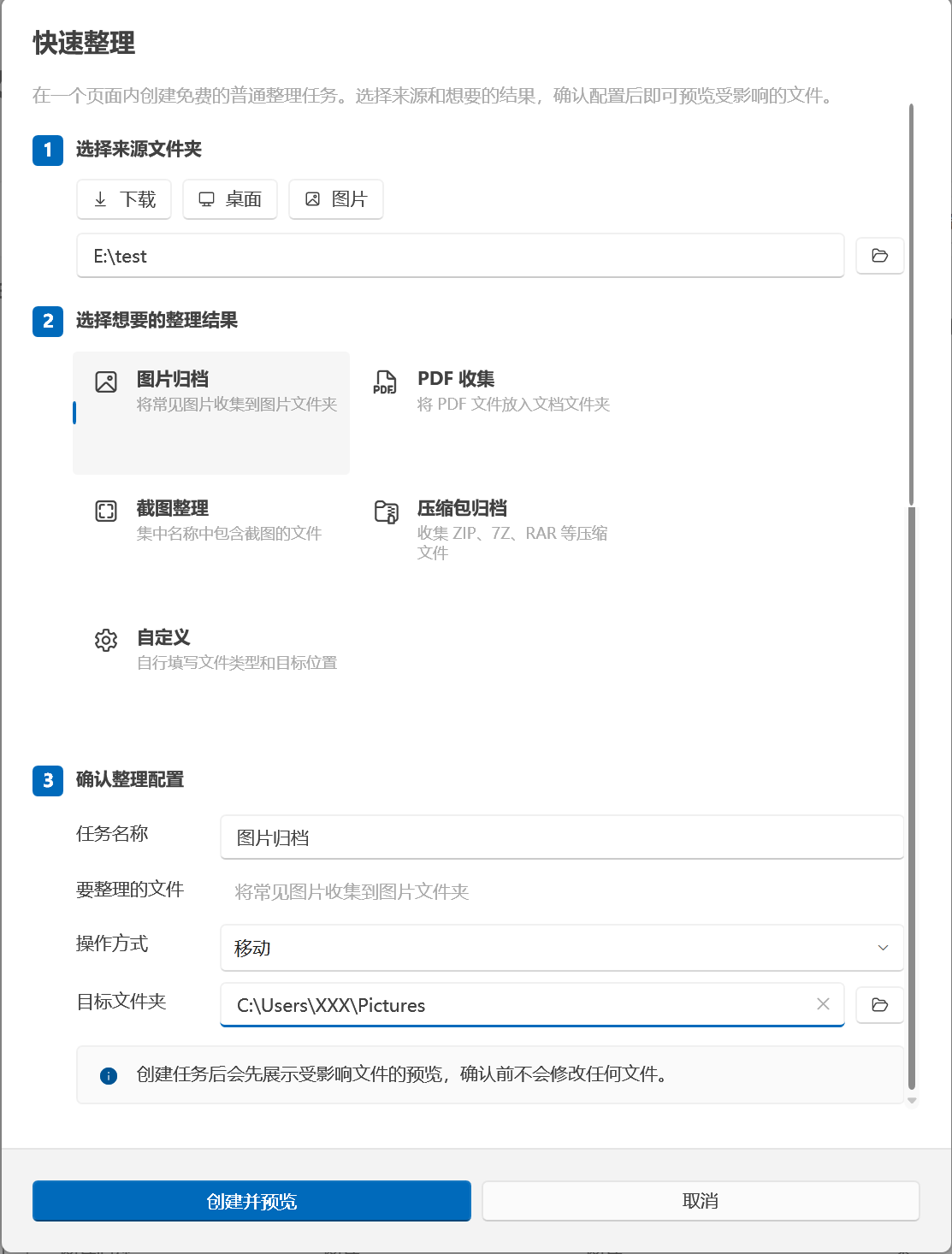
Quick Create only offers Move and Copy. For rename, compress, tag, deduplication, AI, encryption, cloud transfer and other capabilities, use Direct Create.
Full Task Creation
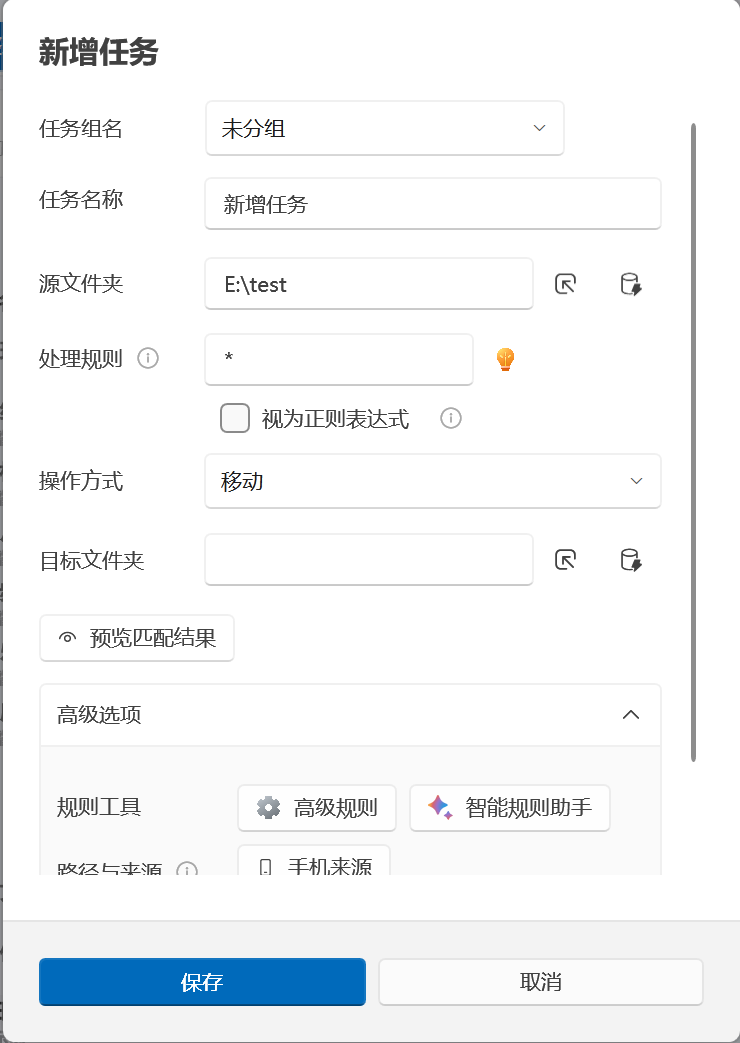
Section titled “Full Task Creation”Open New Task → Direct Create and configure in the order below.
1. Enter Name & Group
Section titled “1. Enter Name & Group”- Task Name: It is recommended to describe both the target and the action, e.g. “Move PDFs from Downloads.”
- Task Group: Choose an existing group from the dropdown. New tasks default to the built-in “Unassigned” group — you do not need to create or manually enter a group name first.
To add, rename, or delete custom groups, return to the task list, open the group selector at the top, and click Group Management. Group names must be unique; if you create or rename a group to an existing name, the app will prompt you to change it.
Groups are used for filtering and batch execution; they do not imply dependencies between tasks. For branching, conditions, step chains, or failure strategies, use Advanced Workflows instead.
2. Choose an Operation
Section titled “2. Choose an Operation”Organize Tasks support the following operations:
| Category | Operation | Purpose |
|---|---|---|
| Basic Organization | Move, Copy, Rename | Adjust file locations or names |
| Tags | Add Tag, Remove Tag | Manage file tags and colors |
| Compress & Convert | Compress, Extract, Format Conversion | Create archives, extract content, or convert file formats |
| Security | Encrypt, Decrypt | Protect or restore files with the chosen algorithm and parameters |
| Smart Processing | AI Classification, AI Summary, Duplicate File Organization | Generate classification plans or summaries with models, or identify duplicate files |
| Links & Transfer | File Snapshot, Hard Link, Symbolic Link, Cloud Transfer, Run External Program | Generate directory snapshots, create links, connect cloud nodes, or invoke programs/scripts |
| Cleanup | Move to Recycle Bin, Permanently Delete | Clean up unneeded files |
| Data Extraction | Extract Structured Data | Extract specified fields from file content and output structured results, e.g. Excel |
After selecting an operation, the editor displays the corresponding parameters. For example, Rename shows template settings, Compress shows format and compression parameters, Deduplication shows identification strategies and retention actions, and Cloud Transfer shows direction and cloud nodes. Some AI, visual recognition, tag color, or other advanced capabilities may display a Pro label — refer to the in‑app licensing prompts.
3. Configure File Matching Rules
Section titled “3. Configure File Matching Rules”Common patterns:
| Rule | What It Matches |
|---|---|
* |
All files |
*.pdf |
PDF files |
*Invoice* |
Files whose names contain “Invoice” |
*.jpg;*.png;*.webp |
JPG, PNG, or WebP images |
# |
Files not yet handled by a higher‑priority task |
Multiple basic rules can be separated with semicolons ; or vertical bars |. For complex filename logic, check Treat as Regular Expression. To filter by size, time, attributes, or content, open Filter Conditions. See Configuring Rules and Filter Conditions for detailed syntax and examples.
The Smart Rule Assistant in the editor can generate rules from natural language. The rule editor may also offer visual templates, text labels, and deep semantic understanding. Before using these features, check model, component, and Pro license status, and verify actual match results in the preview.
4. Set Source & Destination Locations
Section titled “4. Set Source & Destination Locations”- Source Location: The file or folder to scan. Click the Folder button to browse, or drag files/folders into the input field.
- Multiple Source Locations: Use the selector to add multiple locations; the app saves them separated by semicolons and scans each one.
- Path Aliases: Click the Path Alias button next to the path input to use built‑in aliases like
%Downloads%or%Documents%, or custom aliases, for easier rule sharing across devices. - Destination Location: The output location for Move, Copy, Rename, Compress, and similar operations. For Delete, Recycle Bin, Tag, Format Conversion, Structured Extraction and others, the ordinary destination field is hidden based on their own parameters.
Whether subfolders are scanned depends on the Subfolders option in Settings → General Settings. If both source and destination are left empty, the editor will warn you. Do not rely on implicit behavior of empty paths — always explicitly choose the locations to process.
5. Operation‑Specific Parameters
Section titled “5. Operation‑Specific Parameters”Parameters vary greatly between operations. The following are most likely to affect results:
- Name conflict handling for Move/Copy: Choose from Skip, Overwrite, Overwrite if Newer, Overwrite if Different Size, Append Number/Date, or use Git version control. The overwrite strategy affects whether a preview is forced during manual execution.
- Rename: Combine template components from the original filename, parent folder, counter, date, random string, or photo metadata. Verify extensions and counter results with a few files first.
- Compress/Extract/Encrypt/Decrypt: Check format, password, output location, and name‑conflict policy. Lost passwords may render data unrecoverable.
- Duplicate File Organization: Select an identification strategy first, then choose to Keep, Tag, Move, or Delete duplicates. The initial scan of large directories may take considerable time.
- AI Classification: No ordinary matching rules are required. At runtime, a classification plan is generated first, with a plan preview provided. The model provider may receive file information or content.
- Cloud Transfer: Use a local source location for uploads and a local destination location for retrievals. Complete the node configuration and test the connection in Integration Settings before running.
- Run External Program: Verify the executable, parameters, and working directory. Only run trusted programs or scripts.
File Camouflage (Pro)
Section titled “File Camouflage (Pro)”“File Camouflage” appends files to be processed to the end of an image, audio, video, or custom carrier file. The resulting carrier file remains openable in its original format. It is designed for concealed encapsulation and later restoration — it is not an encryption feature. Anyone who can read the binary contents of the file may still discover the appended data; sensitive content should be encrypted first.
After selecting File Camouflage, choose an operation:
- Create Camouflage File: Select an image, audio, video, or custom carrier. The carrier can be a single file or a directory. When using a directory, carriers are chosen for each processed file by random, filename, or file-size rules. Optionally enable “Delete original file after completion” and explicitly set the output location.
- Extract Hidden Content: Use an already-generated camouflage file as the source, and extract the appended original content to the target location. You may optionally delete the camouflage file after successful extraction.
6. Set Advanced Options & Save
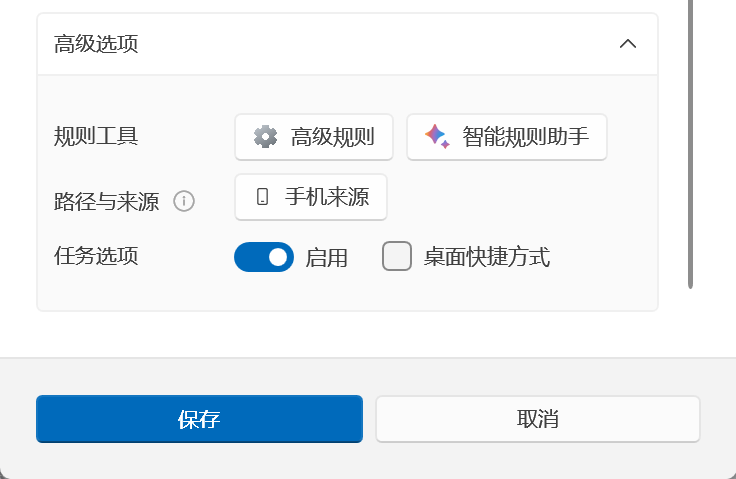
Section titled “6. Set Advanced Options & Save”Expand Advanced Options to adjust the group again and use the following settings:
- Enable/Disable: A disabled task remains in the list but does not participate in group execution or automatic runs.
- Create Desktop Shortcut: Create a desktop entry for applicable tasks. This option only appears for operations that require a destination location.
- Mobile Source: Start local network file reception and use the phone upload location as the task source. Confirm the device is on a trusted network before use.
- Preview Current Task: Scan and display the match count only, with prompts for unavailable source locations — no files are modified.
At minimum, fill in the task name, group, operation type, and matching rules before saving (AI Classification is the exception — its matching rules are handled by the system). After a normal task is saved, it defaults to manual‑only execution. The app will ask whether to go to Automation to add a trigger.
Preview & Manual Execution
Section titled “Preview & Manual Execution”Each row in the task list has Edit, Delete, and Run buttons on the right. Double‑clicking a task row also runs it, but double‑clicking the actions column or the enable checkbox does not trigger execution.
When running manually, EasyTidy Pro decides whether to preview first based on the operation’s risk level:
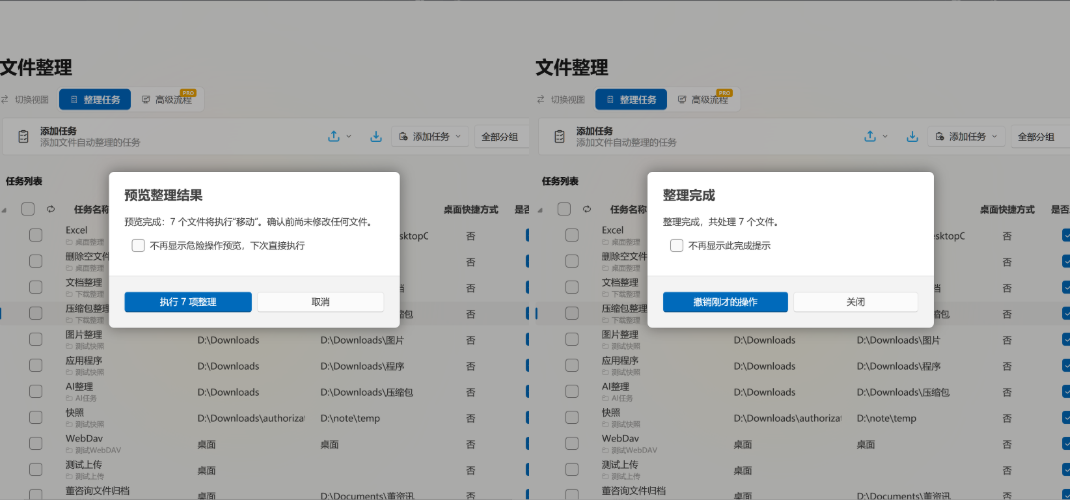
- Move, Rename, Delete, and Copy that may overwrite destination files default to a dry run that only counts matches without modifying files.
- Add Tag, Remove Tag, AI Summary, File Snapshot, Hard Link, Symbolic Link, and Copy that will not overwrite files may execute directly.
- AI Classification generates a classification plan first and lets you confirm it before execution.
The preview confirmation dialog shows the match count and operation type. After checking Do not show dangerous operation preview again, subsequent dangerous operations will execute directly. To restore previews, adjust the relevant preference in General Settings → File Processing.
After execution, the number of processed items is displayed. If the current operation supports undo, the completion window provides Undo Last Operation. You can also use Undo in the task list’s right‑click menu.
- Non‑Pro users: Temporary undo is supported. Undo records are stored in memory and are available during the same app session, within 1 hour after the operation completes. Do not rely on these records for recovery beyond 1 hour or after fully exiting EasyTidy Pro.
- Pro users: In addition to in‑memory records during a session, persistent undo history can be loaded from the database, with configurable retention days.
Not all operations can be undone. If a file has been moved, renamed, or deleted again by another program, undo may also fail. Undo is not a substitute for backup.
Managing the Task List

Section titled “Managing the Task List”The task table provides a checkbox at the beginning of each row and displays task name, source location, destination location, shortcut creation status, enabled state, and action buttons.
In All Groups view, each task name is followed by a small grey group name with a folder icon, making it easy to distinguish tasks when viewing mixed groups. When you filter to a specific group, the group label automatically hides to avoid repetition on every row. Long group names are truncated with an ellipsis and don’t take up extra column width.
Checkbox Selection & Batch Selection
Section titled “Checkbox Selection & Batch Selection”Each task row has a checkbox at the beginning. The following operations are available:
-
Click a row checkbox to select or deselect that individual task.
-
Click the header checkbox to toggle selection: one click selects all, a second click deselects all. When some rows are already selected and not all, the header checkbox enters an indeterminate (partially-filled) state.
-
Use the batch toolbar’s Invert Selection button to swap the selection.
-
Press Space to toggle the currently focused row’s checkbox.
-
Hold Shift and click to select a contiguous range of rows.
-
Press Ctrl + A to select all, or use Arrow Keys + Space to select one by one.
-
Selected rows are highlighted; when you right-click on a selected row, the context menu offers batch operations for the entire selection.
-
When you right-click on a row that isn’t selected, the entire selection clears and only that row becomes selected — this prevents accidentally operating on previously selected rows.
-
Enable/Disable: Click the checkbox in the Enabled column directly.
-
Edit: Modify rules, paths, and operation parameters. After saving, associated file monitors refresh automatically — a restart is usually not needed.
-
Delete: Single deletion requires confirmation. Deleting a task also removes its file‑monitoring configuration.
-
Duplicate: Select a task, right‑click and choose Duplicate to quickly create a timestamped copy.
-
Batch Move or Delete: Check the selection boxes at the start of each row, then use the batch toolbar that appears at the top of the list to move tasks to another group, or delete all selected tasks at once.
-
Share Rule: Select a task, right‑click, and export a
.etrulefile. -
Refresh: Reload the task list from the database.
Adjusting Execution Order
Section titled “Adjusting Execution Order”Drag task rows to reorder them; the new order is saved immediately. Tasks use the saved order when executed as a group. This is sequential ordering only — task dependencies are not created.
New tasks are added to the end of the current list. Execution order follows the saved drag-sorted order.
If multiple tasks match the same file, order directly affects the outcome. For example, after the first task moves a file, subsequent tasks may no longer find it. It is recommended to make rules mutually exclusive, or verify the entire flow with Copy first.
Using Task Groups
Section titled “Using Task Groups”The group selector at the top of the page allows you to:
- Filter tasks by the current group.
- Click Execute Group to run all enabled tasks in that group in order.
- Set a group as the default display group.
- Click Group Management to add, rename, or delete custom groups in a single dialog.
- Create Group: Type a name in the input field and press Enter to save — no need to click a separate “Create” button. New groups are placed at the end by default.
- Reorder: Each group has a drag handle on the left; drag to adjust the order and release to auto‑save. Both the organize task and advanced workflow group dropdowns follow this order.
- Rename: Group names are read‑only by default to prevent accidental edits. Click Rename to enter edit mode, press Enter or click Save to commit, or press
Escto cancel and restore.
“All Groups” and “Unassigned” are built-in items that are always present and cannot be renamed or deleted. “All Groups” is used to view all tasks. New tasks that are not assigned a custom group go into “Unassigned”.
Group execution runs normal tasks first, then AI Classification tasks that require plan previews, one by one. Verify each task individually before batch execution, especially whether the output of an earlier task becomes the input of a later one.
Import, Export & Sharing
Section titled “Import, Export & Sharing”The top of the page provides two data‑exchange approaches for different purposes.
Excel Batch Maintenance
Section titled “Excel Batch Maintenance”The export menu includes:
- Export Template: Generate a fillable
.xlsxtemplate, ideal for creating multiple tasks at once. - Export Tasks: Export tasks currently in the list as
.xlsx, which can be modified and re‑imported. - Import: Read
.xlsx. Valid rows in a template file create new tasks. Rows exported by Export Tasks that retain their task IDs update the corresponding tasks; rows without IDs create new ones.
Excel import/export depends on the Document Content Extraction component. If the component is not installed, the app will first ask whether to download and enable it. When import errors occur on some rows, the app generates an error file. Correct the invalid rows by line number and import again — do not ignore invalid paths or operation parameters.
.etrule Single Rule Sharing
Section titled “.etrule Single Rule Sharing”Select a task, open the export menu or right‑click menu, and choose Share Rule to generate a .etrule file. When importing a .etrule, the app only accepts Organize Task type share packages. Absolute paths are converted to path aliases wherever possible; custom aliases that cannot be resolved will require local re‑specification.
.etrule is suitable for sharing a single task definition; Excel is better for batch maintenance. Neither creates automation triggers for you. After importing, always check paths, rules, operation parameters, and license status, then preview manually.
Configuring Auto Run
Section titled “Configuring Auto Run”A newly created or imported task does not execute automatically just because it is enabled. To set up automatic organization:
- First preview and successfully execute the task once manually.
- After saving, choose to go to settings in the prompt dialog, or navigate to Automation from the main menu.
- Select the task and add a File Change, Startup, Periodic, CRON Schedule, or Shutdown trigger.
- Save and verify using Preview Results.
When the main window is closed and minimized to the tray, automatic tasks can still work. After fully exiting EasyTidy Pro from the tray, file monitoring and scheduled scheduling will not continue. See Automation Configuration for full details.
The Save button does not respond
Section titled “The Save button does not respond”Check that the task name, group, operation type, and file matching rules are filled in, and watch for validation messages below the input fields. A normal task cannot be saved without matching rules; AI Classification automatically handles matching rules.
Preview shows no matching files
Section titled “Preview shows no matching files”Check whether the source location exists, whether subfolders need to be scanned, whether the extension includes a dot, and whether regex mode was accidentally enabled. When both basic rules and advanced filters are used together, overly strict conditions may also yield no results.
The task is enabled but does not run automatically
Section titled “The task is enabled but does not run automatically”Enabled only means the task is allowed to execute; it does not mean a trigger has been configured. Go to Automation, check the task card and trigger type, and confirm that the app is still running in the tray and that all tasks have not been paused.
Group execution skips certain tasks
Section titled “Group execution skips certain tasks”Group execution only runs enabled tasks within that group. Check whether the task is disabled, assigned to a different group, or whether an earlier task has already moved or deleted files that a later task was supposed to process.
Duplicate filenames appear after copy or move
Section titled “Duplicate filenames appear after copy or move”Edit the task and check the name‑conflict handling strategy. For initial verification, choose Skip or automatic numbering. Only consider overwrite strategies after confirming the source and destination are correct.
Can I recover files after execution?
Section titled “Can I recover files after execution?”If the completion window shows Undo Last Operation, you can try to undo immediately. Recycle Bin operations can also be recovered from the Windows Recycle Bin. Non‑Pro users’ temporary undo is only available during the same app session, with records retained for at most 1 hour. Pro users can use persistent undo history. Permanent deletion, external programs, cloud operations, and files whose state has already changed again provide no undo guarantee — important data must be backed up separately.
For more execution records and error details, see Logs.