File Delivery
“File Delivery” lets you upload files from a phone, tablet, or other device on the same local network to your current computer. EasyTidy Pro starts a local HTTP receiving service on the computer; other devices open the access address in a browser, select files, and upload them to the receiving directory.
This feature’s main direction is other device → current computer, not actively sending files from the computer to a phone. Files are transferred directly within the local network and do not need to be uploaded to EasyTidy Pro’s cloud first; EasyTidy Pro must remain running on the computer.
Feature & Edition Comparison
Section titled “Feature & Edition Comparison”| Capability | Free | Pro |
|---|---|---|
| Receive files from same-LAN devices | Yes | Yes |
| Select and upload multiple files at once | Yes | Yes |
| Link a regular organization task | Yes, manual organize after upload | Yes, auto-organize after upload |
| Link an advanced workflow | No | Yes, auto-execute after upload |
| Change the receiving directory | No | Yes |
| Upload history | Retained 7 days | Retained permanently; delete individually or clear all |
The default mode is receive only, no organization. It is recommended to run a receive-only test first to confirm network, directory, and same-name file behavior before linking an organization task.
Your First File Reception
Section titled “Your First File Reception”1. Open the File Delivery Page
Section titled “1. Open the File Delivery Page”- Launch EasyTidy Pro.
- Go to Integration Settings.
- Open File Delivery.
- Confirm that the computer and sending device are connected to the same trusted Wi-Fi or local network.
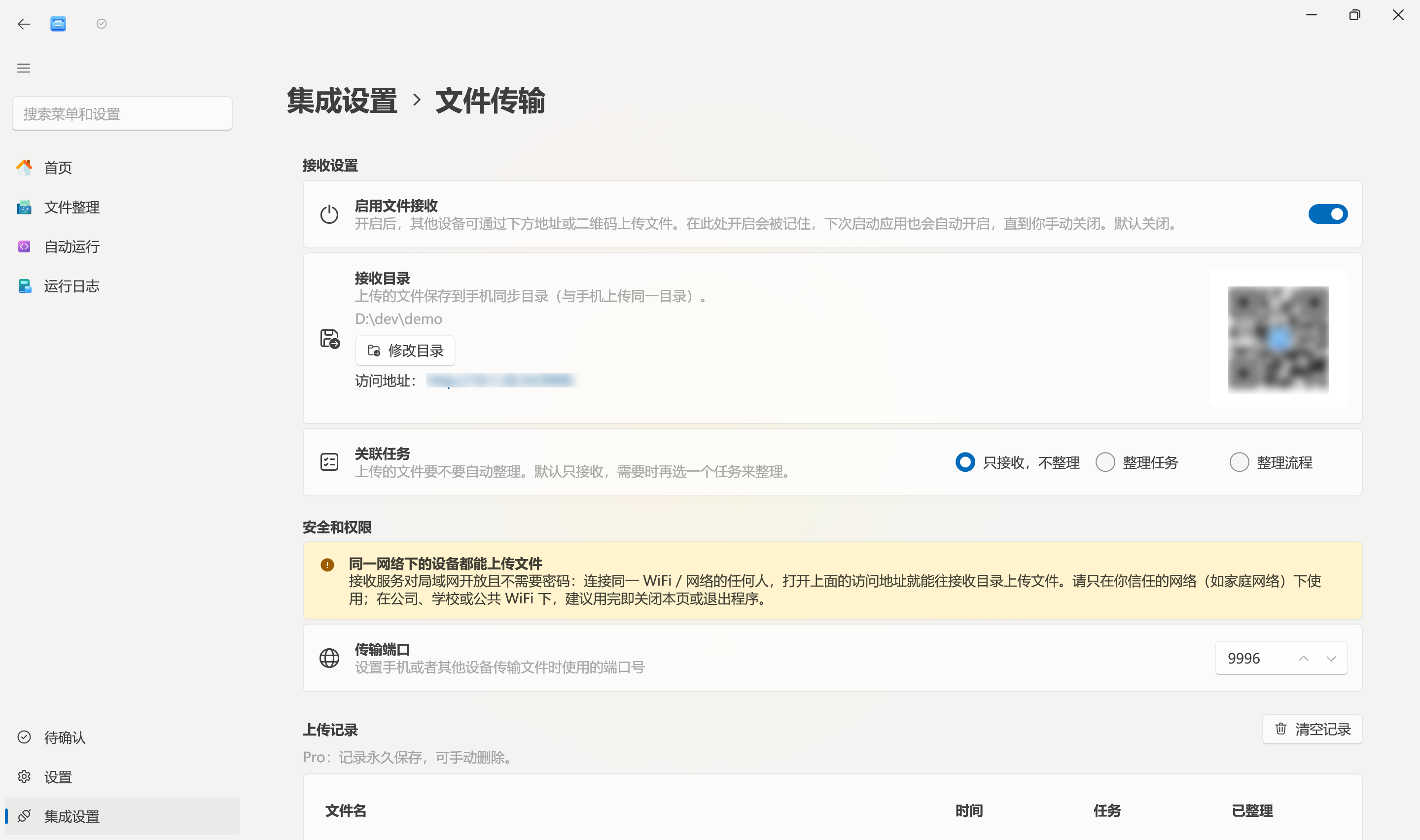
The page includes the receiving toggle, receiving directory, linked task, security notice, transfer port, upload history, and advanced options.
2. Check the Receiving Directory
Section titled “2. Check the Receiving Directory”The free edition defaults to a MobileSync folder on your desktop:
Desktop\MobileSyncThis directory also corresponds to the built-in path alias %MobileSync%. Pro users can click Change Directory to select another folder; the change is persisted as a custom override for %MobileSync%.
3. Enable File Reception
Section titled “3. Enable File Reception”Toggle on Enable File Reception. Once started, the page shows:
- The current LAN access address, e.g.
http://192.168.1.20:9996; - A QR code corresponding to that address;
- The current receiving directory.
After toggling reception on from this page, your choice is remembered. The receiving service also starts automatically the next time you launch EasyTidy Pro, until you explicitly turn it off. Leaving this page or minimizing the main window to tray does not stop basic file reception; fully exiting EasyTidy Pro stops the service.
The service enters a low-power waiting state when idle. When another device first opens the address, it may briefly see “Waking up the upload service” — the page auto-refreshes, and re-scanning the QR code is usually not needed.
4. Open the Upload Page on Your Phone or Other Device
Section titled “4. Open the Upload Page on Your Phone or Other Device”On the sending device, do either of the following:
- Scan the QR code using the camera or a QR scanner tool;
- Enter the full access address shown on the computer in the browser address bar.
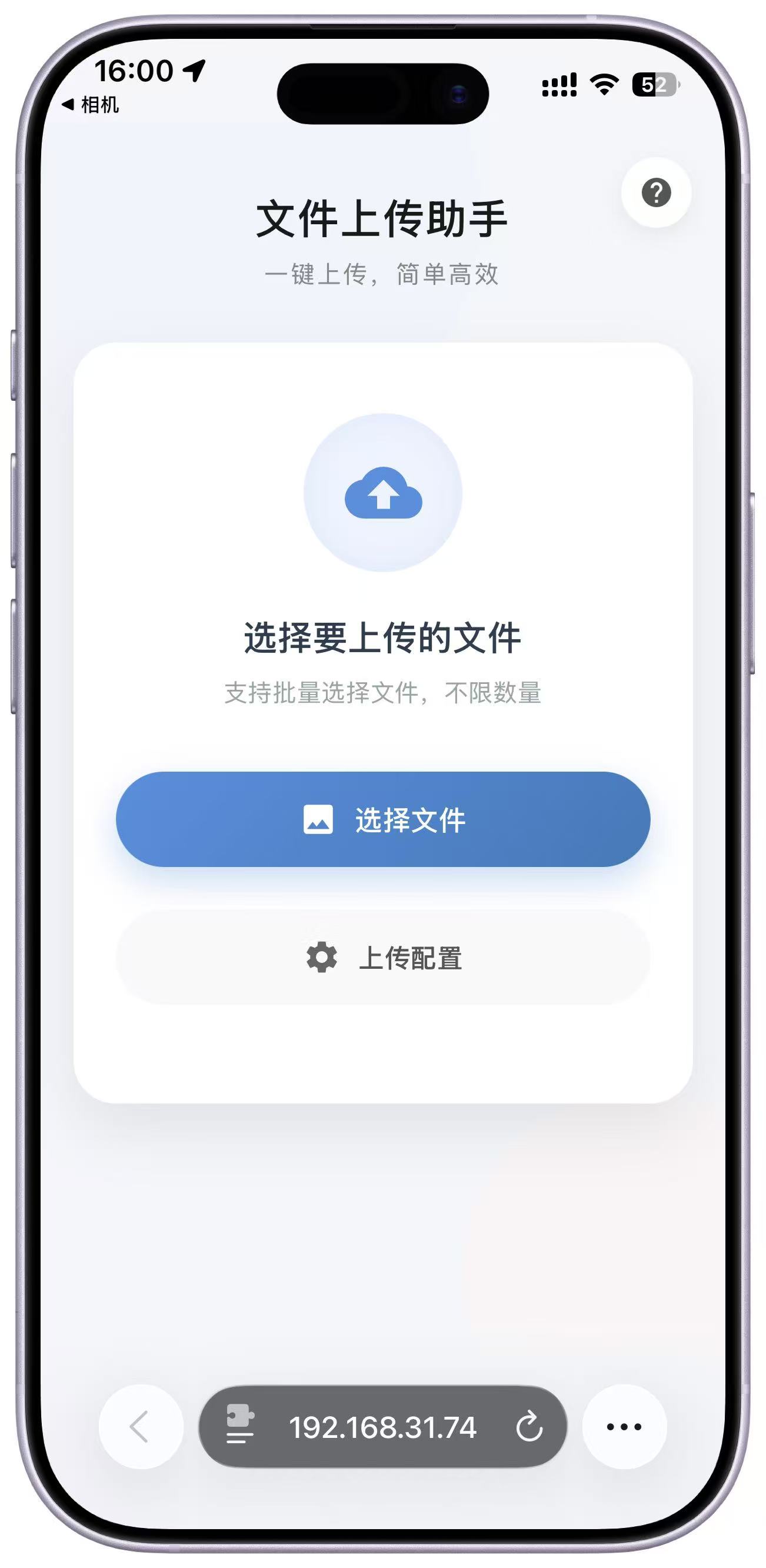
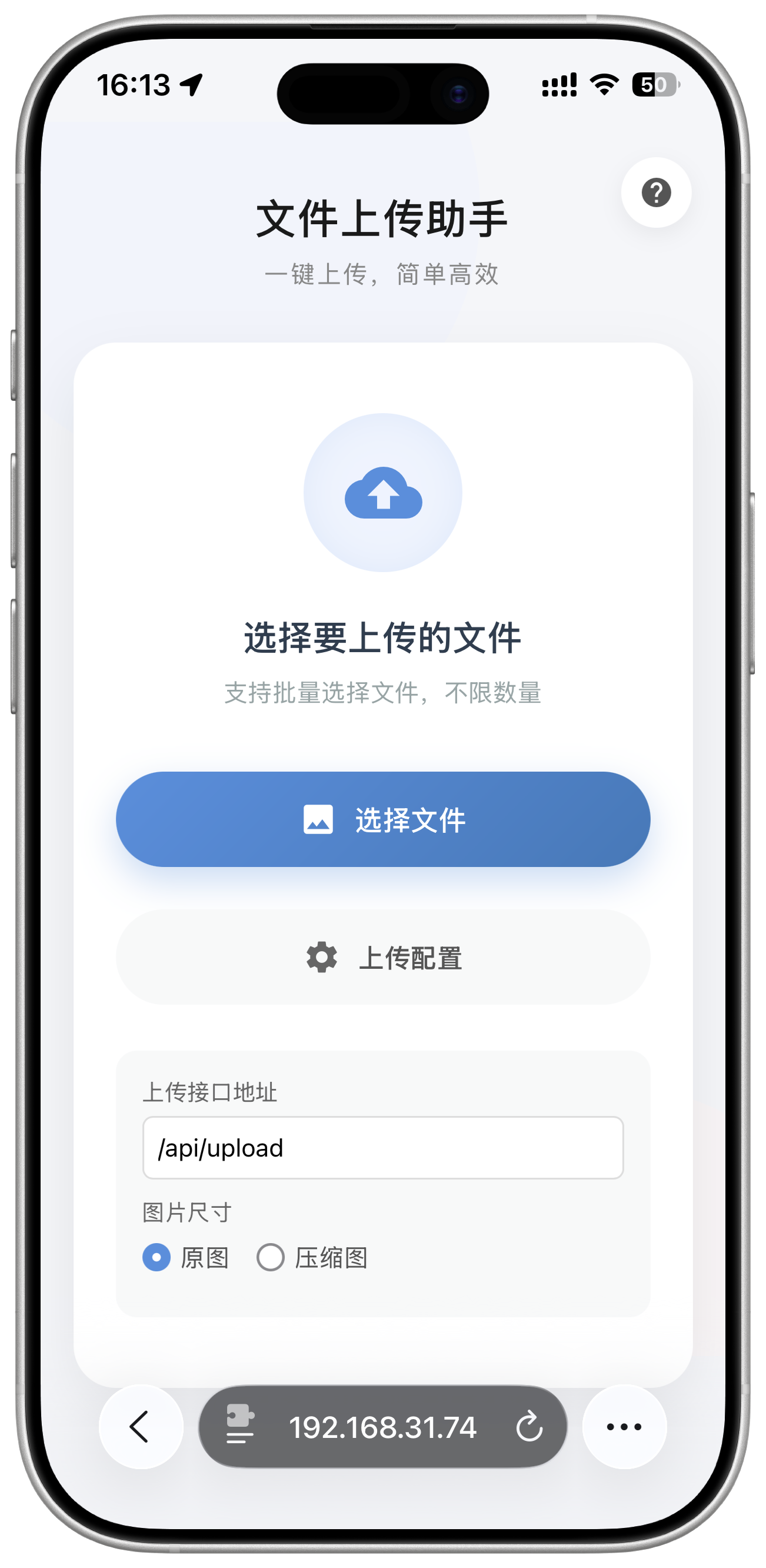
You will see the File Upload Assistant. If the browser reports it cannot connect, do not switch to mobile data; first confirm that both devices are still on the same local network.
5. Select and Upload Files
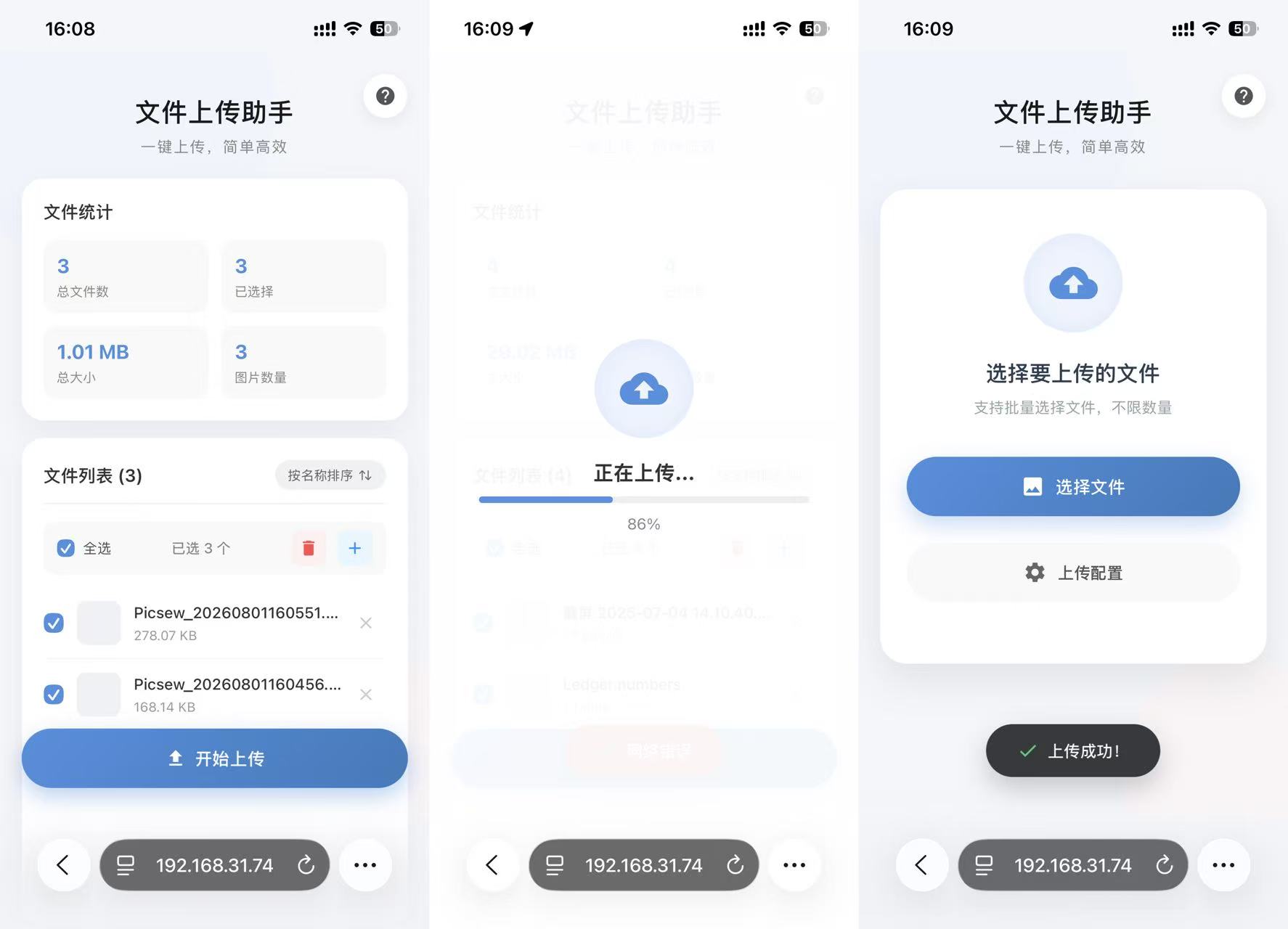
Section titled “5. Select and Upload Files”- Tap Select Files and pick one or more files in the system file picker.
- Review file names, sizes, total count, and total size in the file list.
- Remove individual items you don’t need, or check multiple and batch-remove them.
- Tap the Add button to keep selecting more files.
- Tap Start Upload and wait for progress to reach 100% with an “Upload successful” message.
The page itself imposes no fixed limit on file count or request body size and writes to disk in a streaming fashion; the actual uploadable scale is still constrained by the sending device’s browser memory, network stability, computer disk space, and file system limits. When transferring many or very large files, consider splitting into batches and keeping the browser in the foreground.
6. Confirm Results on the Computer
Section titled “6. Confirm Results on the Computer”After a successful upload, files are written to the current receiving directory. EasyTidy Pro does not overwrite existing files with the same name; if report.pdf already exists, the new file is saved as report (1).pdf, report (2).pdf, and so on.
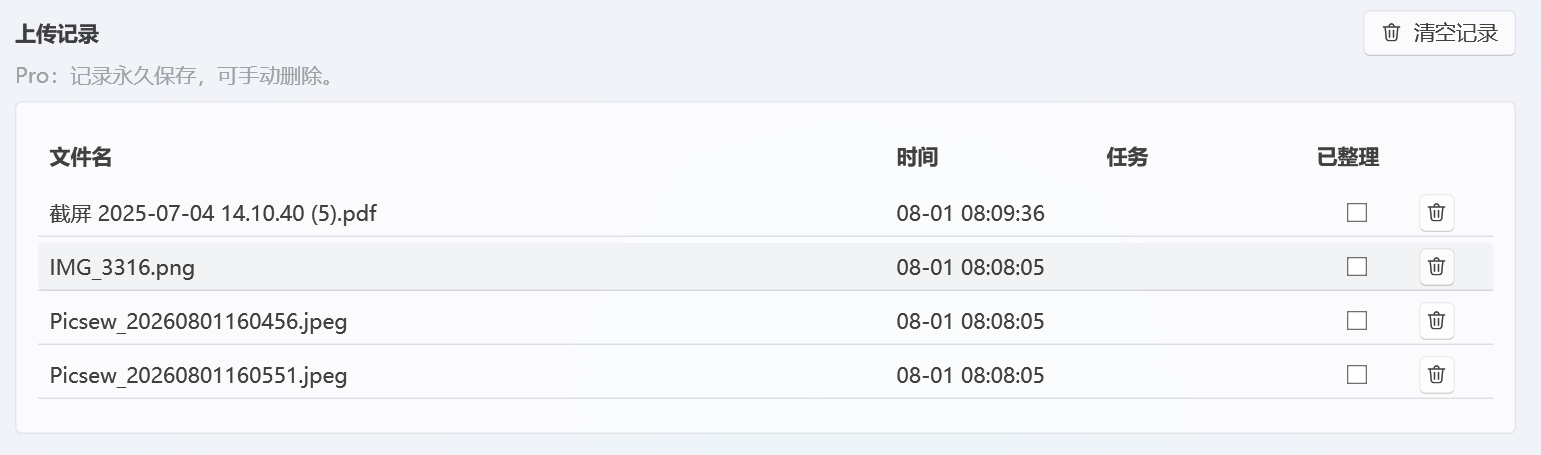
The upload history section below the page shows file name, upload time, linked task, and “Organized” status. The list currently loads the most recent 200 records.
Linking an Organization Task or Workflow
Section titled “Linking an Organization Task or Workflow”The File Delivery page offers three processing modes:
| Option | Behavior After Upload |
|---|---|
| Receive only, no organization | Files stay in the receiving directory; no task runs |
| Organization Task | Run a saved regular organization task against the receiving directory |
| Organization Workflow | Run a saved advanced workflow against the files — Pro only |
Prepare the Correct Source Path First
Section titled “Prepare the Correct Source Path First”Linking a task does not temporarily rewrite that task’s source. After upload, EasyTidy Pro runs the saved task or workflow, so its source must point to the current receiving directory.
The recommended way to prepare a regular organization task:
- Go to File Organization → Organization Tasks, create or edit a task.
- Set the source location to
%MobileSync%. - Configure file rules, filter conditions, operation, and destination.
- First place a few test files in the receiving directory, preview, and run the task manually once.
- Return to Integration Settings → File Delivery, choose Organization Task, then select the task you just validated from the list.
Advanced workflows similarly need their source to point to %MobileSync% or the current receiving directory, and should be previewed independently first. For full task and workflow configuration, see Organization Tasks and Advanced Workflows.

Free Edition: Manual Organization
Section titled “Free Edition: Manual Organization”In the free edition, after selecting a regular organization task, uploads only save files — they do not auto-execute. Once you confirm files have fully arrived in the receiving directory, click Manual Organize on the page.
Manual organization runs the selected task. If the task is disabled, its source is not the receiving directory, rules don’t match, the destination is not writable, or files are still locked, you may not get the expected results. Check Running Logs for actual execution details.
Pro: Auto-Organize After Upload
Section titled “Pro: Auto-Organize After Upload”When Pro users select a regular organization task or advanced workflow, the upload-complete event automatically triggers the chosen configuration — no need to click “Manual Organize.” Switch back to Receive only, no organization to stop automatic triggering.
Auto-organization is best for scenarios with a clear source, stable rules, and prior verification. When configuring for the first time, use “Copy” rather than “Move” or “Permanently Delete,” and confirm the destination and rules before switching the operation type.
In the current version, you must keep the “File Delivery” page open for it to receive upload-complete events and trigger auto-organization. When the page is closed, the receiving service may still continue saving files, but do not rely on the linked task executing automatically in the background.
Mobile Upload Configuration
Section titled “Mobile Upload Configuration”Tap Upload Config on the mobile upload page to adjust the following:
- Upload API Address: Default is
/api/upload. Do not change this for normal use; an incorrect address causes upload failures. - Original: Upload the raw content without browser-side conversion. Suitable for documents, archival images, transparent images, and files where original quality must be preserved.
- Compressed: Applies client-side compression only to files the browser recognizes as images; the longest side is limited to 1920 pixels and output is encoded as JPEG.
- Compression Quality: Range
0.1–0.9, default0.8. Lower values generally produce smaller files with more noticeable quality loss.
Compression happens in the sending device’s browser and increases phone memory and processing overhead. Important photos, images with transparency channels, and files that need to preserve metadata or original format should use Original.
The Advanced Options (Pro) section at the bottom of the desktop page currently only indicates that these settings are on the mobile upload page; it has no independent parameters. The actual upload behavior is determined by the “Upload Config” in the sending device’s browser.
Receiving Directory, Port & Service Status
Section titled “Receiving Directory, Port & Service Status”Changing the Receiving Directory (Pro)
Section titled “Changing the Receiving Directory (Pro)”Click Change Directory on the receiving directory card and choose a location that is writable by the current user, has sufficient disk space, and won’t be cyclically monitored by other automation rules. After the change, %MobileSync% resolves to the new directory; if existing tasks use absolute paths, you must manually sync those changes.
If the receiving service is running, after changing the directory, re-confirm the new path shown on the page, then upload a small file to verify. The service attempts to create the directory on first upload if it doesn’t exist; lack of write permission causes upload failures.
Changing the Transfer Port
Section titled “Changing the Transfer Port”The default port is 9996 with an allowed range of 1 – 65535. Only change it if the default port is occupied by another program or network policy requires a different port.
To ensure the new port takes effect, follow this sequence:
- Turn off Enable File Reception.
- Change the transfer port, preferring a port above
1024that is not in use. - Turn the reception toggle back on.
- Use the newly generated address or QR code on the page — do not use old bookmarks.
Windows Firewall may prompt for network access permission on first use. Only allow the current trusted “Private network” — do not open for Public networks. Security policies on corporate devices may block port listening; follow your organization’s network policy in such cases.
Upload History
Section titled “Upload History”Every file successfully written to the receiving directory creates a history record. Each record contains:
- File name;
- Upload time;
- The task or workflow name linked at that time;
- Whether it is marked as organized.
Free edition records are kept for 7 days; expired data is cleaned when the page opens. Pro records are kept permanently and support individual deletion and Clear History.
Deleting upload history only removes the database records — it does not delete actual files in the receiving directory, nor does it undo organization operations that have already been performed. To recover files, use undo, Recycle Bin, or backup as appropriate for the specific operation.
Security Recommendations
Section titled “Security Recommendations”- Only enable on trusted home networks; turn off the receiving toggle immediately after use.
- Do not share the QR code, access address, or LAN IP in chat groups, tickets, or public screenshots.
- Do not configure port forwarding on your router, and do not expose this HTTP service via public network tunnels.
- Do not set the receiving directory to a system directory, program installation directory, cloud drive auto-sync directory, or directory containing sensitive files.
- Auto-organization tasks should avoid permanent deletion, unconditional overwrite, uploading to cloud services, or running untrusted scripts.
- Periodically check the receiving directory, upload history, and running logs; promptly clean up unknown files.
- Perform security checks on documents, archives, and executables from unknown sources before opening them — do not open files just because they came from the same Wi-Fi.
Cannot open the page after scanning the QR code
Section titled “Cannot open the page after scanning the QR code”Check in order:
- Whether EasyTidy Pro is still running and the receiving toggle is on;
- Whether the phone and computer are on the same local network, not one on Wi-Fi and the other on mobile data;
- Whether the QR code and address are the most recent shown on the page;
- Whether Windows Firewall allows EasyTidy Pro to access the private network;
- Whether the router has guest network isolation or AP isolation enabled;
- Whether a VPN, proxy, or security software is blocking LAN access.
A brief wait may be needed when the service wakes from idle state. If the page shows “Waking up,” let the browser auto-refresh; if it continues failing, turn the receiving toggle off and back on.
Startup failure after toggling on
Section titled “Startup failure after toggling on”Common causes are port conflict, invalid port number, or security software blocking the listener. Turn off the receiving service, switch to another free port above 1024, and toggle back on. If it still fails, check the application logs; do not permanently disable your entire firewall as a workaround.
Phone shows upload successful, but files can’t be found on the computer
Section titled “Phone shows upload successful, but files can’t be found on the computer”First check the current receiving directory shown on the page, then review the upload history. If an auto-organization task is linked, files may have already been moved, renamed, or deleted; check the Running Logs and the task’s destination directory. Files with duplicate names automatically receive (1), (2), etc. suffixes.
No auto-organization after upload
Section titled “No auto-organization after upload”Check the following:
- Whether you are on Pro and the link mode is not “Receive only, no organization”;
- Whether the “File Delivery” page was kept open during the upload;
- Whether a valid and enabled task or workflow was selected;
- Whether the task or workflow source is
%MobileSync%or the current receiving directory; - Whether files satisfy the rules and filter conditions;
- Whether the destination, components, authorization, or external services are available.
The free edition does not auto-organize; you must click Manual Organize.
Clicked Manual Organize but files didn’t move
Section titled “Clicked Manual Organize but files didn’t move”“Manual Organize” runs the selected task’s saved configuration. Check the task source, matching rules, enabled state, and destination, and preview the task independently on the Organization Tasks page first. Empty files or files not matching any rule stay in the receiving directory.
Large file upload interrupted or no progress for a long time
Section titled “Large file upload interrupted or no progress for a long time”Keep the sending device’s browser in the foreground, disable power-saving or screen-lock-triggered network suspension, and confirm the computer has enough disk space. On weak Wi-Fi, move closer to the router or split into smaller batches. When re-uploading after interruption, already-fully-saved files with the same name are not overwritten; new files get numbered suffixes.
Why did the receiving service start again after restarting the app?
Section titled “Why did the receiving service start again after restarting the app?”Turning on reception on the File Delivery page persists your choice — this is expected behavior. Return to this page and turn off Enable File Reception to prevent it from auto-starting on subsequent launches.
Related rule configuration: Organization Tasks, Advanced Workflows, and Path Aliases. Execution errors and auto-organization results can be checked in Running Logs.