Automation
“Automation” adds trigger conditions to organize tasks you have already created. Once configured, EasyTidy Pro can automatically execute tasks when files change, when the app starts, at fixed intervals, or at specified times.
Before You Begin
Section titled “Before You Begin”Automation won’t create organize rules for you. Before configuring, complete the following in File Organization → Organize Tasks:
- Create and enable an organize task.
- Verify the source directory, target directory, matching rules, and conflict strategy.
- Manually preview and execute once to confirm the results meet expectations.
- Keep independent backups for move, overwrite, delete, and batch rename operations.
If no organize tasks exist yet, the “Automation” page shows an empty state with an entry point to create one. See Task Orchestration for task creation and parameter details.
Four-Step Configuration Wizard
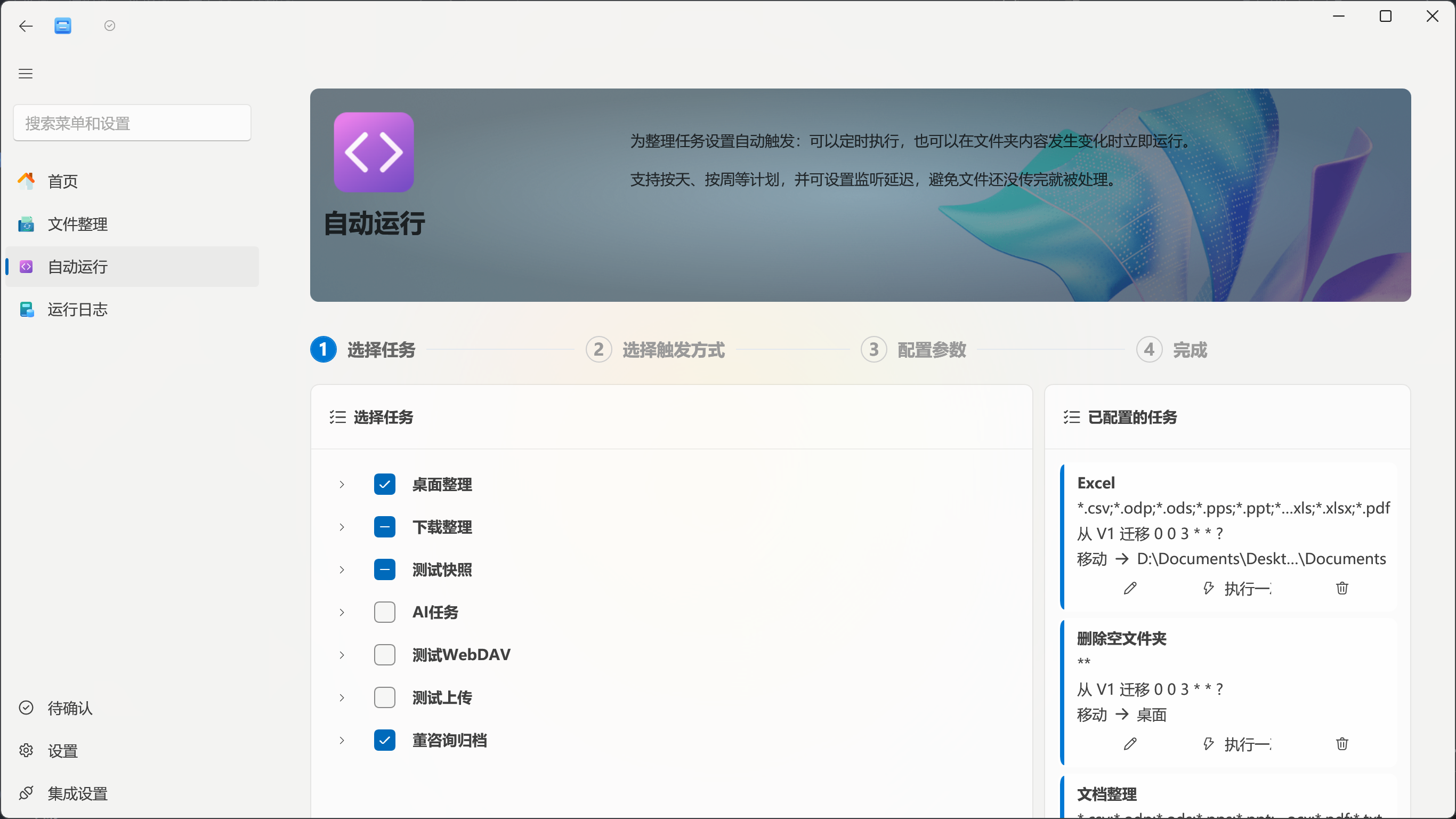
Section titled “Four-Step Configuration Wizard”Go to Automation in the main navigation and follow the steps at the top of the page.
1. Select Tasks
Section titled “1. Select Tasks”Tasks are displayed by group; you can select one or more. All tasks selected in the same wizard session share the same trigger method and advanced parameters.
- Check a group to bulk-select all tasks within it.
- The “Configure Task” area on the right shows real-time details for selected tasks: matching rules, operation type, and target location.
- At least one task must be selected to proceed.
If multiple tasks share the same source directory, confirm that rules won’t overwrite each other or feed one task’s output as another’s input.
2. Select Trigger Method
Section titled “2. Select Trigger Method”You can choose one or more of the following:
| Trigger | Use Case | Required Parameters |
|---|---|---|
| On File Change | Organize immediately after new files appear in a download, sync, or scanning directory | Delay in seconds after change |
| On Startup | Organize once each time EasyTidy Pro starts | None |
| Periodic | Repeatedly scan at a fixed interval | Interval composed of years, months, days, hours, minutes, and seconds |
| Scheduled | Run at explicit dates and times | Preset or custom Quartz CRON expression |
| On Shutdown | Attempt execution when the app fully exits or the system shuts down | None |
File change, periodic, and scheduled triggers can be combined as needed. Startup and shutdown triggers cannot be enabled simultaneously — the interface will block this configuration.
3. Configure Parameters
Section titled “3. Configure Parameters”The page only shows configuration items needed for the selected trigger methods:
- File Change: Enter operation delay.
- Periodic: Enter the fixed interval.
- Scheduled: Select a preset expression or configure a custom CRON.
- Advanced Settings: Configure execution timeout and error handling strategy.
Startup and shutdown triggers have no dedicated parameters, but you can still use the advanced settings at the bottom of the same page.
4. Complete & Verify
Section titled “4. Complete & Verify”After reaching the “Complete Configuration” step, the automation configuration is already saved. This page offers two verification methods:
- Preview Results: Calculates matched files and operation flow without modifying files.
- Run Now: Ignores trigger timing and immediately executes the selected tasks for real.
When configuring for the first time, always use “Preview Results” first. Only once the match count, source, and target are confirmed correct should you use “Run Now” for testing.
On File Change
Section titled “On File Change”The file change trigger monitors the source directories configured in your tasks. After detecting additions, modifications, or renames, it waits for files to stabilize before executing the corresponding organize task.
Operation Delay
Section titled “Operation Delay”“Operation Delay” specifies how many seconds to wait after detecting a change before processing. The default is 5 seconds; the interface suggests starting between 1 and 10 seconds.
- Browser downloads and small file copies: start testing from 3 to 5 seconds.
- Large files, cloud sync, scanner output: use a longer delay.
- Programs that write the same file multiple times in succession: increase the delay to reduce repeated triggers.
The app also debounces rapid repeated events and attempts to confirm that file size and modification time have stabilized. A delay does not guarantee that other programs have released the file; files that remain locked may still fail to process.
Actual Execution Scope
Section titled “Actual Execution Scope”File events are only a start signal. Once triggered, the task re-scans according to its original source directory and matching rules — it does not necessarily process only the file that just changed. Therefore, task rules must be safe for repeated execution.
Whether subdirectories are included is determined by the organize task’s own recursive setting. After modifying a task’s source directory, enabled status, or triggers, monitoring refreshes immediately — restarting the app is usually unnecessary.
Avoiding Trigger Loops
Section titled “Avoiding Trigger Loops”Do not place the target directory inside the monitored source directory. Otherwise, move, copy, extract, or generate operations may produce further change events. Even though the app suppresses some rule-generated duplicate events, complex task chains can still form loops.
Recommended directory structure:
D:\Inbox\ # Monitored source directoryD:\Organized\ # Target directory outside the sourceNot recommended:
D:\Inbox\└── Organized\ # Target still within the monitored scopeOn Startup
Section titled “On Startup”The startup trigger executes enabled tasks once each time EasyTidy Pro starts. Suitable for:
- Organizing the Downloads folder after launching the app.
- Performing a supplementary scan for files added since the last exit.
- Running fixed local organize tasks before starting work.
“On Startup” refers to the EasyTidy Pro process starting, not Windows login or boot. If you want tasks to run automatically after logging into Windows, you also need to enable auto-start in the app settings, or otherwise ensure EasyTidy Pro launches with your login session.
Startup tasks may begin simultaneously with scheduler initialization, update checks, or other background services. When involving network drives, cloud services, or external disks, ensure dependencies are already available; otherwise, tasks may fail due to missing paths.
Periodic Execution
Section titled “Periodic Execution”Periodic execution runs repeatedly at a fixed interval. Suitable for scenarios like “scan every 30 minutes” or “organize every 6 hours” that don’t require a specific clock time.
The configuration page lets you fill in years, months, days, hours, minutes, and seconds, which are converted into a fixed interval. The interval must be greater than 0.
Avoid setting sub-second or second-level high-frequency intervals for large directories, content extraction, AI, compression, or cloud upload tasks. When the interval is shorter than a single execution time, tasks may queue up, compete for resources, or cause duplicate processing.
Scheduled Execution
Section titled “Scheduled Execution”Scheduled execution uses Quartz-compatible CRON expressions, suitable for explicit calendar times. The configuration page provides:
- Preset expressions: Includes every 10 seconds, every minute, every 5 minutes, every half hour, every hour, and common daily/weekly schedules.
- Custom expression: Manually fill in the six fields: second, minute, hour, day, month, and weekday.
- Expression preview: Shows the generated expression and next execution times to confirm the schedule is correct.
Scheduling is calculated in Windows’ current local time zone. The scheduler initializes shortly after the app starts. CRON triggering uses a “no catch-up” strategy — missed time points during app exit, computer sleep, or global pause are not batch-executed on recovery.
Six-Field Format
Section titled “Six-Field Format”second minute hour day month weekday| Field | Common Range | Example |
|---|---|---|
| Second | 0-59 |
0 |
| Minute | 0-59 |
0/5 |
| Hour | 0-23 |
9 |
| Day | 1-31, or ? |
1 |
| Month | 1-12 or JAN-DEC |
* |
| Weekday | SUN-SAT, or ? |
MON-FRI |
Usually only one of “Day” and “Weekday” is specified; the other uses ?.
Common Expressions
Section titled “Common Expressions”| Schedule | Expression |
|---|---|
| Every 10 seconds | 0/10 * * * * ? |
| Every 5 minutes | 0 0/5 * * * ? |
| Every hour on the hour | 0 0 * * * ? |
| Every day at 09:00 | 0 0 9 * * ? |
| Weekdays at 18:30 | 0 30 18 ? * MON-FRI |
| Every Monday at 09:00 | 0 0 9 ? * MON |
| 1st of each month at 03:00 | 0 0 3 1 * ? |
| Last day of each month at 23:00 | 0 0 23 L * ? |
Common Symbols
Section titled “Common Symbols”*: Matches all values in the field.?: Leaves “Day” or “Weekday” unspecified.,: Lists multiple values, e.g.,MON,WED,FRI.-: Specifies a range, e.g.,MON-FRI./: Specifies stepping, e.g.,0/15means every 15 units starting from 0.L: Last day or last weekday value, e.g.,Lin the day field means the last day of the month.W: Nearest weekday to the specified date, e.g.,15W.#: Nth occurrence in a month, e.g.,FRI#3means the third Friday of the month.
On Shutdown
Section titled “On Shutdown”The shutdown trigger attempts to execute tasks when EasyTidy Pro fully exits or receives a system shutdown process.
- Clicking the close window button and minimizing to the tray usually does not trigger it, because the app is still running.
- Selecting “Exit” from the tray menu counts as an application exit.
- During Windows shutdown, logoff, forced process termination, crashes, or fast shutdown, available execution time is limited and task completion is not guaranteed.
Shutdown triggers are suitable for fast, local, repeatable operations — not for large file compression, long-running AI inference, bulk cloud uploads, or data backups that must succeed. For critical tasks, use a CRON schedule with sufficient lead time instead.
Timeout & Error Handling
Section titled “Timeout & Error Handling”The bottom of the “Configure Parameters” step provides advanced settings shared across all trigger methods.
Execution Timeout
Section titled “Execution Timeout”Execution timeout limits the maximum runtime of a task. Before setting, measure normal task duration and leave margin for large files, network fluctuations, and first-time model loading. A timeout that is too short will cancel normal tasks; one that is too long may let a hung task consume resources for an extended period.
Error Handling Strategy
Section titled “Error Handling Strategy”| Strategy | Behavior |
|---|---|
| Continue to next task | Continue with subsequent tasks after the current one fails |
| Retry up to 3 times on failure | Retry the current task; stop the current execution if it still fails |
| Interval retry | Retry up to 3 times with approximately 5 minutes between attempts |
| Abort all tasks | Terminate the current batch on encountering an error |
| Ignore errors | Skip errors and continue; log output may be less verbose |
When starting with automation, keep clear error logs — don’t select “Ignore errors” right away. Adjust the strategy based on your scenario only after confirming tasks can run stably and repeatedly.
Managing Configured Tasks
Section titled “Managing Configured Tasks”The right side of the “Automation” page lists associated tasks. Each task card provides the following actions:
- Edit: Modify only that task’s trigger method and parameters.
- Run: Execute once immediately without waiting for trigger conditions.
- Delete: Remove the task’s automation trigger without deleting the organize task itself.
Re-entering the wizard and unchecking a previously configured task, then saving, also removes that task’s trigger. Before deleting or unchecking, confirm that you don’t only intend to temporarily pause.
Using the System Tray
Section titled “Using the System Tray”EasyTidy Pro retains a system tray icon while running in the background. Left-clicking the icon opens the Quick Organize flyout; right-clicking gives access to controlling automated tasks, opening the window, or exiting the app.
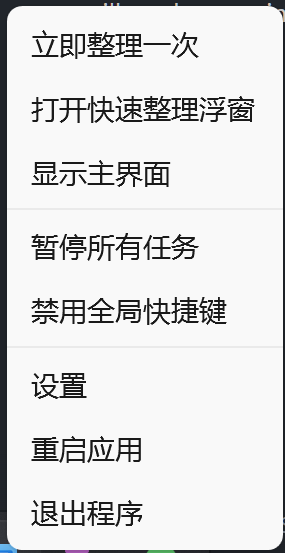
The tray menu contains the following commands:
- Organize Now: Immediately triggers all configured tasks to run once, ignoring their original trigger conditions; a system notification is shown after issuing the command.
- Open Quick Organize Flyout: Opens a standalone flyout that accepts file drag-and-drop. This is different from the automatic flyout that appears when Pro users drag files; see Drag & Quick Organize for details.
- Show Window: Restores and displays the EasyTidy Pro main window.
- Pause All Tasks: Pauses file monitoring and scheduled timers without deleting tasks or trigger configurations.
- Resume All Tasks: Re-enables file monitoring and scheduled timers.
- Disable Global Shortcuts / Restore Shortcuts: Temporarily deactivates or re-registers all of EasyTidy Pro’s global shortcuts without deleting shortcut configurations.
- Settings: Shows the main window and navigates directly to the Settings page.
- Exit: Fully exits EasyTidy Pro and triggers any eligible “On Shutdown” tasks.
Effects of Pause & Resume
Section titled “Effects of Pause & Resume”For local NTFS directories that support USN journaling, the app attempts to catch up on file changes that occurred during the pause when monitoring resumes. Network shares, removable drives, and file systems without USN support do not guarantee catch-up. CRON time points missed during the pause are not re-executed.
Use global pause when temporarily handling large numbers of files, adjusting rules, or maintaining target storage. To permanently disable a task, edit or delete its trigger instead.
Close Window vs. Exit Application
Section titled “Close Window vs. Exit Application”When you click the close button in the title bar, the app still resides in the tray — automation continues working, and “On Shutdown” is not triggered. Only selecting Exit from the tray menu, or the system truly terminating the app process, counts as a full exit.
Recommended Configurations
Section titled “Recommended Configurations”Automatic Downloads Organization
Section titled “Automatic Downloads Organization”- Trigger: On File Change
- Delay: 5 to 15 seconds
- Source directory: Downloads
- Target directory: A separate organized directory outside the source
- Tip: Verify with “Copy” first, then switch to “Move”
Nightly Organization
Section titled “Nightly Organization”- Trigger: Scheduled
- Expression:
0 0 2 * * ? - Meaning: Every day at 02:00
- Tip: Ensure the computer does not sleep and EasyTidy Pro is running
Low-Frequency Safety Scan
Section titled “Low-Frequency Safety Scan”- Trigger: Periodic
- Interval: Every 6 hours
- Purpose: Supplement possible missed events from network directories or unstable monitoring locations
- Tip: Rules should be safe for repeated execution and avoid scanning already-organized target directories
Automated tasks didn’t run at all
Section titled “Automated tasks didn’t run at all”Check whether EasyTidy Pro is still running, the tray is not in a paused state, the organize task is enabled, and the source directory is accessible. Then go to “Automation” and confirm the task card still exists. Check the “Run Logs” for scheduler, path, or permission errors.
Files changed but the task didn’t trigger
Section titled “Files changed but the task didn’t trigger”Confirm the change occurred in the task’s actual configured source directory; for files in subdirectories, the task must also have recursive scanning enabled. Network shares and removable drives may drop notifications — add a periodic scan as a supplement. If the file is still locked by another program, the task may also wait or fail.
Task fires repeatedly after a file change
Section titled “Task fires repeatedly after a file change”First check whether the target directory is inside the source directory, whether other sync programs are continuously rewriting files, and whether multiple tasks are processing each other’s output. Increasing the operation delay only reduces short-term jitter — it does not fix directory loops.
CRON expression is valid but didn’t run on time
Section titled “CRON expression is valid but didn’t run on time”Confirm you’re using the six-field Quartz format, check the next execution times shown in the interface, and verify Windows time, time zone, sleep state, and tray pause status. CRON time points missed while EasyTidy Pro is not running or the computer is asleep are not re-executed.
Shutdown task didn’t execute
Section titled “Shutdown task didn’t execute”Confirm you fully exited from the tray, not just closed the main window. System forced shutdown, process crash, or excessive task duration may all prevent the shutdown task from completing. Do not rely on it as the sole trigger for critical data processing.
Do I need to restart after changing configuration?
Section titled “Do I need to restart after changing configuration?”Usually not. After saving, file monitoring refreshes immediately and scheduled tasks re-register. If the interface shows “Saved” but behavior hasn’t updated, try pausing and resuming all tasks from the tray, then check the “Run Logs”.
For more on rules and troubleshooting, see Rules Reference and FAQ.