Shortcuts
EasyTidy Pro shortcuts fall into two categories: global shortcuts that can be modified on the settings page, and the in‑app‑only Ctrl + Z undo shortcut, which cannot be changed.
Global shortcuts remain effective when the EasyTidy Pro main window is minimized or hidden in the system tray, but the app must stay running.
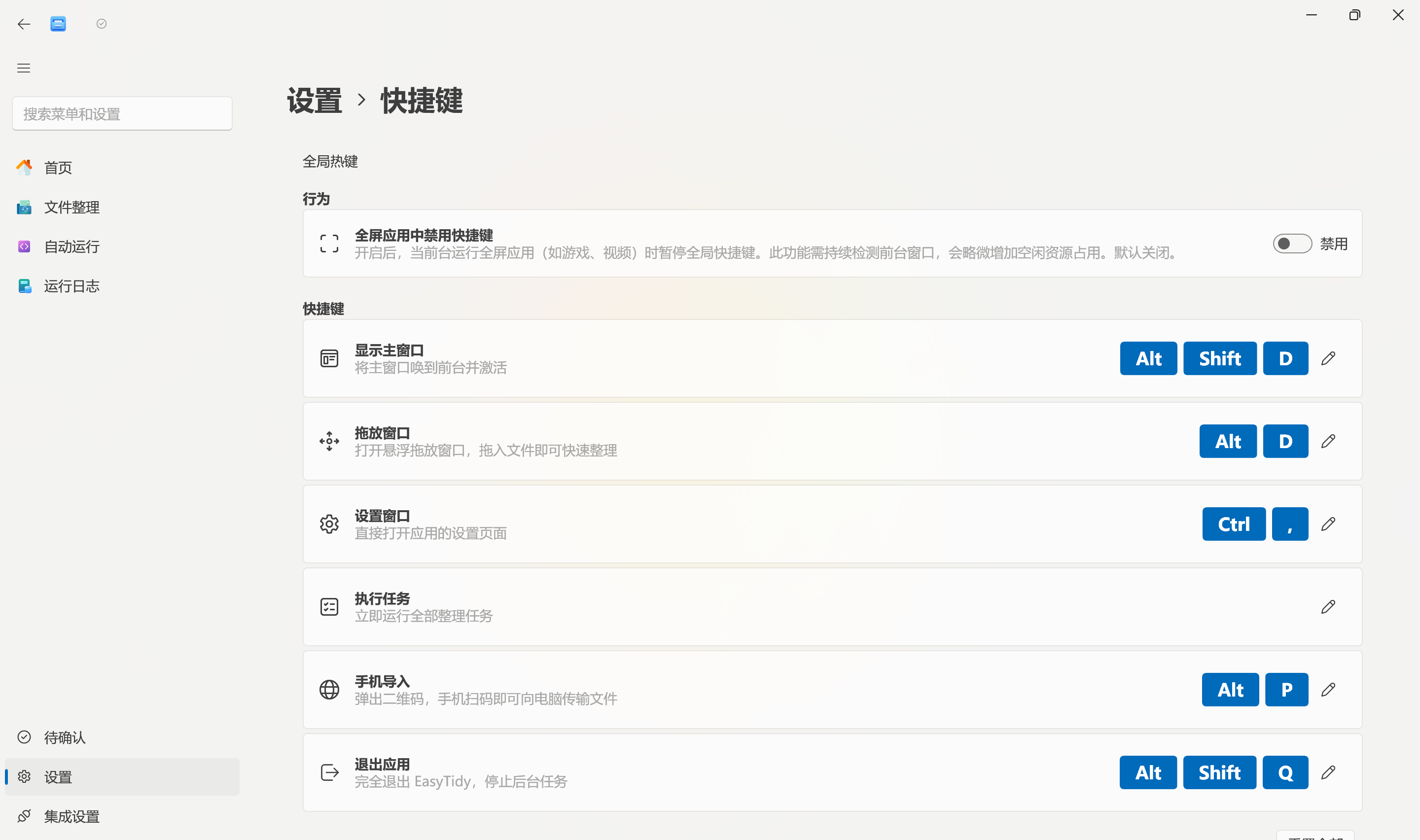
Open EasyTidy Pro and go to Settings → Shortcuts to view and modify shortcuts.
Default Shortcuts
Section titled “Default Shortcuts”After first launch or clicking Reset All, the app uses the following default key bindings:
| Function | Default Shortcut | Actual Behavior |
|---|---|---|
| Show Main Window | Alt + Shift + D |
Restore the main window, bring it to the foreground, and activate it |
| Drop Window | Alt + D |
Open the manual Quick Organize floating window; drag files in to enter the organize window |
| Settings Window | Ctrl + , |
Navigate directly to the app settings page |
| Execute Tasks | F8 |
Immediately trigger all organize tasks in sequence without waiting for automatic run conditions |
| Phone Transfer | Alt + P |
Start the local phone transfer service and display the QR code |
| Exit Application | Alt + Shift + Q |
Completely exit EasyTidy Pro and stop background operation |
Show Main Window
Section titled “Show Main Window”When the main window is minimized or hidden in the tray, this shortcut restores it and attempts to bring it to the foreground. If the window is already visible, no new app instance is created.
Drop Window
Section titled “Drop Window”This shortcut opens a circular Quick Organize floating window. After dragging files or folders into it, you can choose a single task, a task group, or a Pro‑exclusive workflow target.
The Quick Organize floating window remains open until closed via its right‑click menu or by double‑left‑clicking it.
Settings Window
Section titled “Settings Window”Navigates directly to EasyTidy Pro’s settings page, ideal for quickly adjusting general settings, shortcuts, components, or other app options.
Execute Tasks
Section titled “Execute Tasks”This shortcut immediately triggers all organize tasks, without showing a dangerous‑operation preview and without waiting for file change, periodic, or CRON trigger conditions.
Phone Transfer
Section titled “Phone Transfer”This shortcut starts the local transfer service on the port configured in Phone Transfer settings and pops up a QR code containing the local network address. The phone and computer must be on the same mutually reachable network.
After the QR code window is closed, the started transfer service may continue to be managed by the app. Use with caution on public Wi‑Fi, corporate, or school networks. Exit the app after the transfer is complete to stop relevant background services.
Exit Application
Section titled “Exit Application”This shortcut terminates EasyTidy Pro entirely, rather than just closing or hiding the main window. Automatic runs, file monitoring, tray menu, and global shortcuts all stop. Eligible Run on Shutdown tasks will proceed as part of the exit flow.
Keeping two or more modifier keys is recommended to reduce the risk of accidental triggering.
Modifying Shortcuts
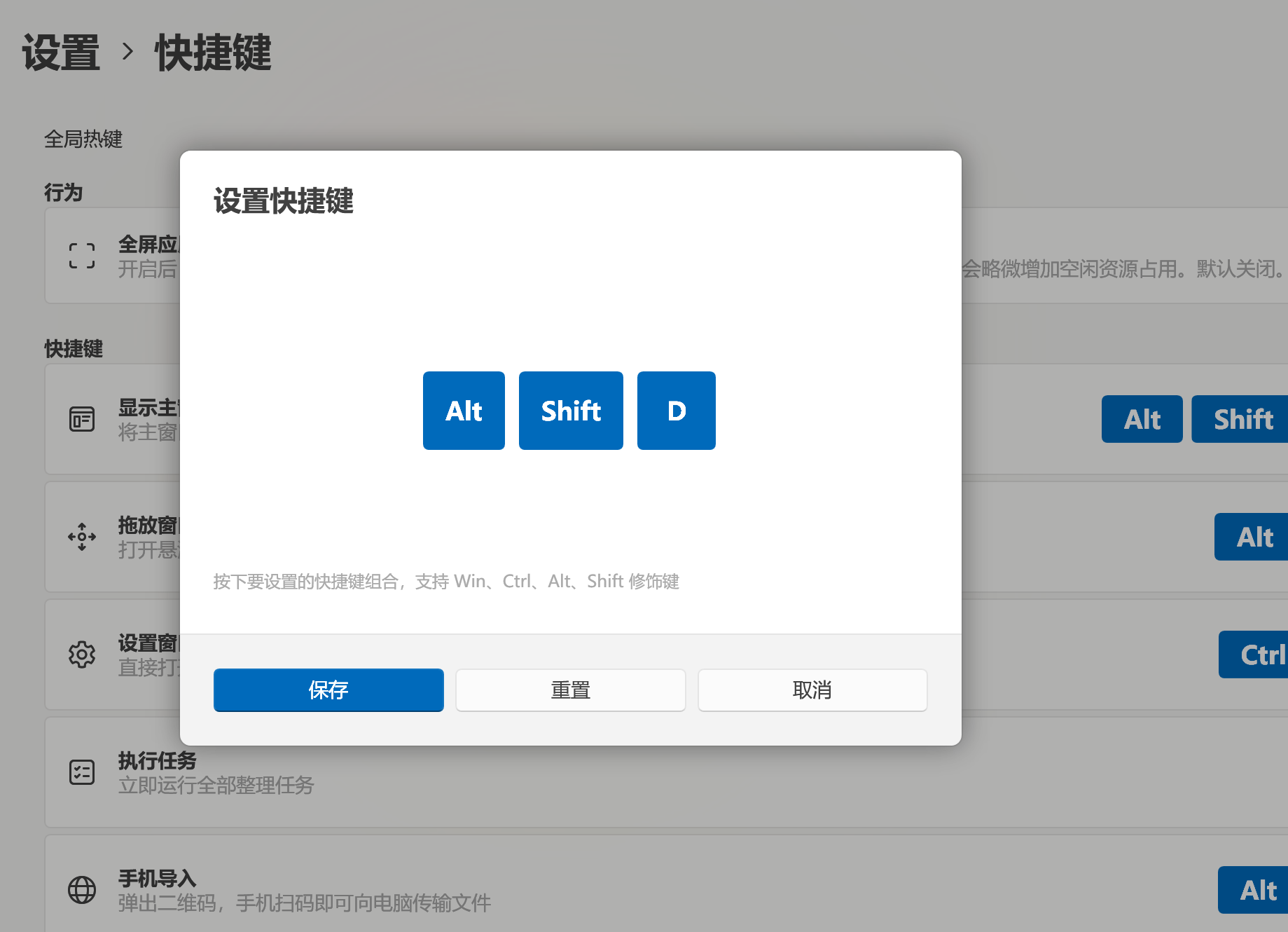
Section titled “Modifying Shortcuts”- Click the key combination or the Edit icon to the right of a function card.
- Press the new key combination in the Set Shortcut dialog.
- Check for any error or warning messages in the dialog.
- Click Save. The configuration is saved immediately and registration is attempted; no app restart is required.
Supported Combinations
Section titled “Supported Combinations”- Single keys are limited to
F1throughF12; the default Execute Tasks shortcut usesF8. - Regular keys must be combined with one or more modifier keys from
Win,Ctrl,Alt, orShift. - Only one regular key is allowed per combination, e.g.
Ctrl + Shift + K. - Letters, digits, arrow keys, function keys, and common punctuation and navigation keys are supported as the regular key.
Pressing only Ctrl, Alt, Shift, or Win cannot be saved; single regular keys such as letters, digits, or Space also cannot be registered alone.
Warnings & Conflicts
Section titled “Warnings & Conflicts”When entering a shortcut, the app checks for the following:
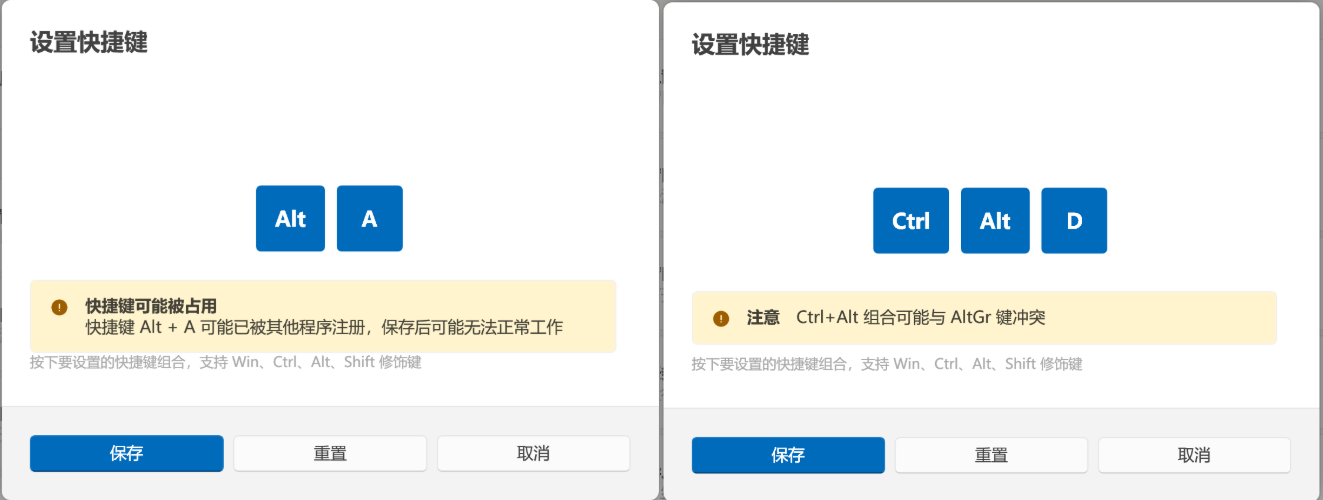
- Invalid combination: No regular key, or a disallowed single key is used.
- System reserved shortcut: Combinations that Windows uses for window switching, screen locking, or system functions.
- Duplicate within the app: The same combination as another EasyTidy Pro global shortcut.
- Occupied by another program: Another app has already registered the same combination with Windows.
- AltGr conflict:
Ctrl + Altis equivalent toAltGron some keyboard layouts and may interfere with character input.
System‑reserved or app‑internal duplicate combinations cannot be saved normally. If a potential conflict with another program is detected, the dialog will show a warning; whether the combination ultimately works depends on the actual Windows registration result. If registration fails, a status message appears at the top of the page.
Resetting Shortcuts
Section titled “Resetting Shortcuts”To restore a single function, open its edit dialog and click Reset to restore that function’s default combination.
To clear all custom combinations, click Reset All at the bottom of the page. The app restores and re‑registers all default shortcuts.
Reset All overwrites all current custom shortcuts; confirm that the original configuration is no longer needed before proceeding.
Temporarily Disabling All Global Shortcuts
Section titled “Temporarily Disabling All Global Shortcuts”Right‑click the EasyTidy Pro icon in the system tray and select Disable Global Shortcuts to unregister all configurable shortcuts at once. Open the tray menu again and select Restore Shortcuts to have the app reload and register the saved combinations.
The global enable/disable state is persisted. If you restart the app after disabling shortcuts, they will remain disabled until restored from the tray. This action does not delete the key configuration of any function.
The shortcuts settings page has a Behavior area with a Disable shortcuts in full‑screen apps toggle. When enabled, global shortcuts are temporarily suspended if a full‑screen application (such as a game or video player) is detected in the foreground, and automatically restored upon exiting full‑screen. This reduces accidental triggers during gaming, presentations, or video playback.
This toggle is off by default because it requires continuous foreground window detection, which slightly increases idle resource usage. Only enable it when you actually encounter accidental trigger issues.
For other tray menu operations, see Using the System Tray in Automation.
In‑App Undo Shortcut
Section titled “In‑App Undo Shortcut”Ctrl + Z is the built‑in file‑operation undo shortcut with the following characteristics:
- Only effective when the EasyTidy Pro window is focused; it is not a system‑wide global shortcut.
- Not displayed on the Shortcuts settings page and cannot be modified.
- Not affected by the tray Disable Global Shortcuts toggle or full‑screen suspension.
- When focus is in a text box or password field, normal text‑editing undo is preserved and file‑operation undo is not triggered.
- Requires undo to be enabled in General Settings and an available undo record to exist.
Non‑Pro users can use temporary undo records within the current session and a short‑term recovery window. Pro users can also recover from persistent history. For undo strategy and limitations, see General Settings.
Shortcuts do not respond at all
Section titled “Shortcuts do not respond at all”Confirm that EasyTidy Pro is still running, and check whether the tray menu currently shows Disable Global Shortcuts or Restore Shortcuts. If it shows Restore Shortcuts, global shortcuts are currently turned off.
Shortcuts are suspended when a full‑screen app is in the foreground if the full‑screen suspension feature is enabled. Try again after exiting full‑screen, or use the system tray or taskbar icon to restore the EasyTidy Pro window first.
After saving, it says the shortcut is occupied by another program
Section titled “After saving, it says the shortcut is occupied by another program”Close the software that may be using that combination and save again, or use a different combination. Common sources of conflicts include IMEs, screenshot tools, window managers, graphics utilities, and remote control software.
Windows allows only one program to register the same global shortcut. Even if the combination is valid in the input dialog, it may still fail at the final registration stage.
Ctrl + Alt combinations interfere with character input
Section titled “Ctrl + Alt combinations interfere with character input”Some international keyboards treat Ctrl + Alt as AltGr. Switch to a combination that includes Win or Shift, e.g. Ctrl + Shift + K.
F8 unexpectedly triggers organize tasks
Section titled “F8 unexpectedly triggers organize tasks”Change F8 to a combination with modifier keys in the Execute Tasks card. Execute Tasks has no preview confirmation, so using a three‑key combination that is hard to press accidentally is recommended.
Ctrl + Z does not undo file operations
Section titled “Ctrl + Z does not undo file operations”Confirm that the EasyTidy Pro window is in the foreground, focus is not in a text input field, undo is enabled in General Settings, and an available undo record still exists. After a file is further modified or moved by another program, the original operation may not be fully recoverable.