General Settings
General Settings centralize the basic runtime configuration of EasyTidy Pro. Here you can decide how to handle file conflicts, whether to scan subfolders, how the app launches with Windows, and how configuration and operation history are saved.
Open EasyTidy Pro and go to Settings → General Settings to view the options on this page. Most settings are saved immediately; the app will prompt you for any that require a restart to take effect.
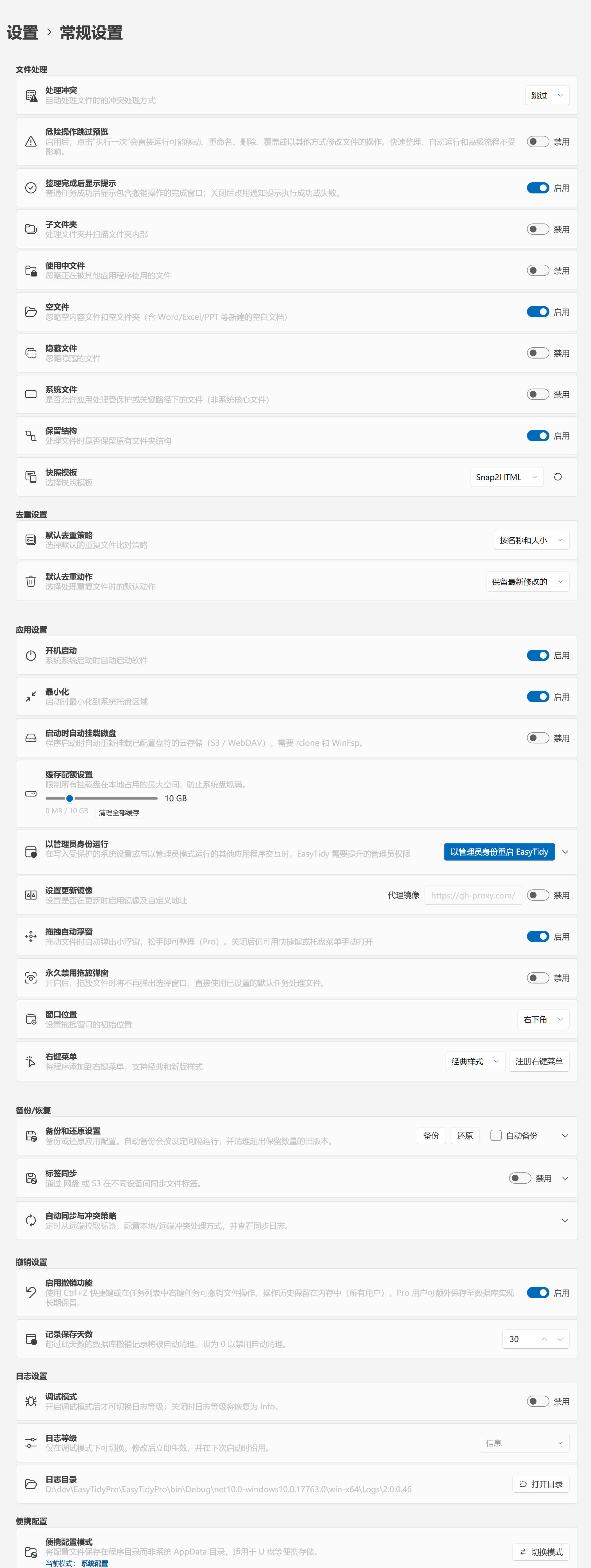
File Processing
Section titled “File Processing”These options affect the default behavior of organize tasks. When using for the first time, it is recommended to keep the defaults and verify file changes through the preview results of Execute Once.
Conflict Handling
Section titled “Conflict Handling”When a file with the same name already exists at the destination, use Conflict Handling to choose a resolution method. Available options depend on the current version’s dropdown list. Common options include Skip, Overwrite, Overwrite only when the source file is newer or has a different size, and Rename by numbering or timestamp.
If files are irreplaceable, choose Skip or a rename-based strategy. Before selecting Overwrite, confirm that a usable backup already exists.
Dangerous Operation Preview & Completion Notifications
Section titled “Dangerous Operation Preview & Completion Notifications”- Skip preview for dangerous operations: When enabled, manually clicking Execute Once will directly perform move, rename, delete, and overwrite operations. Quick Organize, automatic runs, and advanced workflows are not affected by this toggle. Do not enable unless your rules have been fully verified.
- Show notification after completion: When enabled, a completion window with an undo entry appears after a normal task runs successfully; when disabled, the result is shown via a system notification instead.
Scan & Filter Scope
Section titled “Scan & Filter Scope”- Subfolders: Scan subdirectories within the selected folder.
- In‑Use Files: Determines whether to ignore files currently locked by other applications.
- Empty Files: Determines whether to ignore empty files, empty folders, and newly created blank documents (Word, Excel, PowerPoint, etc.).
- Hidden Files: Determines whether to ignore files with the hidden attribute.
- System Files: Allows processing non‑core files in protected or critical paths. Carefully verify task sources and destinations before enabling.
- Preserve Structure: Retains the original folder hierarchy when moving or copying files.
Snapshot Templates
Section titled “Snapshot Templates”Snapshot Templates are used to select an HTML display template for file snapshots. After adding or modifying templates, click the Refresh button on the right to reload the list.
Deduplication Settings
Section titled “Deduplication Settings”Deduplication settings determine the default method for identifying and handling duplicate files.
- Default deduplication strategy: Choose to compare files by name & size, file hash, partial hash, or binary content. Strategies marked with PRO require a Pro license.
- Default deduplication action: Choose which file to keep or process by default when duplicates are found. Always review the preview before actual execution, especially when deletion is involved.
Application Settings
Section titled “Application Settings”Startup & Background Operation
Section titled “Startup & Background Operation”- Start on boot: Automatically launch EasyTidy Pro after logging into Windows.
- Minimize to tray: Start the app directly in the system tray without showing the main window.
- Automatically mount disks on startup: Re‑mount S3 or WebDAV storage with configured drive letters. This feature requires rclone and WinFsp to be properly installed.
Cache Quota
Section titled “Cache Quota”Cache quota limits the maximum local disk space used by all mounted drives, suitable for devices with limited system disk space. To free up space immediately, use Clear All Cache. Clearing the cache does not delete files in the cloud, but files will need to be re‑downloaded the next time they are accessed.
Administrator Privileges
Section titled “Administrator Privileges”EasyTidy Pro may need elevated privileges when tasks need to write to protected directories or interact with programs running as administrator.
- Restart as Administrator: Restart the application with administrator privileges for this session only.
- Always run as Administrator: Always use administrator privileges when starting the app.
- Use administrator privileges only when needed: Keep normal privileges by default and only request elevation when performing protected operations.
It is generally recommended to choose Use administrator privileges only when needed. Always running as administrator may affect drag‑and‑drop from File Explorer when Explorer is running with normal privileges.
When you disable Always run as Administrator, the app automatically restarts with normal privileges to complete the de‑elevation — no manual restart is needed twice. If the de‑elevation restart fails to launch, the UI will prompt you to manually restart as a fallback.
Update Mirror
Section titled “Update Mirror”If access to the official update source is slow, you can enable the update mirror and enter a mirror address. You can keep it disabled when the network environment is normal.
Drag & Drop Window
Section titled “Drag & Drop Window”- Auto‑show floating window on drag: Automatically displays a temporary drop window when dragging files or folders. This is an exclusive entry point for Pro users.
- Permanently disable drag & drop popup: After a default task or task group has been remembered, dragged files will be organized directly without showing the target selection window.
- Window position: Set where the auto‑drag floating window appears.
The hotkey or system tray opens a separate Quick Organize floating window, which remains available even after the Pro auto‑floating window is disabled. For the differences between the two entries, the floating window’s right‑click menu, and complete operation of the organize window, see Drag & Quick Organize.
Before enabling Permanently disable drag & drop popup, verify that the default task will not cause unintended moves, overwrites, or deletions. After enabling, if you occasionally need to use a different task or group, hold Ctrl + Shift while dragging files to force the organization window open — see Temporarily Choose Organization Method.
Context Menu
Section titled “Context Menu”You can register EasyTidy Pro in the Windows file right‑click menu and choose between classic or new menu styles. Right‑click organizing does not open the task selection window; instead, it silently processes files using the default task group. For installation methods, default group requirements, and troubleshooting, see Windows Context Menu.
Backup & Restore
Section titled “Backup & Restore”Backup and Restore Settings are used to protect application configuration and databases. It is recommended to manually create a backup before adjusting a large number of tasks, rules, or sync settings.
- Backup: Create a backup immediately.
- Restore: Restore configuration from an existing backup; the app will restart after restoration is complete.
- Auto‑backup: Automatically create backups at the set interval.
- Backup directory: Choose a save location for local backups; a configured WebDAV backup location can also be used.
- Backup interval: Can be set in hours or days; the available range depends on the UI prompt.
- Maximum retained versions: Automatically purge old versions exceeding this count after a successful backup.
- Last backup: Shows the location of the last successful backup.
Do not keep local backups only on the system drive long‑term. To protect against disk failure, regularly copy backups to another disk or remote storage.
Tag Sync (Pro)
Section titled “Tag Sync (Pro)”Tag Sync allows synchronizing file tags across multiple devices via cloud storage or S3.
- Enable Tag Sync.
- Select an already configured provider.
- Fill in the remote path.
- On first use, choose Push to Remote or Pull from Remote based on where your data resides.
Auto‑sync & Conflict Strategy lets you set the pull interval and how local/remote tag conflicts are resolved. The sync log displays direction, trigger method, result, tag count, and error messages — consult it first when sync issues arise.
It is advisable to create a backup before the first sync and confirm that the conflict strategy matches your expectations.
Undo Settings
Section titled “Undo Settings”- Enable undo: Use
Ctrl+Zor right‑click a task in the task list to undo file operations. - Record retention days: Set how long undo records are kept in the database; set to
0to disable automatic cleanup.
All users can use in‑memory undo records during the current session. Long‑term undo history stored in the database requires a Pro license. Undo is not a substitute for backup. External program modifications, disk failures, or certain irreversible operations may not be recoverable.
Log Settings
Section titled “Log Settings”Logs are used to troubleshoot task execution, mounting, sync, and startup issues.
- Debug mode: When enabled, allows selecting a more detailed log level; when disabled, reverts to
Info. - Log level: Controls the verbosity of records. Changes take effect immediately and persist across subsequent starts.
- Log directory: Click Open Directory to view log files.
For daily use, keep the level at Info. Only enable more detailed logging when troubleshooting or when directed by technical support, as verbose logs consume more disk space and may include file paths and other environmental information.
Portable Configuration
Section titled “Portable Configuration”Portable configuration mode saves configuration files and databases in the program directory, suitable for use on USB drives, external hard drives, or writable standalone folders.
After clicking Switch Mode, you can choose:
- Copy & Switch: Migrate the current configuration and database to the target configuration directory.
- Switch only / Use empty configuration: Do not copy the existing configuration; start fresh at the target location.
- Cancel: Keep the current mode unchanged.
The switch completes during an application restart. To ensure database integrity, the migration waits for the current instance to fully exit before executing. If the program is installed in a location that requires administrator privileges to write to, Windows will show a UAC prompt; canceling authorization will abort the switch.
Portable mode requires the program directory to remain continuously writable. It is not recommended for directories restricted by enterprise policies, and do not manually move or delete the portable configuration directory while the application is running.