Backup and Restore
Backup saves EasyTidy Pro’s application configuration, organize tasks, rules, and related records. When you need to reinstall the system, switch devices, experiment with many new rules, or worry about accidentally changing settings, you can restore to a previous state via backup.
Backup does not copy your organized original files. Photos, documents, videos, and other personal files should still be protected with a separate file backup solution.
Opening Backup Settings
Section titled “Opening Backup Settings”Go to Settings → General Settings, scroll down to Backup & Restore, and click the card to expand it.
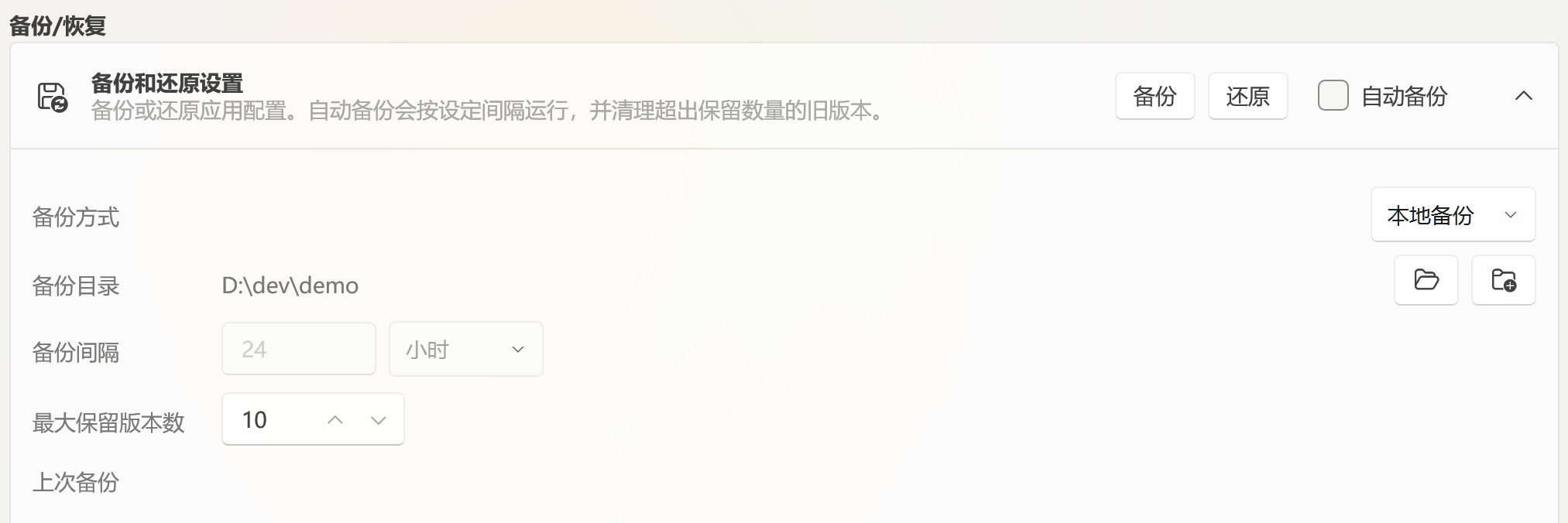
After expanding, you will see:
- Backup: Create a backup immediately.
- Restore: Restore configuration from an existing backup.
- Auto Backup: Automatically create backups on a set schedule.
- Backup Method: Choose Local Backup or WebDAV Backup. The app remembers the current selection and will not revert to the default when settings are reopened.
- Backup Directory: The location where local backup files are saved. This row provides both “Open Backup Folder” and “Select Directory” buttons, shown only when Local Backup is selected.
- Backup Interval: Set how often to auto-backup, in hours or days.
- Maximum Retained Versions: Keep only the most recent specified number of backups.
- Last Backup: Shows the location of the most recent successful backup.
First Use: Creating a Local Backup
Section titled “First Use: Creating a Local Backup”Local backup is the easiest to start with. Create one first and confirm the file generates correctly.
- Under “Backup Method”, select Local Backup.
- Check the “Backup Directory”. If unchanged, backups are saved in the current configuration directory.
- To save to another disk, click the Folder button to the right of the backup directory and choose a long-term folder.
- To check existing backups, click the Open Backup Folder button on the same row; it opens the current backup directory directly.
- Click Backup at the top-right corner of the card.
- Wait for the success prompt. Do not exit the app during the backup process.

- Confirm the save location in “Last Backup”. The generated filename will look like
EasyTidyPro_Backup_20260714123000.zip.
Store the backup directory on a location other than the system drive — for example, another hard drive, a NAS sync folder, or a trusted cloud drive sync folder. Placing backups only on the system drive leaves you vulnerable to drive failure or formatting during a reinstall.
Setting Up Auto Backup
Section titled “Setting Up Auto Backup”Auto backup is recommended for users who frequently modify tasks, rules, or tags. EasyTidy Pro must remain running for scheduled automatic backups to execute.
- First choose Local Backup or WebDAV Backup and confirm a manual backup succeeds.
- Check Auto Backup.
- Set the backup interval in hours or days.
- Set “Maximum Retained Versions”.
The minimum backup interval is 1; the maximum allowed by the interface depends on the current version. For ordinary personal use, start with “every 24 hours” or “every 1 day”. When frequently adjusting many tasks, you can shorten the interval appropriately.
After each successful backup, the app retains the most recent specified number and cleans up extra old versions at the same backup location. Both local and WebDAV backups follow the “Maximum Retained Versions” setting. If you want to keep an important version long-term, copy that backup file to another folder separately.
Using WebDAV Backup
Section titled “Using WebDAV Backup”WebDAV can save backups to WebDAV-compatible cloud drives, NAS devices, or self-hosted servers. It is ideal for cross-device configuration storage and reduces the risk of data loss due to local disk failure.
Prerequisite: Configure a WebDAV Account
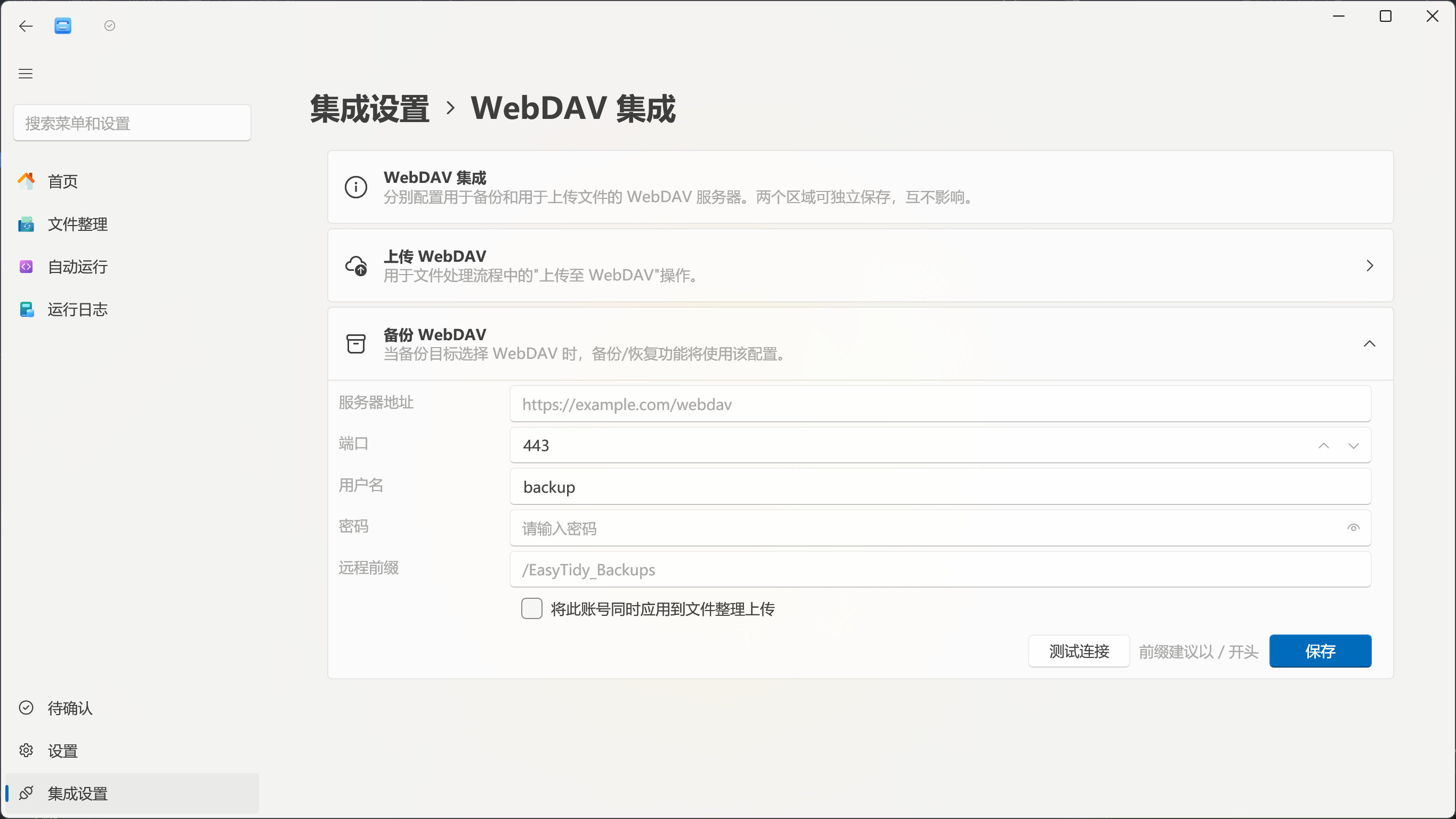
Section titled “Prerequisite: Configure a WebDAV Account”The backup page does not ask you to fill in WebDAV server and account details. Before selecting WebDAV, you must complete the following preparation:
- Go to Integration Settings → WebDAV.
- Find the WebDAV configuration area for Application Backup.
- Fill in the server address, port, username, password, and remote backup directory.
- Click Test Connection to confirm server access.
- Save the configuration.
Server addresses and authorization methods vary between cloud drives and NAS devices. See the Cloud Storage & WebDAV Configuration Guide for complete setup instructions, connection testing, and common service configurations.
If you already have a WebDAV account configured for file uploads, you can optionally use the same account for application backup on the WebDAV integration page, or set up a separate account or directory specifically for backups.
Creating a WebDAV Backup
Section titled “Creating a WebDAV Backup”After completing account configuration:
- Return to Settings → General Settings → Backup & Restore.
- Under “Backup Method”, select WebDAV Backup.
- Verify the remote location displayed on the page. If it shows “Not configured”, return to the WebDAV integration page to complete and save the application backup account.
- Click Backup.
- Wait for the upload success prompt and confirm the remote location in “Last Backup”.
If no remote directory is specified, the app uses the default backup directory. For easier management, create a dedicated backup folder for EasyTidy Pro — do not mix it with photos, documents, or other software backups.
When using WebDAV auto backup, the app must be able to connect to the network and the server must be available. Network interruptions, expired passwords, insufficient account space, or lack of write permission on the remote directory will all cause the backup to fail. After restoring the network or account, perform a manual backup first to confirm.
Restoring from a Local Backup
Section titled “Restoring from a Local Backup”Restoring replaces the current configuration with the content from the backup. Before starting, confirm that the selected file is from a trusted source and is indeed the version you intend to restore.
- Go to Settings → General Settings → Backup & Restore.
- Under “Backup Method”, select Local Backup.
- Click Restore.
- In the file selection window, choose an
EasyTidyPro_Backup_*.zipbackup file. - Wait for the restore to complete.
- The app automatically restarts to apply the restored tasks and settings.
Do not forcefully close the app or delete backup files during the restore process. After restart, verify that important tasks, rules, paths, and auto-run settings are as expected.
Restoring from a WebDAV Backup

Section titled “Restoring from a WebDAV Backup”First, confirm that the WebDAV application backup account is still valid, then:
- Under “Backup Method”, select WebDAV Backup.
- Confirm the displayed remote backup location is correct.
- Click Restore.
- Wait for the backup download and restore to complete.
- The app automatically restarts.
If you see “Backup not found” or download fails, first check the network connection, WebDAV account, remote directory, and whether the backup file still exists. Do not repeatedly click “Restore” to bypass errors — first verify the backup file integrity in the WebDAV service.
What Is Included in a Backup
Section titled “What Is Included in a Backup”Backup primarily covers EasyTidy Pro’s own data, such as:
- Application settings;
- Organize tasks and rules;
- Advanced workflows and related configurations;
- Tags and associated app-saved records;
- Other feature settings stored in the configuration directory.
The following should not rely on this backup feature:
- Organized photos, documents, videos, and other original files;
- Business files already present on cloud drives or WebDAV;
- Downloaded installers, models, caches, and temporary files;
- Windows system settings and other software data.
Recommended Backup Strategy
Section titled “Recommended Backup Strategy”For most users, the following combination is recommended:
- Enable daily auto backup.
- Keep the most recent 10 versions, or adjust based on your modification frequency.
- Save backups to another disk or WebDAV, rather than only on the system drive.
- Perform an extra manual backup before making large-scale task modifications, importing rules, or switching to portable mode.
- Occasionally check the “Last Backup” location to confirm backups are being generated successfully.
A backup is only valuable if it can be successfully restored. Important environments should retain at least one local copy and one off-site or remote copy.
Backup fails when clicked
Section titled “Backup fails when clicked”First check whether the backup directory is writable and whether disk space is sufficient. When using WebDAV, also check the network, account password, remote space, and directory permissions. After resolving the issue, perform a manual backup first.
Auto backup files are not appearing
Section titled “Auto backup files are not appearing”Confirm “Auto Backup” is checked, the app is running during the scheduled time, and check whether the current “Backup Method” is set to Local Backup or WebDAV Backup. The “Last Backup” entry on the page can help confirm the most recent successful location.
Old backups are being automatically deleted
Section titled “Old backups are being automatically deleted”This is the “Maximum Retained Versions” setting taking effect. The app cleans up old versions exceeding the count after each successful new backup. Copy versions you want to keep long-term to another directory.
WebDAV location shows “Not configured”
Section titled “WebDAV location shows “Not configured””Go to Integration Settings → WebDAV, fill in and save the “Application Backup” account. It is recommended to test the connection first, then return to the backup page. See the Cloud Storage & WebDAV Configuration Guide for detailed steps.
Settings did not change immediately after restore
Section titled “Settings did not change immediately after restore”The app needs to restart after restore completes. Normally the app restarts automatically; if the restart is blocked by the system, manually close and reopen EasyTidy Pro.
Can I modify the backup ZIP as a regular archive?
Section titled “Can I modify the backup ZIP as a regular archive?”Not recommended. Manually deleting, renaming, or editing files inside the archive may cause the backup to fail integrity checks. If you need to keep notes, rename a copy of the backup ZIP filename or create a description file alongside it, but retain an unmodified original backup.