Tag Center
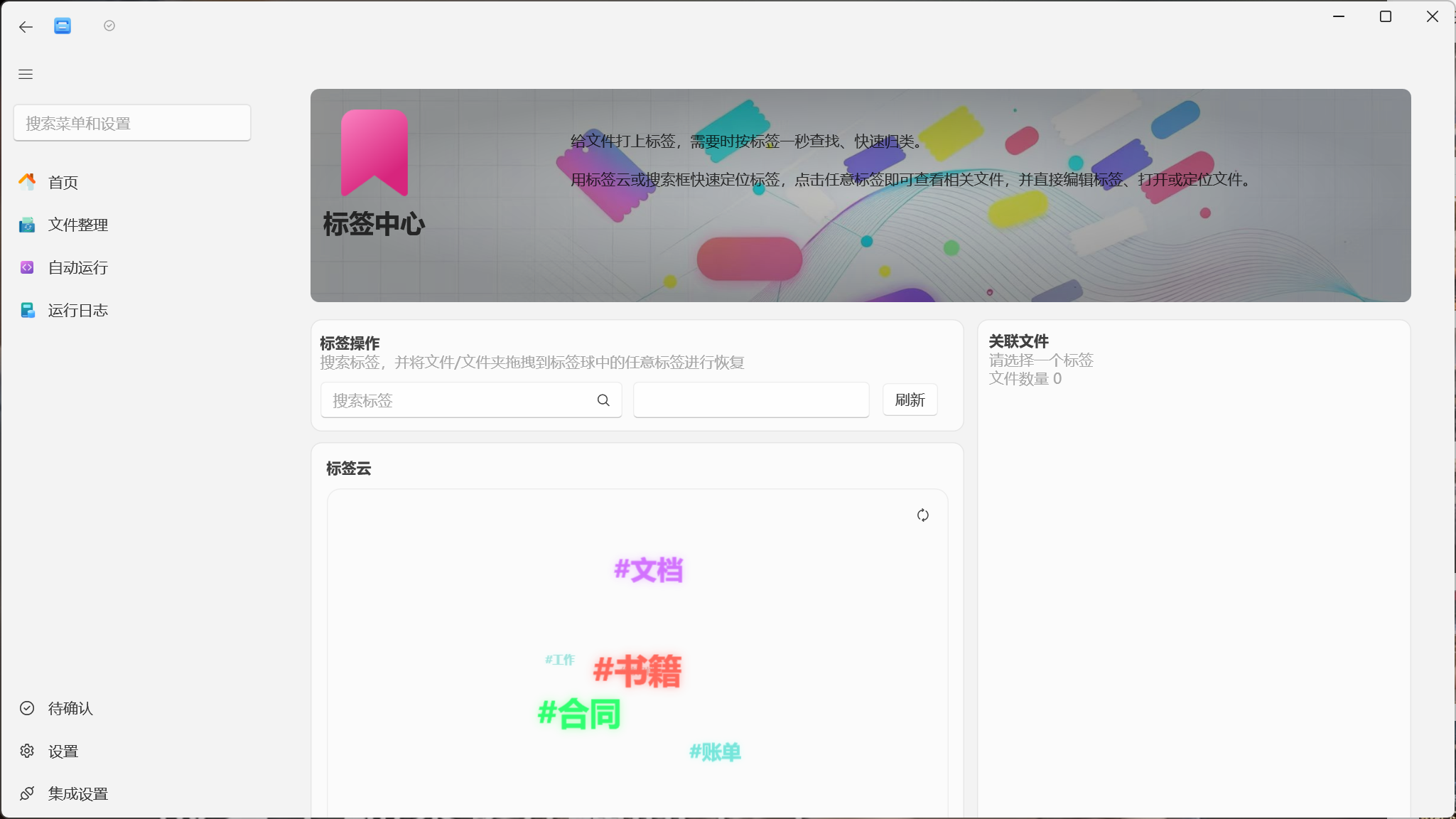
Tags let you annotate files and folders with classification information such as “Work,” “To Archive,” and “Important.” EasyTidy Pro can batch-add or remove tags through organization tasks, as well as view associated files by tag in the Tag Center, edit individual file tags, and restore file tags that are already saved in the tag database.
Adding Tags to Files
Section titled “Adding Tags to Files”Batch adding tags requires an organization task:
- Go to File Organization → Organization Tasks.
- Create a new task, or click Edit next to an existing task.
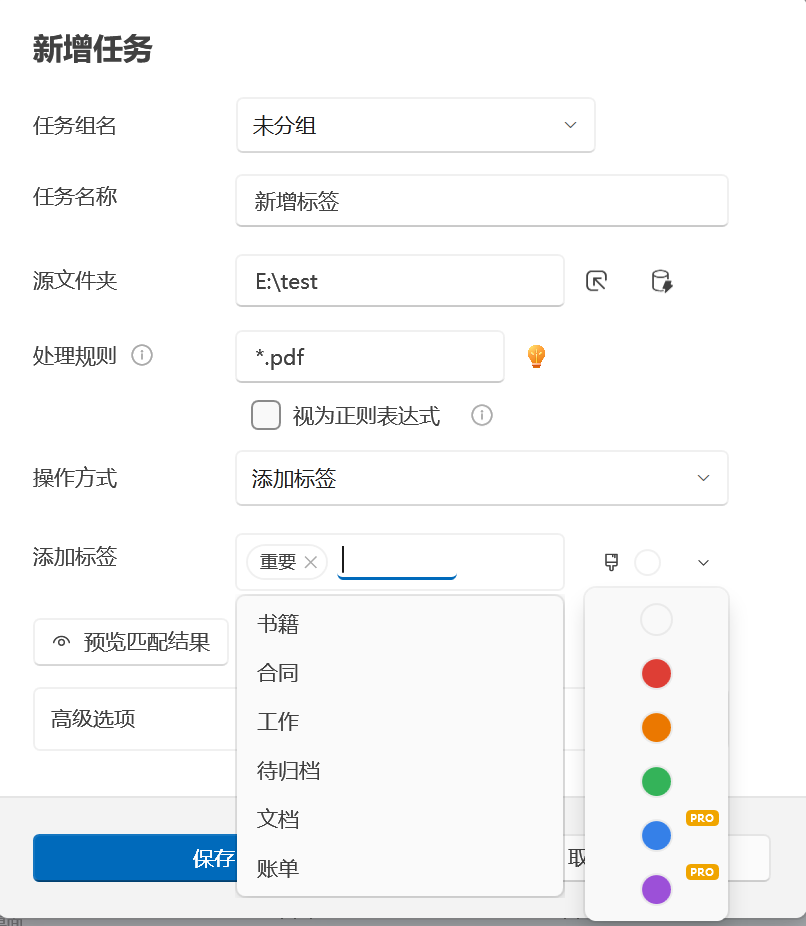
- Set the operation to Add Tags.
- Enter one or more tags. Confirm each tag as prompted by the interface; separate multiple tags with commas.
- Use the color buttons to choose a tag color, then configure file rules and source location.
- Save and run the task.
“Add Tags” uses an append strategy: existing file tags are preserved, new tags are deduplicated, and tags are not re-added due to case differences. When no new color is selected, the file’s existing tag color is kept; when a color is selected, it applies to the file’s current tag set.
The free edition can add tags to at most 20 files in a single operation; excess files are skipped with a notification. Pro users are not affected by this per-operation limit.
Tag Colors
Section titled “Tag Colors”Available colors include None, Red, Yellow, Green, Blue, and Purple:
- The free edition can use None, Red, Yellow, and Green.
- Blue and Purple display a PRO badge and require a Pro license.
- When old tasks or imported configurations have chosen restricted colors in the free edition, they fall back to None at runtime — the tag text is still retained.
For more on task creation, preview, and execution, see Organization Tasks.
Removing Tags
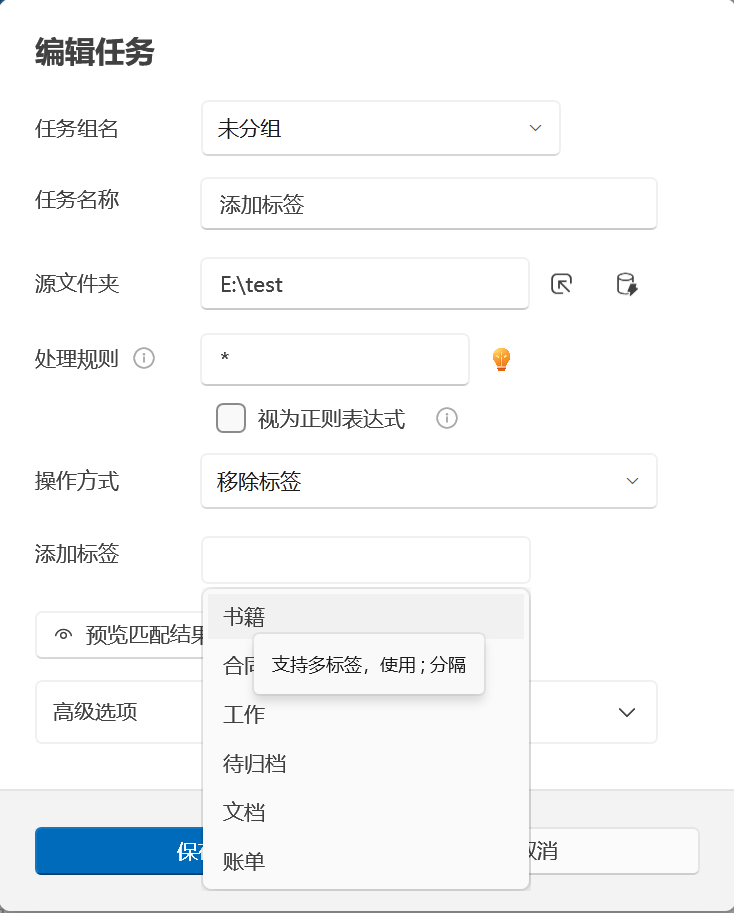
Section titled “Removing Tags”To batch-remove tags, set the organization task operation to Remove Tags:
- Select one or more existing tags: only those tags are removed; other tags and the original color remain.
- Select no tags: clears all tags from matched files, including the tag color.
- Selected tag not present on a file: that file is unchanged.
The remove tags input is for selecting existing tags only — no color picker is shown. Before clearing all tags, test with a small number of files to confirm the rules and source location.
Using the Tag Center
Section titled “Using the Tag Center”After entering Tag Center from the main navigation, the page loads tags and their associated files from the tag database.
Finding and Selecting Tags
Section titled “Finding and Selecting Tags”- Search Tags: Case-insensitive substring search on tag names. For example, entering “archive” finds “To Archive.”
- Tag Cloud: Tags are displayed in a rotatable tag cloud. Drag with the mouse to change rotation direction; clicking a tag focuses it and opens the associated file list.
- Tag Size: The more associated files a tag has, the larger it appears in the cloud; the exact count is shown in the associated file list after selection.
- Refresh: Reloads tags and associated files from the database.
Search results are sorted first by associated file count (descending), then by tag name when counts are equal.
Viewing Associated Files
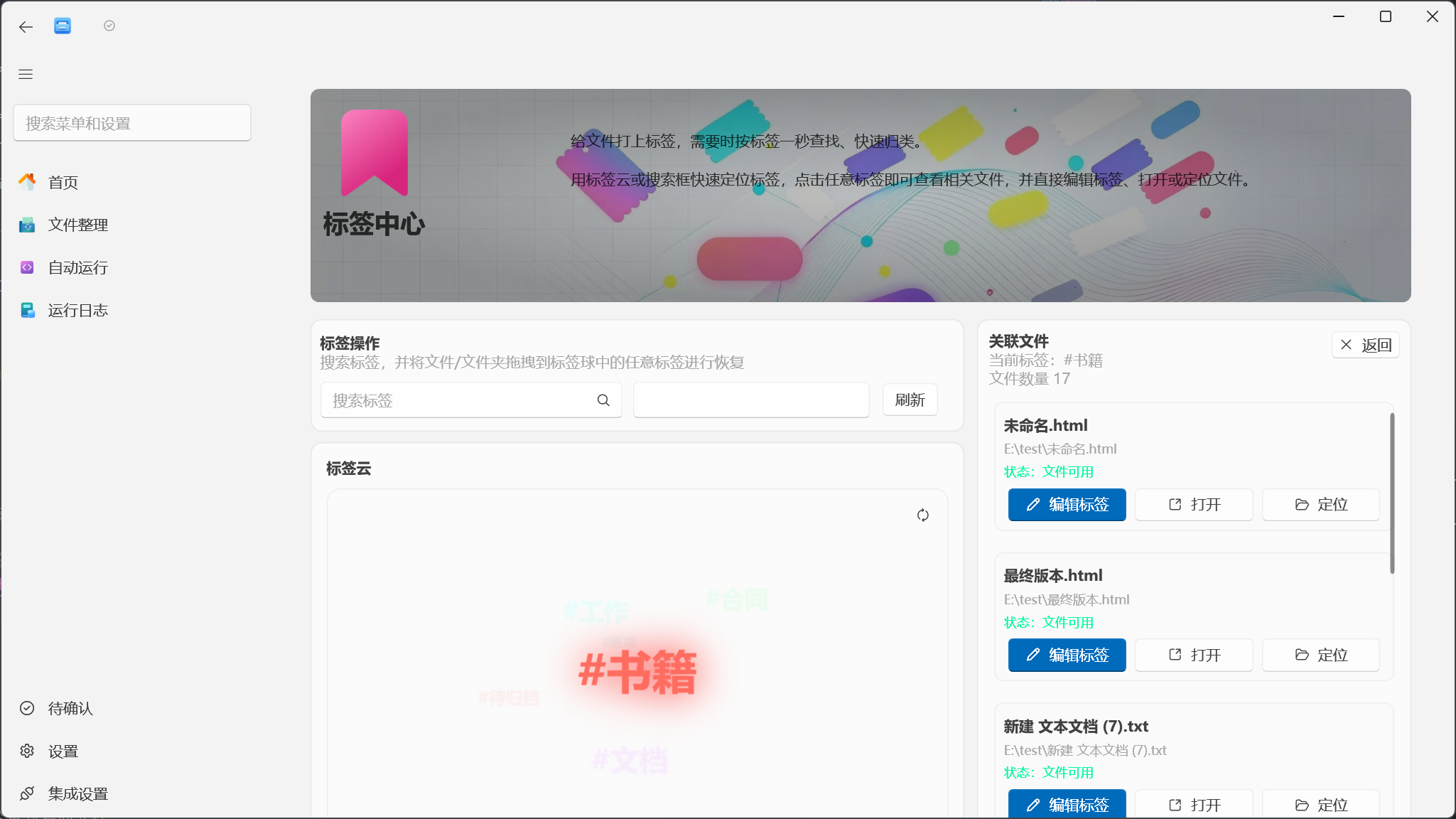
Section titled “Viewing Associated Files”After clicking a tag, the right panel shows the files and folders with that tag. You can continue filtering in the Filter Associated Files input by file name or path fragment — the search is case-insensitive.
Each associated item provides the following actions:
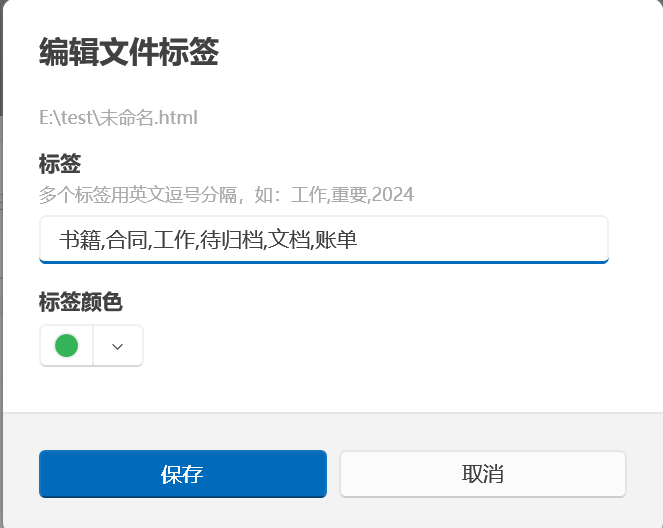
- Edit Tags: Modify the file’s full tag list and color.
- Open File: Open the file with its Windows default program.
- Locate File: Open the containing folder in File Explorer and select the file.
- Back: Exit the current tag’s focused view and return to the full tag cloud.
When the file associated with a record has been moved, renamed, or deleted, the list shows “Invalid path.” You can use the tag restore feature to write tags back to the existing file, or ignore the record after confirming the file no longer exists.
Editing Tags for a Single File
Section titled “Editing Tags for a Single File”After clicking Edit Tags:
- Modify the full tag list in the input field; separate multiple tags with commas.
- Choose a tag color for the file; select None if no color is needed.
- Click Save.
What you save here is a replacement, not an append: tags removed from the input are removed from the file, and newly entered tags are written to the file. Clearing the input and saving clears all tags from that file.
Restoring File Tags via Drag-and-Drop
Section titled “Restoring File Tags via Drag-and-Drop”The drag-and-drop feature in Tag Center is for restoring file tags, not for adding the current tag to files.
When a file’s tags still exist in EasyTidy Pro’s tag database but have been lost from NTFS alternate data streams or Windows file properties, you can:
- Drag a file or folder onto a tag node in the tag cloud.
- Folders are recursively scanned for existing files inside.
- EasyTidy Pro looks up records based on existing file identifiers and tag mappings, and attempts to write the original tags back to the files.
- After restoration, refresh the Tag Center and verify the associated files and tags are correct.
When file content changes, the file identifier may also change, and the original mapping may no longer match. Do not rely on matching file names to judge results — check the actual tags after restoration.

How Tags Are Stored
Section titled “How Tags Are Stored”EasyTidy Pro uses both the application database and the files’ own available metadata capabilities to persist tag relationships:
- Application Database: Stores the tag dictionary, file identifier → tag mappings — the basis for the Tag Center and tag restoration.
- NTFS Alternate Data Streams (ADS): On NTFS volumes, writes EasyTidy Pro tags and search text into the file or folder’s alternate data stream.
- Windows
System.KeywordsProperty: For file types with writable property handlers, attempts to sync to the Windows “Tags” property, making it visible in File Explorer’s “Tags” column andtags:/标签:search.
As a result, a tag saved in EasyTidy Pro does not guarantee it will appear in Windows File Explorer’s “Tags” column. File types lacking writable property handlers — such as TXT, ZIP, EXE — typically cannot be displayed in that column or found by tags: search, but can still be managed through the Tag Center, tasks, and database mappings in EasyTidy Pro.
Directories do not write Windows System.Keywords, but on NTFS they can still use EasyTidy Pro’s ADS and database mappings. Whether non-NTFS locations can retain in-file tags depends on the file type and target system — verify with test files.
Tag Sync (Pro)
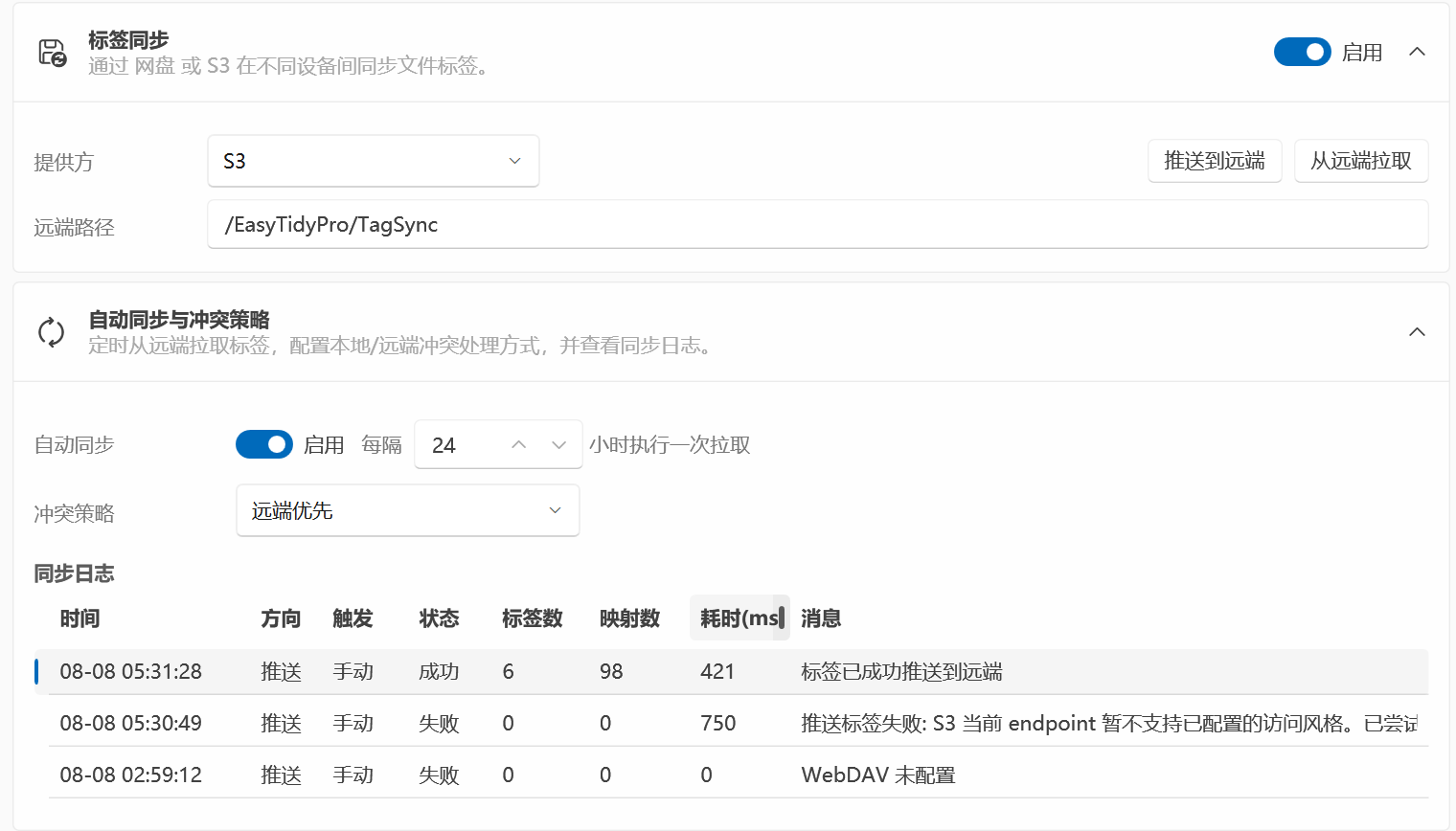
Section titled “Tag Sync (Pro)”Tag Sync synchronizes the tag dictionary and file-identifier-to-tag mappings across multiple devices via WebDAV or S3. It does not upload or download actual file content.
Before first use, go to Settings → General Settings → Tag Sync:
- First configure a usable WebDAV or S3 connection in Integration Settings.
- Enable Tag Sync, select the provider, and enter the remote path. The default path is
/EasyTidyPro/TagSync. - Based on where the current data resides, use Push to Remote or Pull from Remote for initial sync.
- Enable auto-sync if you need periodic remote tag pulls, and set an interval from 1 to 168 hours.
- Choose a conflict policy, then check the sync log for direction, trigger method, tag count, mapping count, duration, and error messages.
Conflict policy meanings:
| Strategy | Behavior |
|---|---|
| Remote Priority | For manual bidirectional sync, pull first then push; existing mapping conflicts use remote state and color |
| Local Priority | For manual bidirectional sync, push first then pull; existing local mappings are preserved during pull |
The Sync button at the top-right of the Tag Center performs a bidirectional sync; its dropdown menu opens sync settings. The remote data file is saved as tags-sync-v1.json.
After syncing, the other device still needs to have the corresponding files and use tag restoration to write the mappings back to files. Syncing tag mappings is not a substitute for file sync, nor for database backups.
For more complete details on General Settings, see General Settings.
Tag Center doesn’t show the tags I just added
Section titled “Tag Center doesn’t show the tags I just added”First confirm that the task actually processed files and check the execution results for permission errors, file count limits, or path issues. Then click Refresh. If the task rules didn’t match any files, the new tags were neither written to files nor created as association records.
Tags exist in EasyTidy Pro but not visible in File Explorer
Section titled “Tags exist in EasyTidy Pro but not visible in File Explorer”This usually means the file type doesn’t support writing Windows System.Keywords, or the file is on a non-NTFS drive, network drive, inside an archive, or in a cloud sync directory. Tags may still exist in the application database or ADS; trust the Tag Center display and refer to “How Tags Are Stored.”
Dragging onto a tag node didn’t add that tag
Section titled “Dragging onto a tag node didn’t add that tag”This is expected behavior. Drag-and-drop restores existing file tags from the database — it does not assign tags. To add new tags, create an “Add Tags” task or click Edit Tags in the associated file list.
File shows “Invalid path” after being moved
Section titled “File shows “Invalid path” after being moved”The tag database may still hold the old path record. Drag the existing file onto a tag cloud node to attempt restoration, then refresh; if the file content has changed or there is no historical mapping, re-edit the tags. You can also use Locate File to confirm whether the current record is still valid.
Tag sync failed
Section titled “Tag sync failed”Check the Pro license, tag sync toggle, WebDAV/S3 configuration, and remote path, and review the sync log for specific messages. For first-time sync, if the remote has no data file yet, push from the device with complete tag data first, then pull on other devices.
Can I recover tags after clearing them?
Section titled “Can I recover tags after clearing them?”Tag operations performed through organization tasks are included in the application’s supported undo flow, but recovery depends on whether undo records are still valid and whether file state has changed. Non-Pro users have temporary undo available only during the same application session, within 1 hour of the operation; Pro users also have persistent undo history. Undo is not a substitute for backups.
For complete tag task execution details, see Organization Tasks; execution failures can be reviewed in Running Logs.