Running Logs & Version Management
EasyTidy Pro’s “Running Logs” page provides two tools:
- Running Logs: View important events and errors during the current application session, and open on-disk logs archived by application version;
- Version Management: Works with the “Keep Version History” conflict policy to generate version records for local organization targets and restore entire target folders or individual files.
Version Management keeps snapshots of file changes at organization destinations — it is not about EasyTidy Pro software updates, task execution history, or general undo. Manage application updates in Settings → Updates, and see General Settings for regular file operation undo.
Opening Running Logs
Section titled “Opening Running Logs”You can enter through the following entry points:
- Select Running Logs in the main window’s left navigation bar;
- Use the Running Logs card on the home page;
- Use the in-app search to find “Running Logs.”
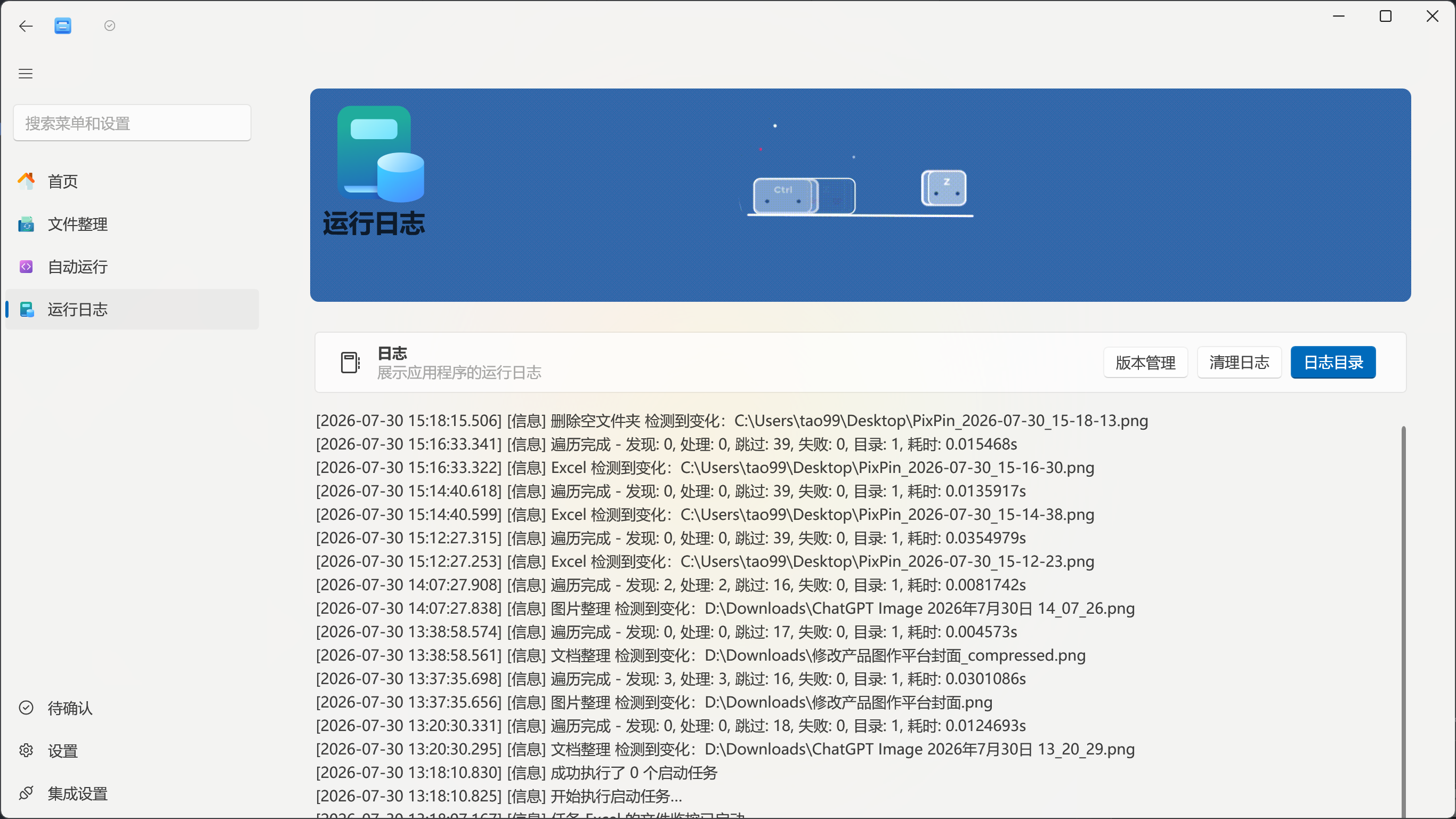
The page shows the real-time log list by default. The top area provides three actions: Version Management, Clear Logs, and Log Directory.
Viewing Real-Time Logs
Section titled “Viewing Real-Time Logs”Real-time logs are appended automatically while the application is running — no manual refresh is needed. Entries are listed in reverse chronological order, with the most recent at the top.
Each log entry typically contains:
[2026-07-14 10:30:25.123] [INFORMATION] Log message text| Part | Description |
|---|---|
| Timestamp | Local date and time of the event, with millisecond precision |
| Level | Severity such as INFORMATION, WARNING, ERROR, FATAL |
| Message | Content recorded from tasks, schedulers, storage, AI, file operations, or startup process |
The real-time list is primarily for quickly assessing what just happened. To prevent excessive memory usage during long-running sessions, the interface keeps approximately 600 entries at most, removing older content in batches as this limit is exceeded.
Common Log Levels
Section titled “Common Log Levels”| Level | Purpose |
|---|---|
Trace |
Finest-grained execution details, typically only used for deep troubleshooting |
Debug |
Diagnostic information such as internal steps, path resolution, and service status |
Info |
Normal startup, task triggers, configuration changes, and completion status |
Warn |
Operation can continue, but there are omissions, skips, or potential anomalies |
Error |
Current operation failed; other features may still continue |
Fatal |
Critical error; the application may not be able to continue normal operation |
Adjusting the Log Level
Section titled “Adjusting the Log Level”Go to Settings → General Settings → Log Settings:
- Enable Debug Mode;
- Select the minimum level needed under Log Level;
- Reproduce the issue you need to diagnose;
- Disable Debug Mode when done.
The log level change takes effect immediately and persists across restarts. Disabling Debug Mode resets the level to Info.
Keep the level at Info for everyday use. Trace and Debug produce more content and may include file paths, version management locations, task names, and error context — do not leave them enabled long-term or share them publicly.
Opening On-Disk Logs
Section titled “Opening On-Disk Logs”Click Log Directory to open the current version’s log folder in File Explorer.
The default structure is located under the EasyTidy Pro program directory:
EasyTidyPro\└── Logs\ ├── 2.0.0.0\ │ ├── log-20260713.txt │ └── log-20260714.txt └── 2.1.0.0\ └── log-20260714.txt- Each assembly version gets its own directory; logs from older versions remain in their original directories after an upgrade;
- Logs are written per date as
log-YYYYMMDD.txt; - Files use UTF-8 encoding and can be opened with Notepad, Visual Studio Code, or other text editors;
- On-disk logs include debug and framework entries not visible in the UI, making them more suitable for full troubleshooting.
The version directories here refer to EasyTidy Pro application versions — not the same concept as the file version records managed on this page.
Clearing Logs
Section titled “Clearing Logs”After clicking Clear Logs, the application scans the various version directories under Logs:
- Keeps logs from the most recent 7 calendar days;
- Deletes older
log-*.txtfiles that are not currently locked; - Skips files currently being written to or locked by other programs;
- Removes version directories that no longer contain any files;
- Clears the real-time log list on the current page.
Today’s actively writing log is preserved; the cleanup operation does not stop logging. There is no second confirmation dialog, so copy logs you want to keep long-term to another location first.
Recommended Troubleshooting Flow
Section titled “Recommended Troubleshooting Flow”- Note the approximate time the issue occurred, the related task, and the files involved.
- Check the latest
WarningorErrorentries on the Running Logs page. - If information is insufficient, enable Debug Mode in General Settings and select
Debug. - Re-run an operation that reliably reproduces the issue.
- Click Log Directory and open the current version’s log file for today.
- Locate the relevant entries by timestamp, mask sensitive data, then provide to support.
Do not repeatedly execute tasks that may delete, overwrite, or move important files just to generate logs. Instead, copy a few test files or use task preview to verify rules.
Enabling Version Management
Section titled “Enabling Version Management”Version records are not generated by default. You must first go to Settings → General Settings → File Handling → Conflict Handling and set the global conflict policy to Keep Version History. This setting applies to subsequently executed local organization tasks; if you choose Skip, Overwrite, Conditional Overwrite, or Auto Rename, EasyTidy Pro does not automatically create version records for organization results.
- Open Settings → General Settings;
- Find Conflict Handling under the File Handling section;
- Change the dropdown to Keep Version History;
- Return to your organization tasks and execute them — the app enables internal versioning for the destination directory and automatically saves a version whenever files change.
The application tracks additions, modifications, and deletions in the destination folder. Empty versions are not generated when no actual changes occur. Changes in the destination folder that are unrelated to the organization task may also be recorded; it is recommended to use a dedicated destination folder for organization results that need version management.
Switching to Version Management
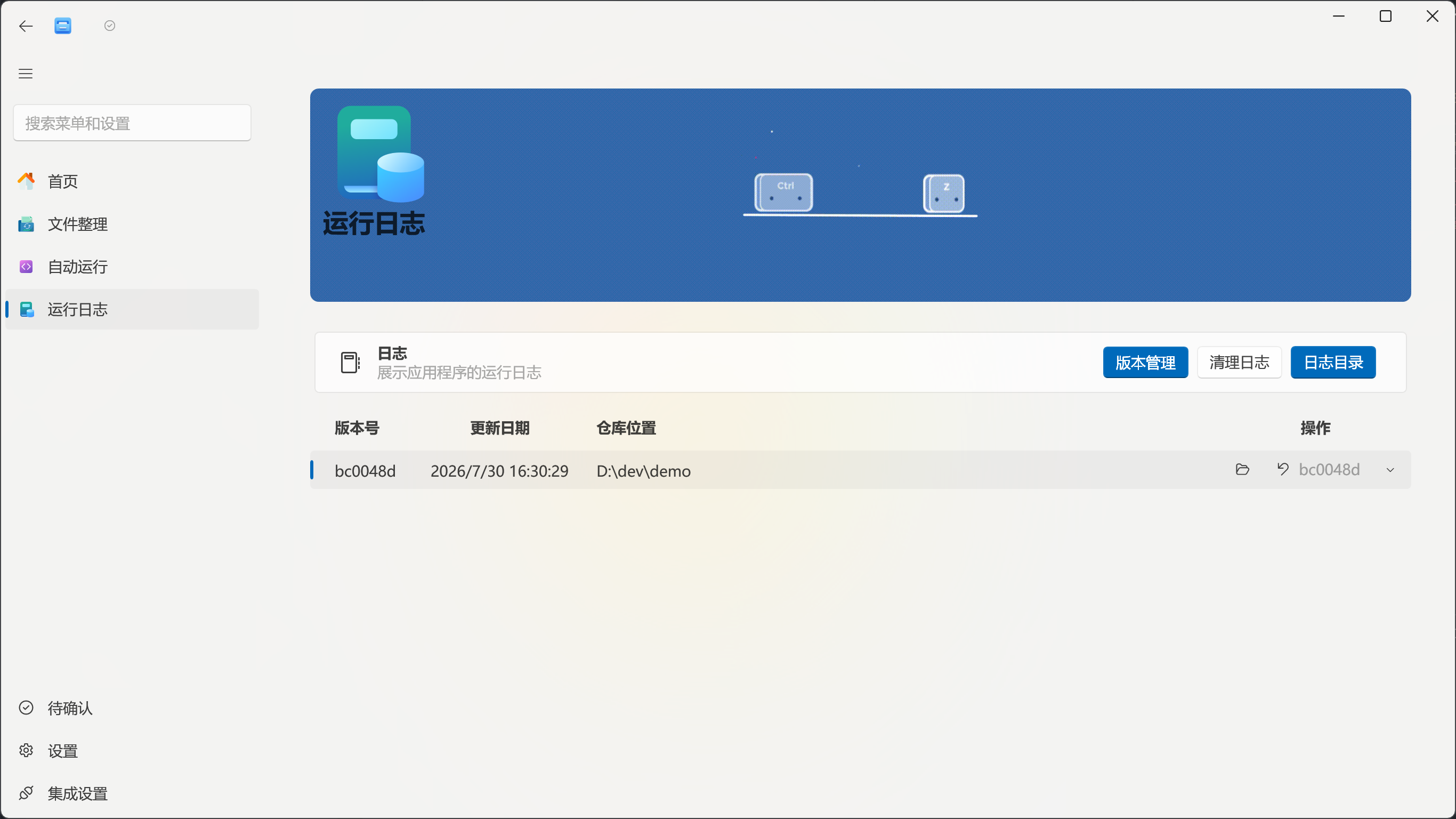
Section titled “Switching to Version Management”Click Version Management at the top of the page to switch the log list to the version records table. Click the same button again to return to the Running Logs view.
Version management only checks destination paths configured in organization tasks. After selecting “Keep Version History” and successfully executing at least one task that produces file changes, the destination folder appears with viewable versions. Network addresses, inaccessible directories, and destinations that have not yet generated version records are not shown.

Version List
Section titled “Version List”| Column | Description |
|---|---|
| Version Number | A short identifier for distinguishing versions |
| Update Date | The local time when this version was last saved |
| Repository Location | The destination location for this version record; “repository” here means a version-managed destination folder |
| Actions | Browse file versions in the destination folder, or select a version and perform a full rollback |
The version menu typically lists the most recent 5 records and selects the latest version by default. If the list does not update after a task generates its first version, leave the Running Logs page and re-enter.
Rolling Back an Entire Repository
Section titled “Rolling Back an Entire Repository”- Click the dropdown area of the Rollback Entire Repository button to the right of the target entry;
- Select the target record from recent versions;
- Click the main button body;
- Check the version number and timestamp in the confirmation dialog, then confirm.
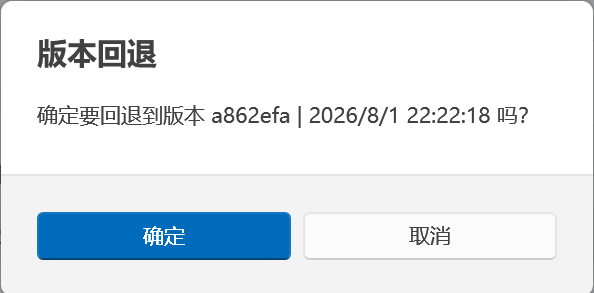
Rollback Entire Repository switches the internal version state to the selected record but preserves the current file contents on disk and any changes not yet saved as a version. It does not forcibly replace all files in the destination folder with old content.
If you only need to restore a specific file to old content, use the individual file restore feature below. When you need to fully replace multiple current files, make an external backup first, then verify the content to restore one by one.
Restoring Individual Files
Section titled “Restoring Individual Files”Click Browse Repository Files on the target entry to open the File Versions window.
This window only lists files that have saved versions and whose historical content can still be found. Each file typically provides versions corresponding to its most recent 5 content changes.
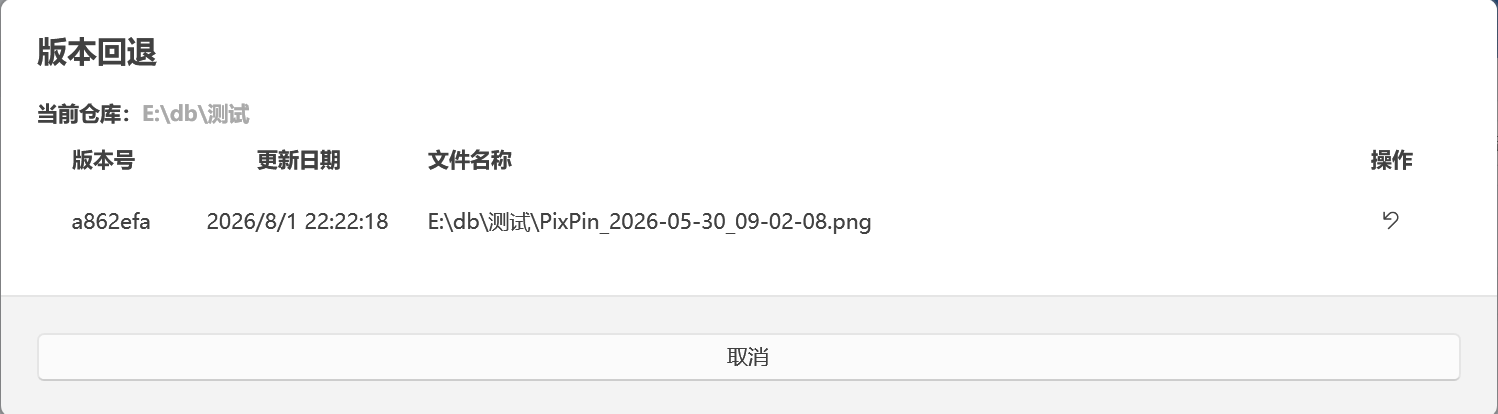
Restore steps:
- Expand the version dropdown menu to the right of the target file;
- Select the version you want to restore;
- Click Restore File to This Version;
- The application reads that version’s file content and overwrites the current file;
- On success, a file restore notification appears and the file version list refreshes.
Individual file restore directly overwrites the current file on disk and does not show the confirmation dialog that full rollback uses. After restoration, the application treats it as a new file change; unless the content is identical to the current version, it can be saved as a new version afterward.
Files that have never saved a version, files no longer within the current record scope, and files with no content change across recent versions do not appear in the list.
Version Management FAQ
Section titled “Version Management FAQ”Destination folder not showing, or no new version after execution
Section titled “Destination folder not showing, or no new version after execution”If the destination folder does not appear, confirm that the path has been saved as an organization task’s destination path, the directory currently exists and is accessible, and the task has successfully generated at least one version. After modifying a task or generating the first version, leave and re-enter the Running Logs page.
If the destination folder appears but no new version is generated after task execution, confirm that Settings → General Settings → File Handling → Conflict Handling was set to Keep Version History before executing. Other conflict policies do not automatically save versions; no empty record is created when the destination folder has no actual changes.
Repository location shows a network address
Section titled “Repository location shows a network address”When targets were previously associated with a network address, the interface may show it first. EasyTidy Pro’s restore operations still target the destination folder on the local machine and do not directly modify files on the network.
Files didn’t revert to old content after rolling back the entire repository
Section titled “Files didn’t revert to old content after rolling back the entire repository”This is the button’s expected behavior: it switches the overall version state but preserves the current file contents on disk. To revert a specific file to old content, use Restore File to This Version in the individual file version window.
Want to undo an individual file restore
Section titled “Want to undo an individual file restore”If the file’s original content was not saved as a version or separately backed up, EasyTidy Pro cannot guarantee recovery of the overwritten content. Before restoring important files, save the current version first or copy the original file.
Log FAQ
Section titled “Log FAQ”Debug logs don’t appear on the page
Section titled “Debug logs don’t appear on the page”The real-time page only shows Info and above. After enabling Debug Mode, Debug and Trace are primarily written to on-disk logs — click Log Directory to view them.
Log directory is empty or cannot be opened
Section titled “Log directory is empty or cannot be opened”The log directory is located under the application directory. If the application’s location is not writable, log creation may fail; moving a portable copy or changing permissions can also affect access. It is recommended to place the application in an independent directory writable by the current user; check Windows permissions and security software block logs if needed.
Old logs still remain after clearing
Section titled “Old logs still remain after clearing”Logs from the most recent 7 days are retained; files currently in use are also skipped. Close the text editor holding the logs and try clearing again, but today’s file that the application is actively writing cannot be deleted.
No errors appear in the UI after an application crash
Section titled “No errors appear in the UI after an application crash”UI logs depend on the application still being able to update the interface. Startup failures, framework logs, and the last entries before a crash may only exist in on-disk logs. Check the day’s log file directly in the corresponding application version directory.