Cloud Storage
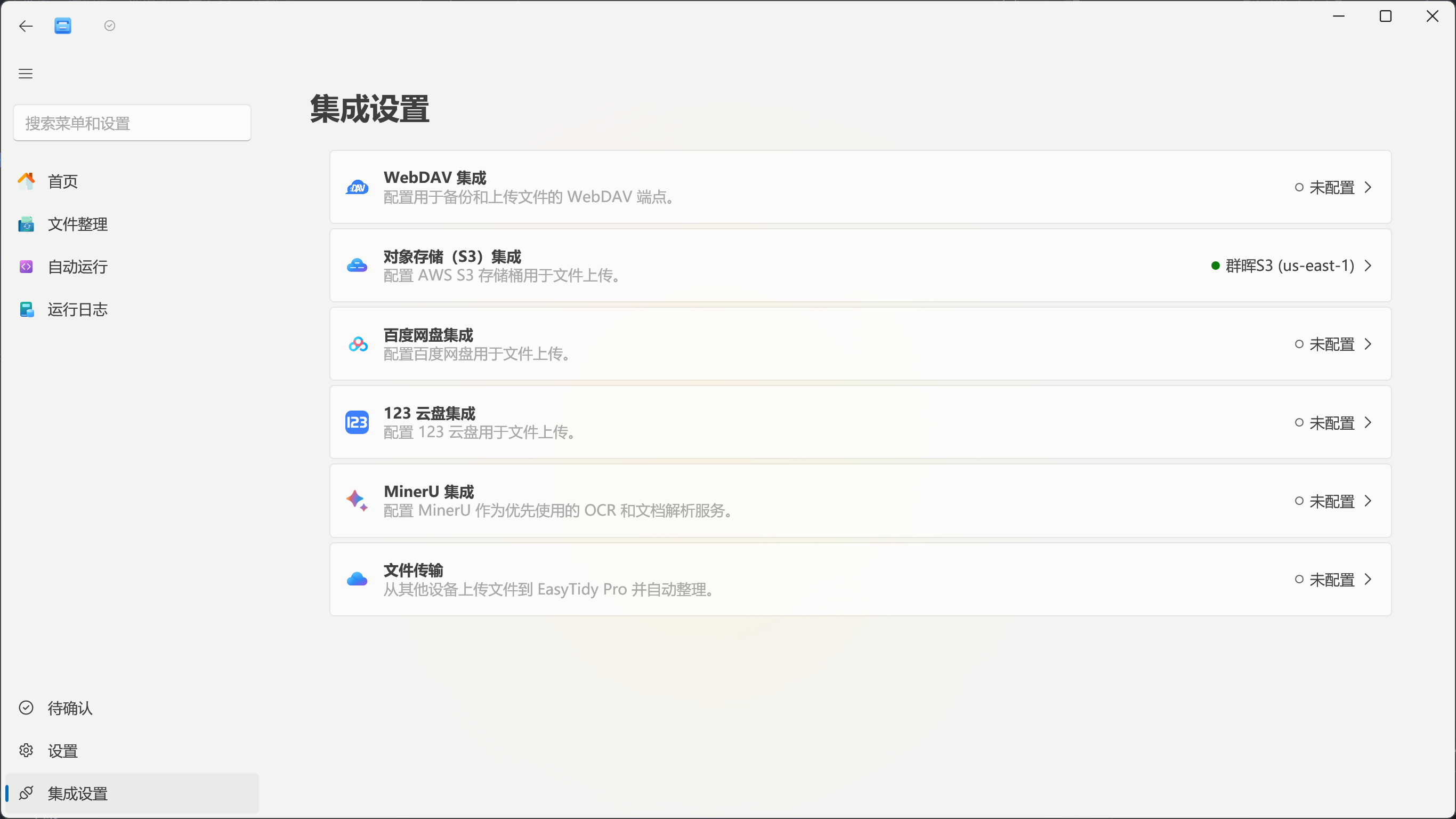
EasyTidy Pro can use cloud storage as a destination or source for organization tasks, and some storage services can also be mounted as Windows drive letters. All entries are located on the Integrations page; once configured, choose Cloud Storage Transfer when creating or editing a rule.
Supported Services
Section titled “Supported Services”| Type | Upload / Retrieve | Multiple Configs | Drive Mount | App Backup |
|---|---|---|---|---|
| WebDAV | Yes | Yes | Yes | Yes |
| S3-Compatible | Yes | Yes | Yes | No |
| Baidu Netdisk | Yes | Yes | No | No |
| 123 Cloud | Yes | Yes | Not yet | No |
WebDAV
Section titled “WebDAV”WebDAV serves two purposes:
- File organization uploads: Add multiple accounts, set aliases and a default account, and optionally mount as a drive letter.
- App backup: Configure a separate backup endpoint for manual/automatic backup and restore.
When adding a file organization account, fill in the server URL, port, username, password, and remote path. The URL must start with http:// or https://; the remote path should use a root-relative path such as /EasyTidyPro_UploadFiles.
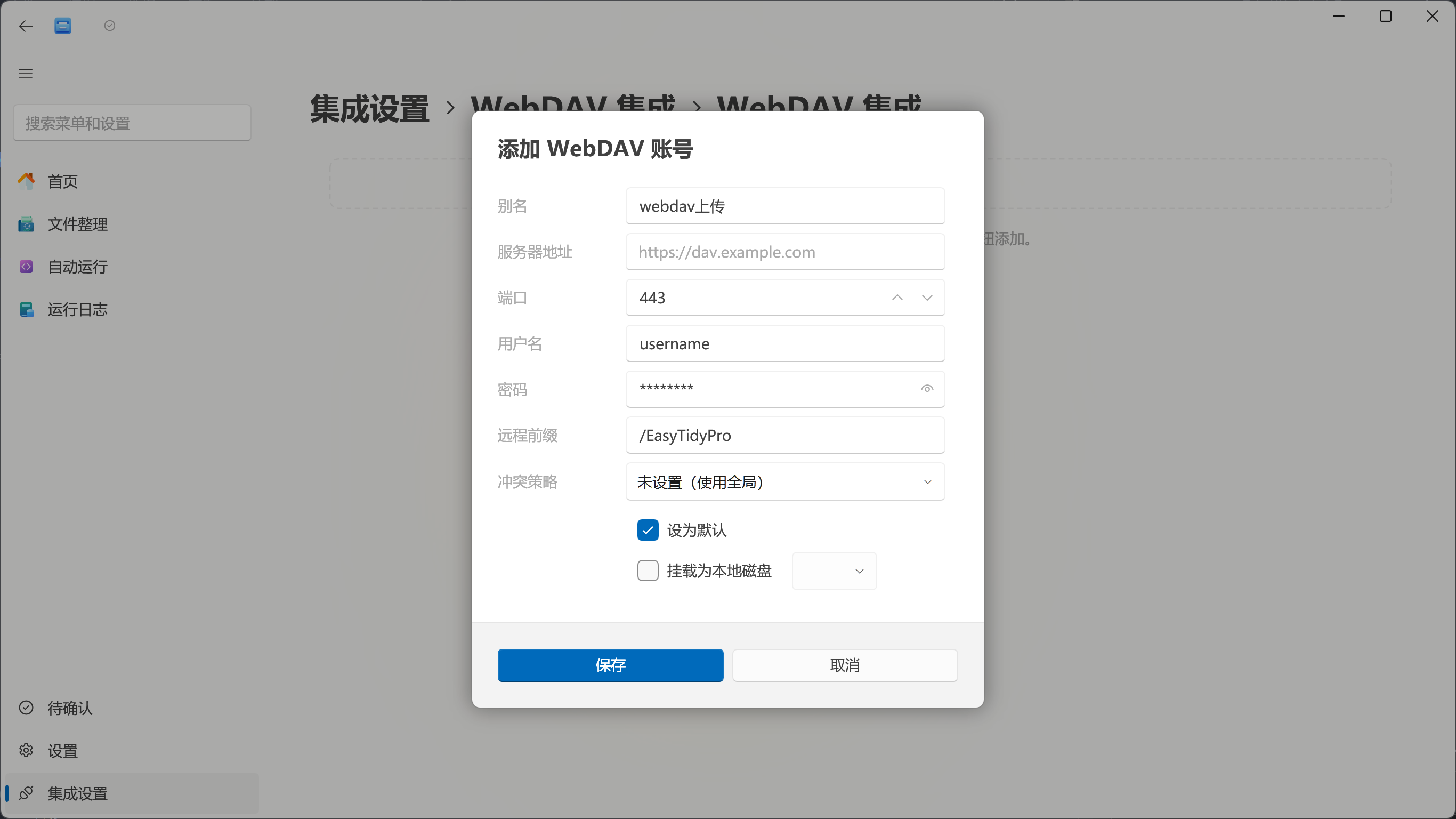
Even if the same service is used for both organization uploads and app backups, it is still recommended to use different remote directories for each purpose to avoid mixing regular files with backup archives.
WebDAV App Backup
Section titled “WebDAV App Backup”- Configure the account and remote path under Integrations → WebDAV → App Backup.
- Go to Settings → General → Backup Settings and select WebDAV.
- Run a backup immediately, or enable automatic backup with a custom interval and retention limit.
- When restoring, the app lists available backups on the remote by time; select a version and proceed.

Restoring overwrites the current application data. Consider creating a local backup first, and confirm the source and timestamp of the remote backup.
S3-Compatible Storage
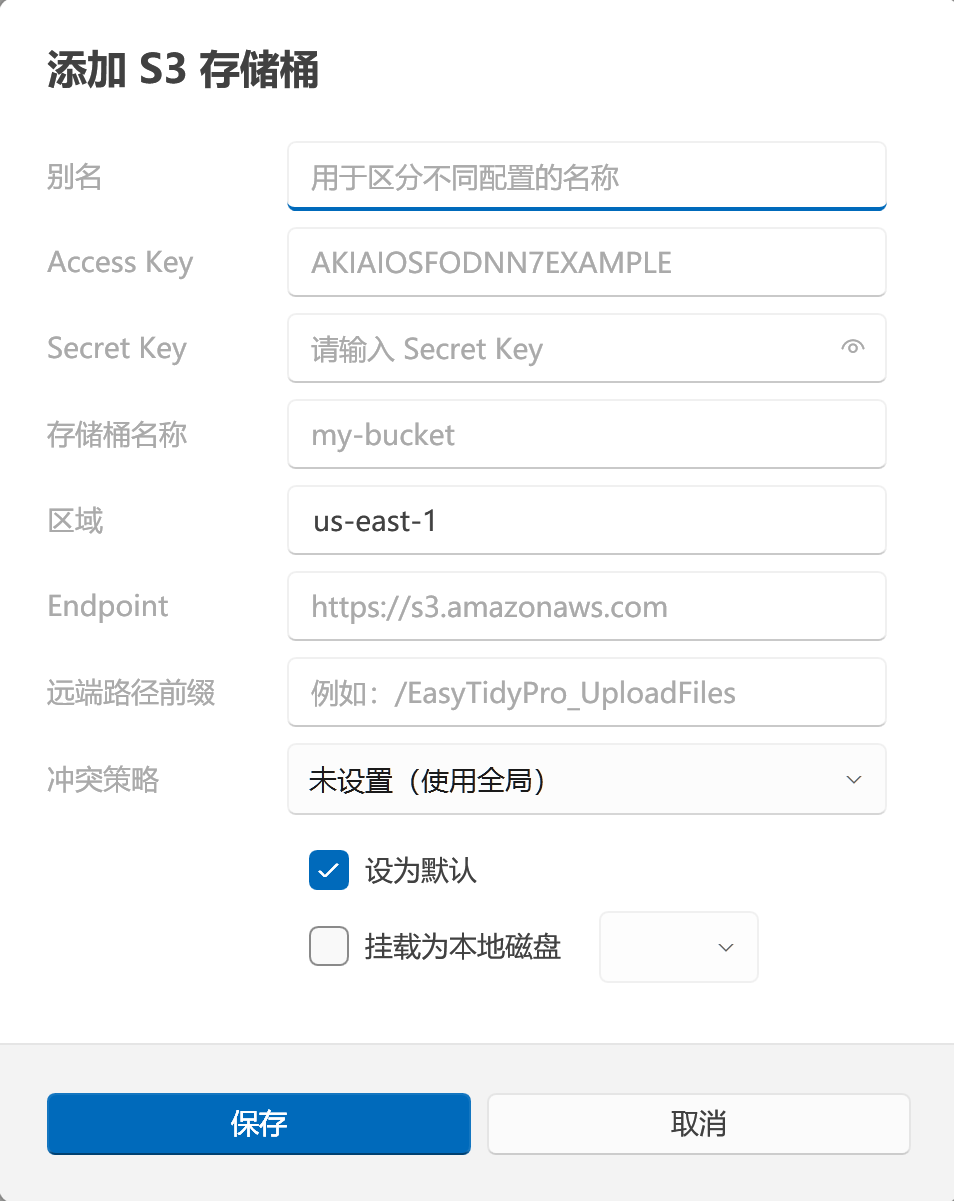
Section titled “S3-Compatible Storage”S3 integration supports multiple bucket configurations with a default selection. The following service types are currently available:
- Generic S3-compatible services, such as AWS S3;
- Qiniu Cloud Storage;
- Tencent Cloud COS;
- Self-hosted S3-compatible services, such as OpenList, MinIO, and Garage.
Typical required fields:
- Access Key / Secret Key: Credentials provided by your storage service;
- Bucket: Bucket name;
- Region: Defaults to
us-east-1when the provider has no specific requirement; - Endpoint: The S3 API address for third-party or self-hosted services; can usually be left blank for AWS S3;
- Path Prefix: The target directory within the bucket.
Use the S3 API endpoint, not the object storage console URL or a public download domain. It is recommended to grant credentials only the list, read, write, and delete permissions needed for the target bucket.
Baidu Netdisk
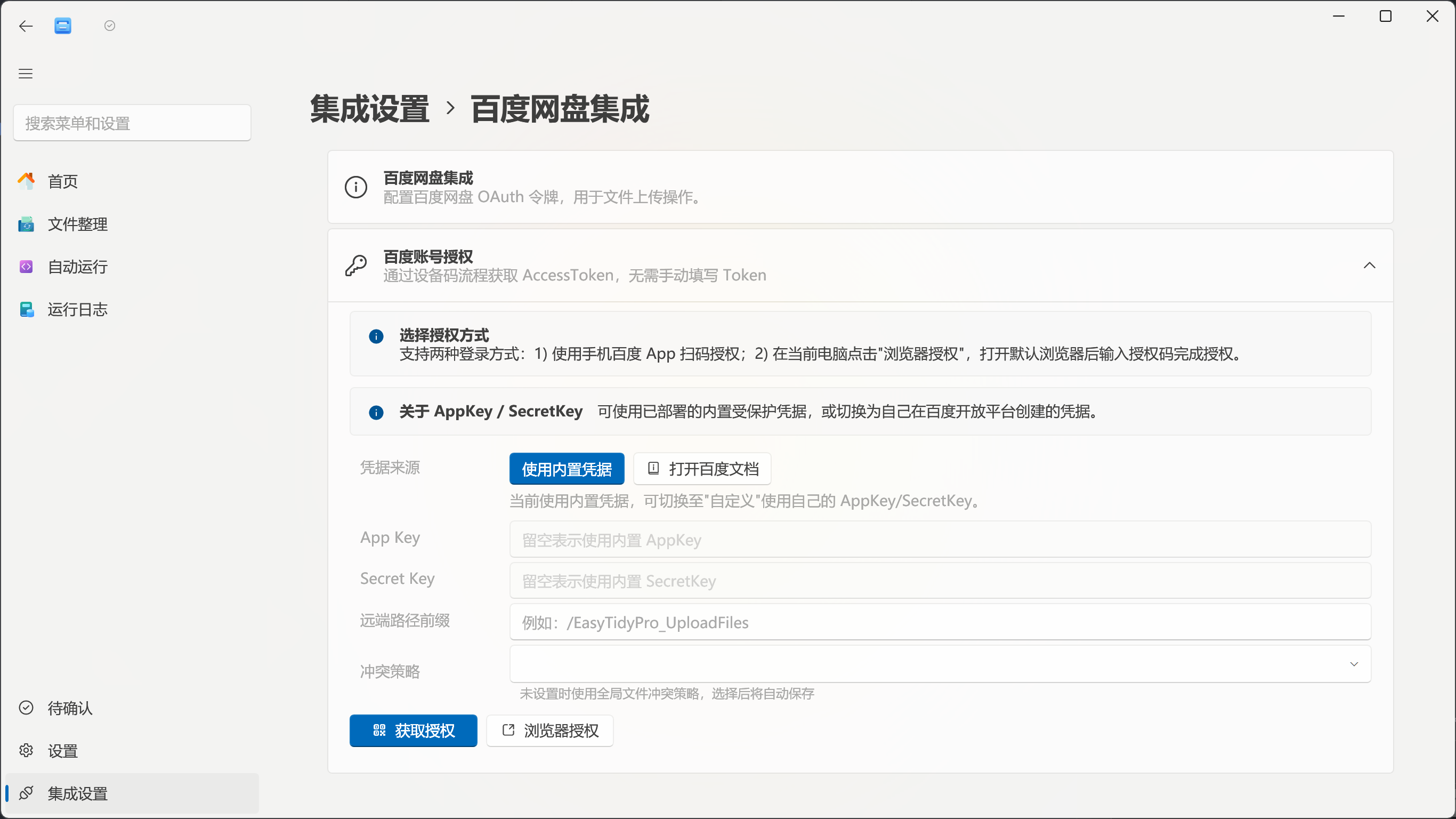
Section titled “Baidu Netdisk”Baidu Netdisk integration uses Open Platform application credentials and account authorization. You can save multiple configurations and designate a default account. When configuring, prepare your App Key and Secret Key, then follow the on-screen prompts to complete account authorization; the path prefix specifies the target location under the application directory.
Authorization tokens may expire or be revoked. If authentication fails, return to the Integrations page to re-authorize before testing the task.
123 Cloud
Section titled “123 Cloud”Configuration steps:
- Create an application on the 123 Cloud Open Platform and enable the required API permissions.
- Open Integrations → 123 Cloud and add a new configuration.
- Fill in the alias,
Client ID,Client Secret, and path prefix. - Choose a file conflict policy and save; if you have multiple accounts, you can designate a default.
- Create an organization rule and select Cloud Storage Transfer → 123 Cloud, then pick the corresponding configuration.
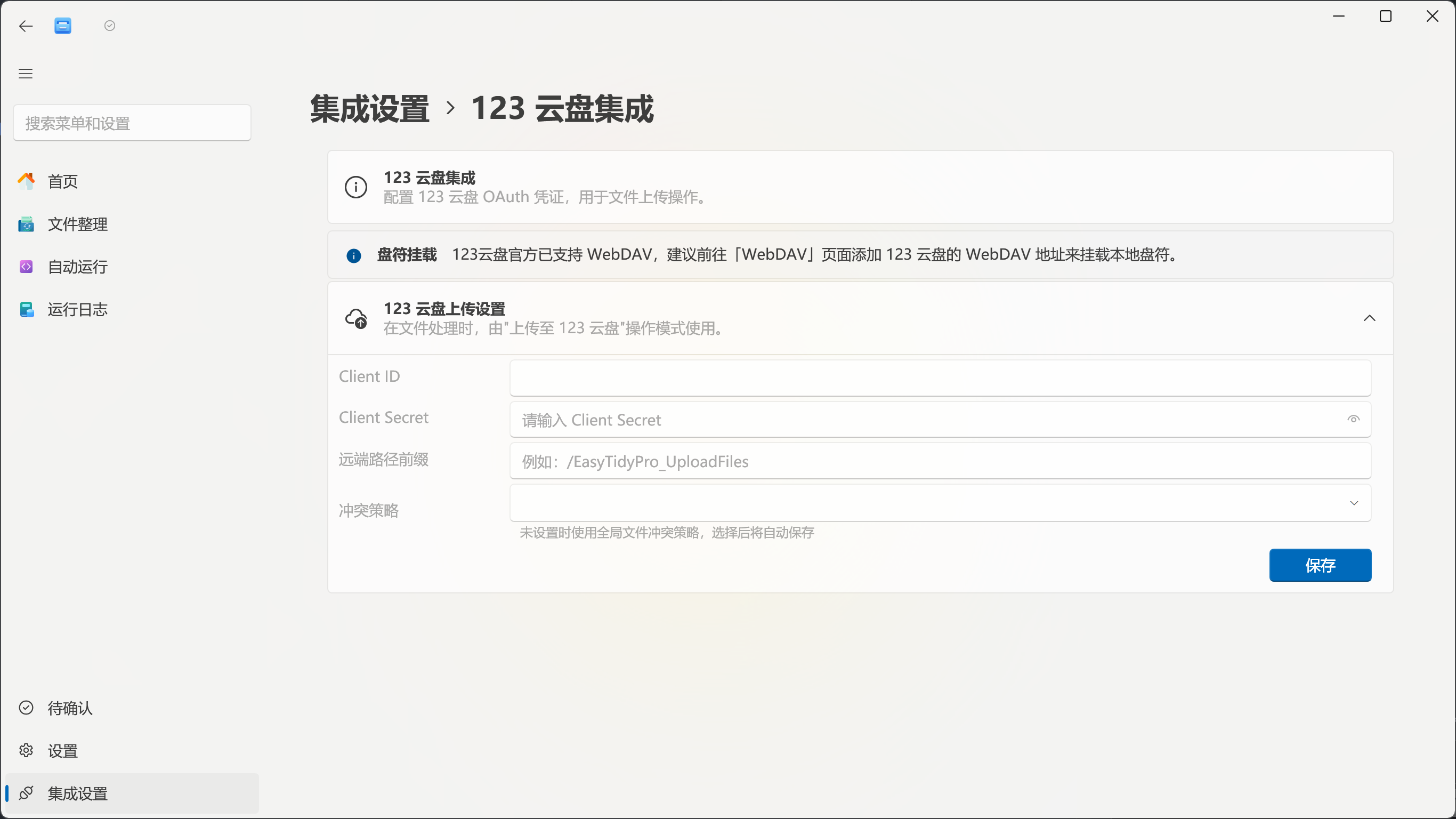
When the path prefix is empty, the app uses the default directory /EasyTidyPro_UploadFiles. 123 Cloud currently cannot be mounted as a Windows drive letter, pending official WebDAV support.
Do not expose your Client Secret in feedback, screenshots, or logs. If a credential has been leaked, reset it immediately on the Open Platform.
Using Cloud Storage in Organization Tasks
Section titled “Using Cloud Storage in Organization Tasks”- First complete at least one cloud storage configuration on the Integrations page.
- Create or edit an organization rule and set the operation to Cloud Storage Transfer.
- Choose upload or retrieve, the storage type, and the specific configuration.
- Optionally fill in a task-level path prefix. This path is combined with the base path from the integration configuration.
- After saving, test with a small number of files first to confirm the directory structure and conflict handling behave as expected.
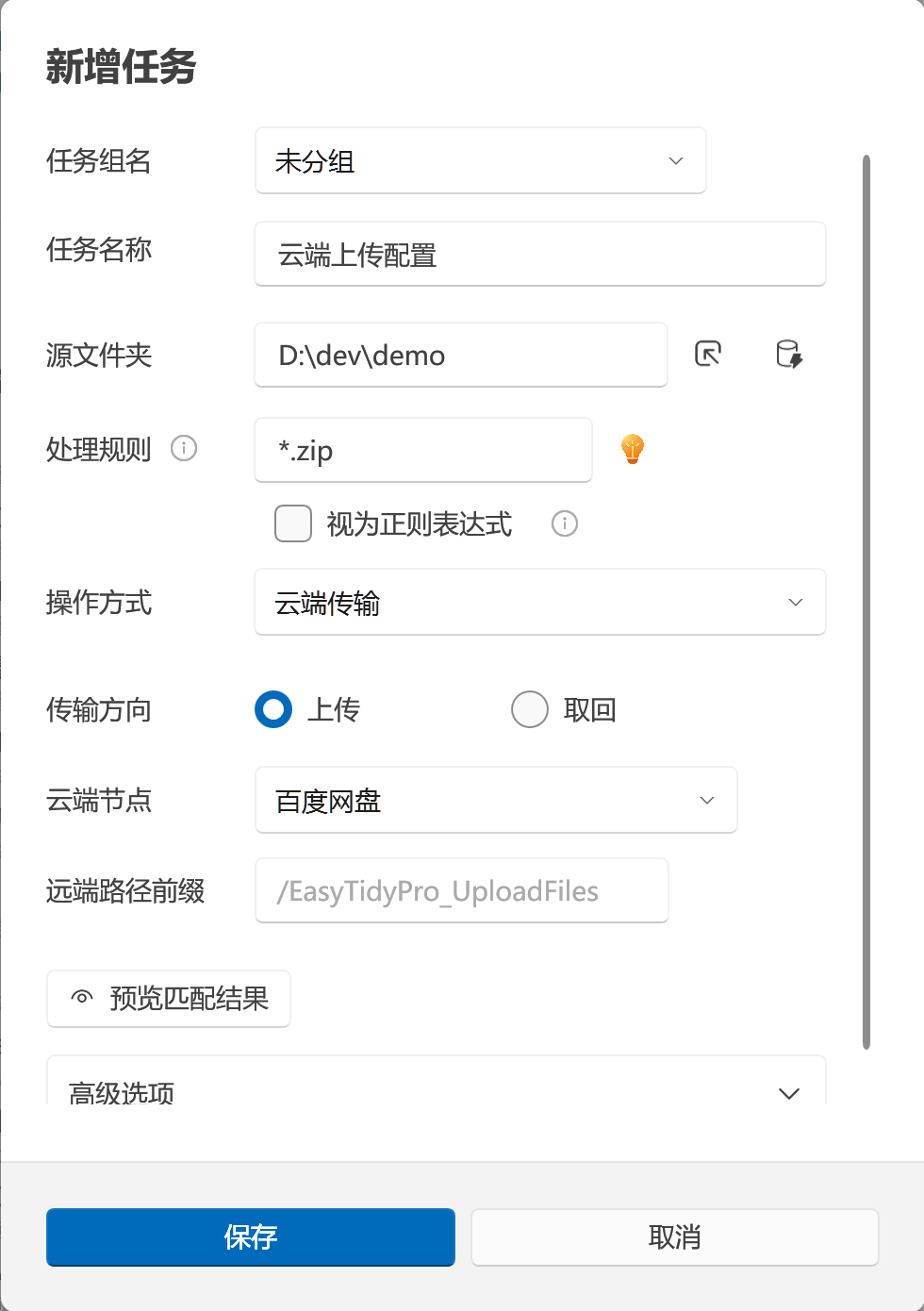
When multiple configurations of the same type exist, the rule records the selected one; the default is used when no explicit selection is made. If a configuration referenced by a rule is deleted, you should re-edit the affected rules.
File Conflicts
Section titled “File Conflicts”Each integration can set how to handle duplicate file names; when not set individually, the application’s global file conflict policy applies. Before running in production, test the overwrite, skip, or rename behavior with sample files that share names — especially for automatically executed rules.
Drive Mounting
Section titled “Drive Mounting”WebDAV and S3 configurations can be mounted as Windows drive letters. On first use, the app prepares the rclone and WinFsp runtime environment; once ready, select an unused drive letter.

- Mounting depends on network connectivity; cloud file response times are generally lower than local disk.
- Mounts use local caching; you can view or clear the cache on the Integrations page.
- Enable “Auto-mount drives on startup” in Settings.
- Mounting fails when the drive letter is already in use, WinFsp is not correctly installed, or credentials are invalid.
Connected successfully but cannot upload
Section titled “Connected successfully but cannot upload”Verify that the remote path is writable, the account has permission to create directories and upload files, and the server-side quota is sufficient. For S3, also confirm that the Bucket, Region, and Endpoint are mutually consistent.
Getting 401, 403, or authentication failures
Section titled “Getting 401, 403, or authentication failures”Re-check your access credentials. For Baidu Netdisk, try re-authorizing. For 123 Cloud, confirm that the Client ID and Client Secret belong to the same valid application and that the application has the required permissions.
Files end up in an unexpected directory
Section titled “Files end up in an unexpected directory”Check the path prefix in both the integration configuration and the organization rule. It is recommended to consistently use the /directory-name format and avoid writing server addresses or bucket names into the path prefix.
WebDAV restore list is empty
Section titled “WebDAV restore list is empty”Confirm that the current configuration uses the same server and remote directory as when the backup was created, and that the account has permission to list and download files from that directory.